
Setting up heart rate zone alerts on a fitness watch helps optimize workouts by notifying users when they enter or exit target training zones. This step-by-step guide covers the complete process for configuring these alerts on popular fitness watches, ensuring accurate monitoring during exercise sessions.
Key Takeaways
- Heart rate zone alerts notify users when they exceed or drop below specific training zones
- Most fitness watches require initial heart rate zone configuration before setting alerts
- Custom zones provide more accurate training feedback than default age-based calculations
- Alert settings vary by brand but follow similar setup principles across devices
- Testing alerts during a warm-up ensures proper functionality before intense workouts
Understanding Heart Rate Zones Before Setup
Heart rate zones represent different intensity levels during exercise, typically divided into five categories ranging from light activity to maximum effort. Most fitness watches calculate these zones automatically based on maximum heart rate, which is traditionally estimated using the formula 220 minus age. However, custom zones based on actual fitness testing provide superior accuracy for training purposes.
The five standard zones include Zone 1 (50-60% max heart rate) for warm-up and recovery, Zone 2 (60-70%) for base fitness building, Zone 3 (70-80%) for aerobic development, Zone 4 (80-90%) for threshold training, and Zone 5 (90-100%) for maximum effort intervals. Understanding these ranges makes the alert configuration process more purposeful and effective.
Method 1: Setting Up Alerts on Garmin Watches
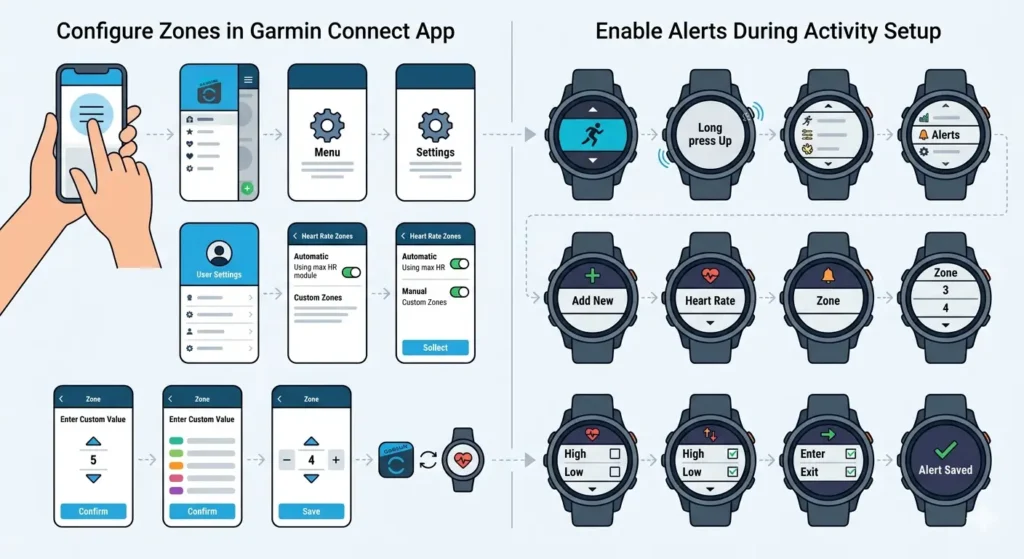
Garmin fitness watches offer comprehensive heart rate zone alert options through both the watch interface and the Garmin Connect app. The process differs slightly depending on the specific model, but the core steps remain consistent across the product line.
Configure Zones in Garmin Connect App
- Step 1: Open the Garmin Connect app and tap the menu icon in the top-left corner
- Step 2: Select ‘Settings’ followed by ‘User Settings’
- Step 3: Tap ‘Heart Rate Zones’ and choose between automatic zones based on max HR or manual custom zones
- Step 4: Enter custom values for each zone if using manual configuration, or confirm the automatically calculated zones
- Step 5: Save the zone settings and sync the watch to apply changes
Enable Alerts During Activity Setup
- Step 1: On the watch, navigate to the activity type (running, cycling, etc.)
- Step 2: Press and hold the ‘Up’ button to access activity settings
- Step 3: Scroll to ‘Alerts’ and select ‘Add New’
- Step 4: Choose ‘Heart Rate’ from the alert options
- Step 5: Select ‘Zone’ as the alert type
- Step 6: Pick the specific zone to monitor (for example, Zone 3 or Zone 4)
- Step 7: Choose alert behavior – either notify when entering the zone, exiting it, or both
- Step 8: Save the alert configuration
Pro-Tip: Set alerts for the upper boundary of the target zone rather than the lower boundary. This prevents constant notifications during natural heart rate fluctuations and focuses attention on when intensity becomes too high, which is more critical for avoiding overtraining.
Method 2: Configuring Alerts on Apple Watch
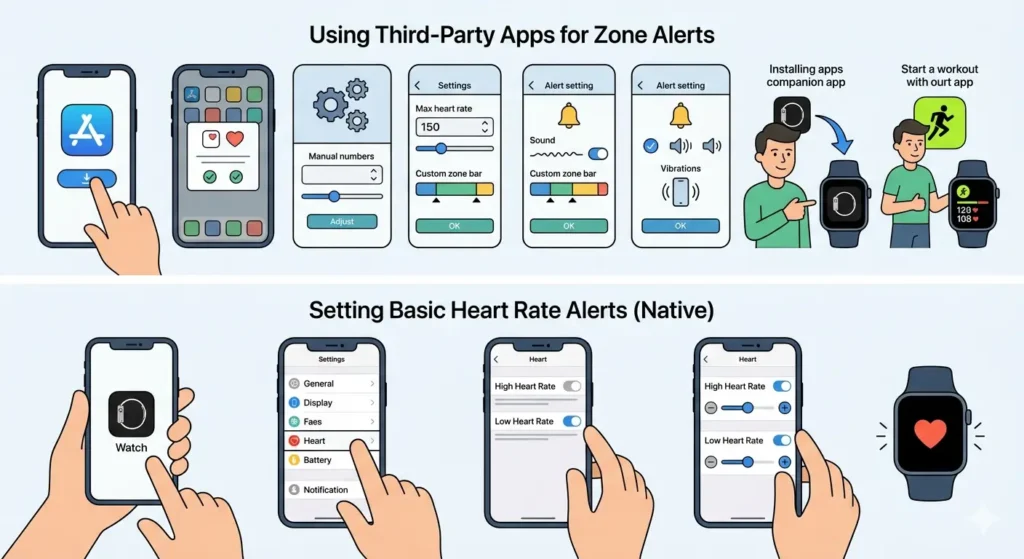
Apple Watch handles heart rate zone alerts differently than dedicated fitness watches. The native Workout app doesn’t include built-in zone alerts, but third-party apps fill this gap effectively. However, Apple Watch does offer high and low heart rate notifications for general health monitoring.
Using Third-Party Apps for Zone Alerts
- Step 1: Download a heart rate zone training app from the App Store (such as Zones, HeartWatch, or WorkOutDoors)
- Step 2: Open the app on the iPhone and grant necessary health data permissions
- Step 3: Navigate to settings within the app and locate heart rate zone configuration
- Step 4: Enter maximum heart rate manually or let the app estimate based on age
- Step 5: Customize individual zone ranges if the app supports manual adjustment
- Step 6: Access alert settings and enable zone notifications
- Step 7: Choose alert types – vibration, sound, or both
- Step 8: Install the companion app on Apple Watch through the Watch app on iPhone
- Step 9: Start a workout using the third-party app instead of the native Workout app
Setting Basic Heart Rate Alerts (Native)
- Step 1: Open the Watch app on iPhone
- Step 2: Scroll down and tap ‘Heart’
- Step 3: Enable ‘High Heart Rate’ notifications and set a specific threshold
- Step 4: Enable ‘Low Heart Rate’ notifications if monitoring recovery periods
- Step 5: Adjust threshold values based on training zones
Method 3: Polar Watch Zone Alert Setup
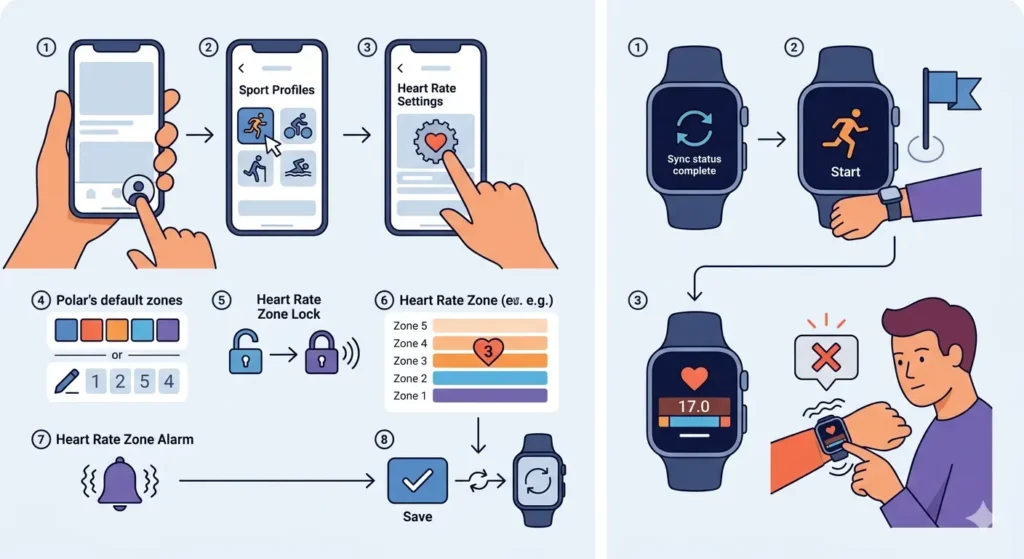
Polar fitness watches provide detailed heart rate zone tracking with highly customizable alert options. The Polar Flow app serves as the primary configuration hub for these settings.
- Step 1: Open the Polar Flow app and tap the profile icon
- Step 2: Select ‘Sport Profiles’ and choose the activity to modify
- Step 3: Tap ‘Heart Rate Settings’ within the sport profile
- Step 4: Choose between Polar’s default zones or create custom zones
- Step 5: Enable ‘Heart Rate Zone Lock’ to receive alerts when leaving a specific zone
- Step 6: Select the target zone for the workout
- Step 7: Enable ‘Heart Rate Zone Alarm’ for vibration alerts
- Step 8: Sync the settings to the watch
- Step 9: Start the configured activity type to activate zone alerts
Method 4: Samsung Galaxy Watch Configuration
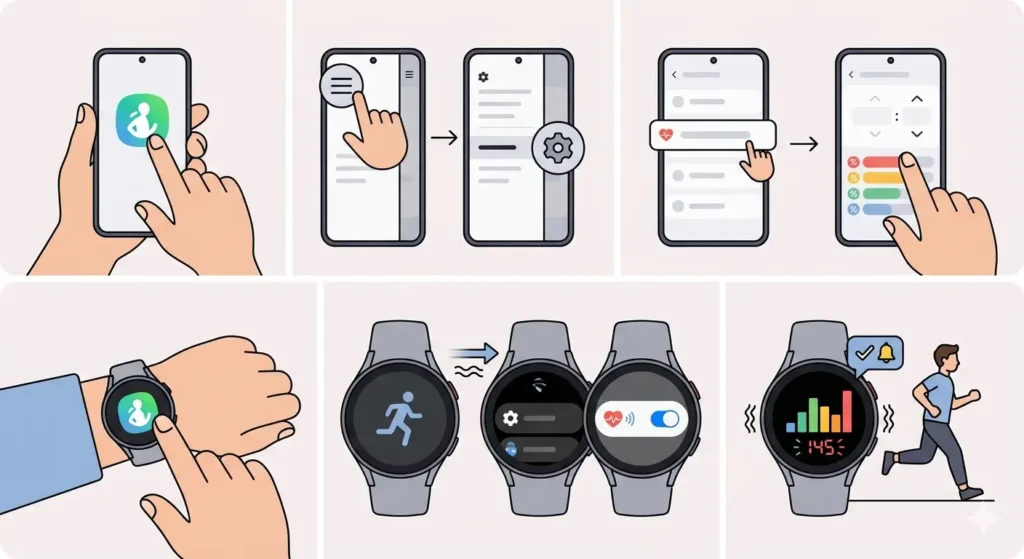
Samsung Galaxy Watch and Galaxy Watch Active series include heart rate zone features through Samsung Health, though the implementation is less comprehensive than dedicated fitness brands.
- Step 1: Open Samsung Health on the paired smartphone
- Step 2: Tap the menu icon and select ‘Settings’
- Step 3: Navigate to ‘Heart Rate’ settings
- Step 4: Enter maximum heart rate for zone calculations
- Step 5: Open Samsung Health on the watch
- Step 6: Start an exercise and swipe to access workout settings
- Step 7: Enable ‘Heart Rate Alert’ option
- Step 8: Set target zone or specific BPM range
- Step 9: Begin the workout to activate alerts
Method 5: Fitbit Heart Rate Zone Alerts
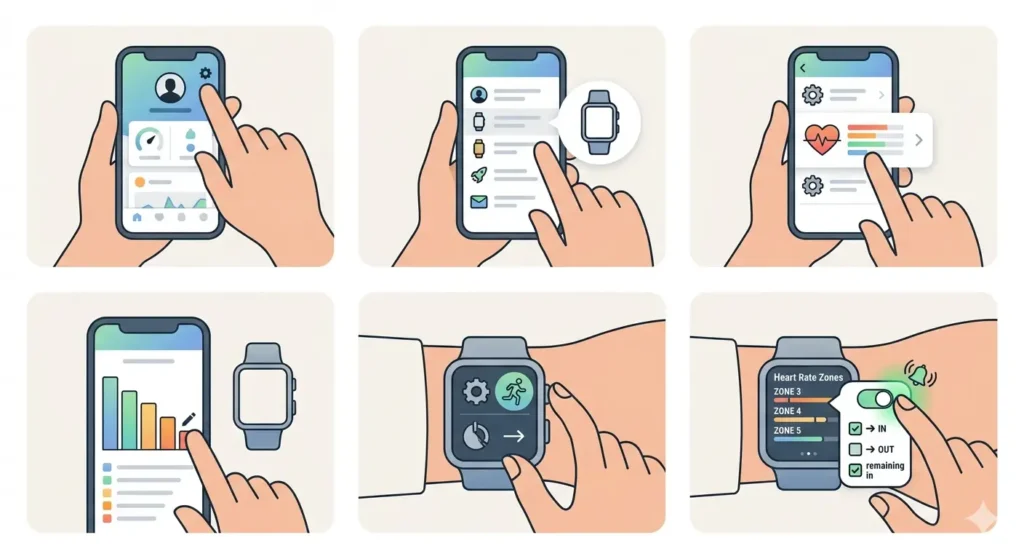
Fitbit devices with heart rate monitoring support zone-based training through the Fitbit app, with varying features depending on the device model and subscription status.
- Step 1: Open the Fitbit app and tap the profile icon
- Step 2: Select the connected device from the list
- Step 3: Tap ‘Heart Rate Zones’ under the device settings
- Step 4: Review automatically calculated zones based on resting and maximum heart rate
- Step 5: Choose ‘Custom’ to manually adjust zone boundaries if needed
- Step 6: Navigate to ‘Exercise’ settings on the watch
- Step 7: Select the workout type to configure
- Step 8: Enable ‘Heart Rate Zone’ notifications in workout settings
- Step 9: Choose whether to receive alerts when entering, exiting, or remaining in specific zones
Pro-Tip: During the first few workouts with new zone alerts enabled, pay attention to how frequently notifications occur. If alerts trigger constantly during normal training, the zones may need adjustment to better match actual fitness levels rather than age-based estimates.
Testing Heart Rate Zone Alerts
After configuration, testing ensures alerts function correctly before relying on them during important training sessions. A simple warm-up provides the perfect opportunity for verification.
- Step 1: Start a workout activity with zone alerts enabled
- Step 2: Begin with light activity in Zone 1 or Zone 2
- Step 3: Gradually increase intensity to cross into the target alert zone
- Step 4: Verify the watch vibrates or sounds when entering the configured zone
- Step 5: Reduce intensity to drop below the zone threshold
- Step 6: Confirm alerts trigger when exiting the zone if configured
- Step 7: Check the watch display shows current heart rate and active zone
- Step 8: Adjust alert settings if notifications seem too frequent or absent
This testing process takes only a few minutes but prevents mid-workout frustration from misconfigured alerts. The online stopwatch can help time testing intervals to ensure alerts respond within expected timeframes.
Optimizing Zone Alert Settings
Fine-tuning alert behavior maximizes training effectiveness while minimizing distractions during workouts. Different training goals require different alert strategies.
For endurance training, setting alerts for the upper boundary of Zone 2 helps maintain aerobic base-building intensity without drifting into harder efforts. Threshold workouts benefit from alerts at both the lower and upper boundaries of Zone 4, keeping effort within the narrow window that drives fitness adaptations. Interval training works best with alerts disabled during work periods but enabled during recovery to ensure adequate rest between repetitions.
Alert sensitivity matters as well. Some watches allow adjustment of how quickly heart rate must cross a threshold before triggering an alert. Setting this to 10-15 seconds prevents false alerts from brief spikes while still catching sustained zone changes. Vibration strength and sound volume also deserve attention – alerts should be noticeable without becoming disruptive to workout focus.
Tips for Effective Heart Rate Zone Training
- Perform a maximum heart rate test rather than relying on age-based estimates for the most accurate zone calculations
- Configure different zone settings for different activity types since cycling zones often differ from running zones
- Start workouts wearing the watch slightly higher on the wrist (about two finger-widths above the wrist bone) for better optical sensor accuracy
- Allow 5-10 minutes of warm-up before expecting precise zone readings as sensors need time to establish consistent contact
- Use chest strap heart rate monitors with watches that support them for the most reliable zone tracking during high-intensity intervals
- Review heart rate zone time distribution after workouts to ensure training matched intended intensity distribution
- Recalculate zones every few months as fitness improvements affect heart rate responses to given intensities
- Disable zone alerts during races or time trials where perceived effort matters more than specific zone adherence
- Create separate sport profiles for different workout types to maintain appropriate zone configurations for each
Tracking workout timing alongside heart rate zones provides valuable training insights. Tools like the clock tab help monitor overall session duration when planning zone-based interval workouts.
Common Problems and Solutions
Fix 1: Alerts Not Triggering During Workouts
When zone alerts fail to activate despite proper configuration, several factors might be responsible. First, verify the watch has successfully synced recent settings changes from the companion app. Force a manual sync rather than waiting for automatic synchronization. Second, ensure the specific activity profile being used actually has alerts enabled – some watches maintain separate settings for each sport type.
Optical heart rate sensor issues frequently prevent accurate zone detection. Clean the sensor window on the watch back and ensure the band sits snugly but comfortably on the wrist. Loose fit allows sensor movement that disrupts readings. Additionally, check that the watch firmware is current as manufacturers regularly release updates improving sensor performance and alert reliability.
Fix 2: Constant Alert Notifications
Excessive alerts during workouts typically indicate zone boundaries set too narrowly for the actual heart rate variability during exercise. Even within a single zone, heart rate naturally fluctuates by 5-10 beats per minute, and overly precise zones trigger alerts with every minor change.
Widen zone ranges by 5-10 BPM to accommodate natural variation. Alternatively, adjust alert delay settings if the watch offers this feature, requiring heart rate to remain beyond the threshold for 15-30 seconds before triggering. This filters out brief spikes from form changes or terrain variations while catching sustained zone changes.
Fix 3: Inaccurate Heart Rate Readings
When the displayed heart rate seems disconnected from actual effort level, sensor positioning usually deserves blame. Move the watch slightly higher on the wrist, away from the prominent wrist bones that interfere with optical sensors. Tighten the band one notch during workouts compared to all-day wear, ensuring sensor contact without restricting blood flow.
Tattoos, dark skin tones, and excessive arm hair can reduce optical sensor accuracy. Pairing a chest strap heart rate monitor eliminates these limitations entirely. Most fitness watches support Bluetooth chest straps, automatically prioritizing the more accurate external sensor over the optical wrist sensor when both are available.
Fix 4: Zones Not Syncing Between App and Watch
Configuration changes made in smartphone apps sometimes fail to transfer to the watch. Force close both the watch companion app and any background processes, then restart the phone. Open the app fresh and trigger a manual sync with the watch. Some manufacturers require the watch to be charging and connected to Wi-Fi for certain settings to sync.
If sync issues persist, remove the watch from the app and perform a complete re-pairing. This clears corrupted settings files that prevent proper synchronization. Before unpairing, note custom zone values and alert preferences to avoid losing this data during the reset process.
Frequently Asked Questions
What is the best heart rate zone for fat burning?
Zone 2 (60-70% of maximum heart rate) is most effective for fat burning during exercise. This moderate intensity allows the body to primarily use fat as fuel while remaining sustainable for extended periods. However, higher-intensity zones burn more total calories, which ultimately drives greater fat loss when combined with proper nutrition.
Can heart rate zone alerts work without a smartphone nearby?
Yes, heart rate zone alerts function independently on the watch once configured and synced. The watch stores zone settings and alert preferences locally, requiring no phone connection during workouts. However, the smartphone is needed for initial setup and any subsequent changes to zone boundaries or alert behavior.
How accurate are wrist-based heart rate sensors for zone training?
Wrist-based optical sensors typically maintain 95-98% accuracy during steady-state activities like easy running or cycling. Accuracy decreases during high-intensity intervals, cold weather, or activities with significant wrist movement. Chest strap monitors remain the gold standard for zone training requiring precise heart rate tracking, particularly during variable-intensity workouts.
Should different sports use different heart rate zones?
Yes, heart rate responses vary across activities due to differences in muscle recruitment and body position. Running typically produces heart rates 5-10 beats per minute higher than cycling at equivalent effort levels. Swimming shows even lower heart rates due to horizontal body position and cooling effects of water. Configure separate zones for each primary sport for optimal training guidance.
How often should heart rate zones be recalculated?
Recalculate zones every 8-12 weeks or after significant fitness changes. As cardiovascular fitness improves, resting heart rate decreases and the body becomes more efficient, shifting the heart rate response to given intensities. Athletes should also recalculate after training breaks lasting more than two weeks, as detraining rapidly affects heart rate zones.
Why does heart rate spike at the start of workouts before settling?
Initial heart rate spikes occur because the cardiovascular system responds to the anticipation and sudden onset of exercise before achieving steady-state equilibrium. This phenomenon, called cardiac drift, normalizes within 5-10 minutes of consistent effort. Set alert delays or ignore zone notifications during the first portion of workouts to avoid false alerts from this natural response.
Can heart rate zone training replace perceived effort?
Heart rate zones complement but should not completely replace perceived effort awareness. External factors like heat, humidity, dehydration, fatigue, and stress affect heart rate independent of actual training load. Experienced athletes use zones as one data point alongside breathing rate, muscle tension, and subjective effort to guide training intensity decisions.
Do medications affect heart rate zone calculations?
Yes, beta-blockers, some blood pressure medications, and certain antidepressants significantly lower heart rate during exercise. Athletes taking these medications should consult healthcare providers before using standard zone calculations. Alternative methods like perceived exertion scales or lactate testing provide better training guidance when medications alter heart rate responses.
What causes heart rate to stay elevated in Zone 3 during easy runs?
Persistent elevation into Zone 3 during intended easy efforts indicates inadequate recovery, overtraining, illness, heat stress, or dehydration. This phenomenon called ‘decoupling’ shows the cardiovascular system working harder than it should for the given pace. Reduce training intensity until heart rate responses normalize, and address potential recovery deficits.
Are age-based maximum heart rate formulas accurate?
The traditional 220-minus-age formula provides only a rough estimate with significant individual variation. Actual maximum heart rate can differ by 10-20 beats per minute from predicted values. Conducting a proper maximum heart rate test under medical supervision or using sport-specific formulas yields far more accurate zone calculations for serious training purposes.
Understanding workout timing in relation to daily schedules helps optimize training consistency. The world time comparison tool assists athletes coordinating training with coaches or teammates across different time zones.