
Back-to-start navigation on Garmin and Suunto devices helps outdoor enthusiasts retrace their path safely during hiking, running, or cycling activities. This essential feature guides users back to their starting point using GPS tracking, making it invaluable for adventurers exploring unfamiliar terrain.
Quick Summary Table
| Device Type | Primary Method | Key Button/Feature |
|---|---|---|
| Garmin Watch | Stop activity & select Back to Start | BACK/LAP button (hold) |
| Garmin Handheld GPS | Access TracBack from menu | FIND/MENU button |
| Suunto Watch | Navigate option during activity | Middle button (press) |
| Suunto 9/7 Series | Breadcrumb trail view | Navigation menu access |
How to Use Back-to-Start on Garmin Watches
Garmin watches make returning to the starting point straightforward through built-in navigation features activated during recorded activities.
Method 1: Using Back to Start During an Activity
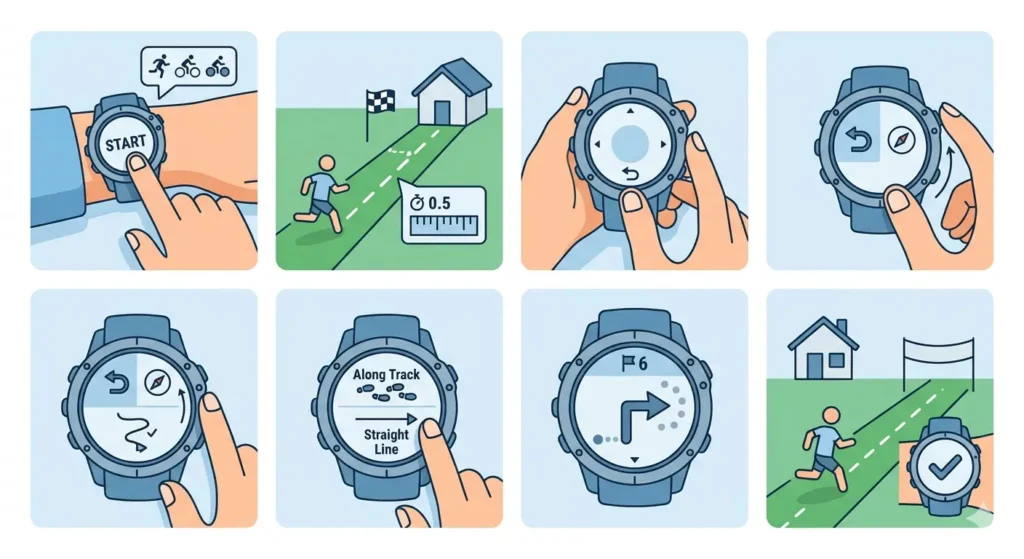
- Step 1: Start recording an activity by pressing the START button and selecting the activity type (running, hiking, cycling, etc.)
- Step 2: Move away from the starting location – the device must track at least 0.5 miles (800 meters) to create a viable path
- Step 3: Press and hold the BACK/LAP button during the activity to open the controls menu
- Step 4: Scroll down and select ‘Back to Start’ or ‘Navigation’ depending on the watch model
- Step 5: Choose between ‘Along Track’ (retrace exact path) or ‘Straight Line’ (direct route) if prompted
- Step 6: Follow the arrow or breadcrumb trail on the screen – the device displays distance remaining and directional guidance
- Step 7: Continue the activity while following navigation cues until reaching the starting point
Pro-Tip: Always select ‘Along Track’ when hiking through difficult terrain or areas with obstacles. The straight-line option works best for open spaces like fields or when road navigation is available.
Method 2: After Stopping the Activity
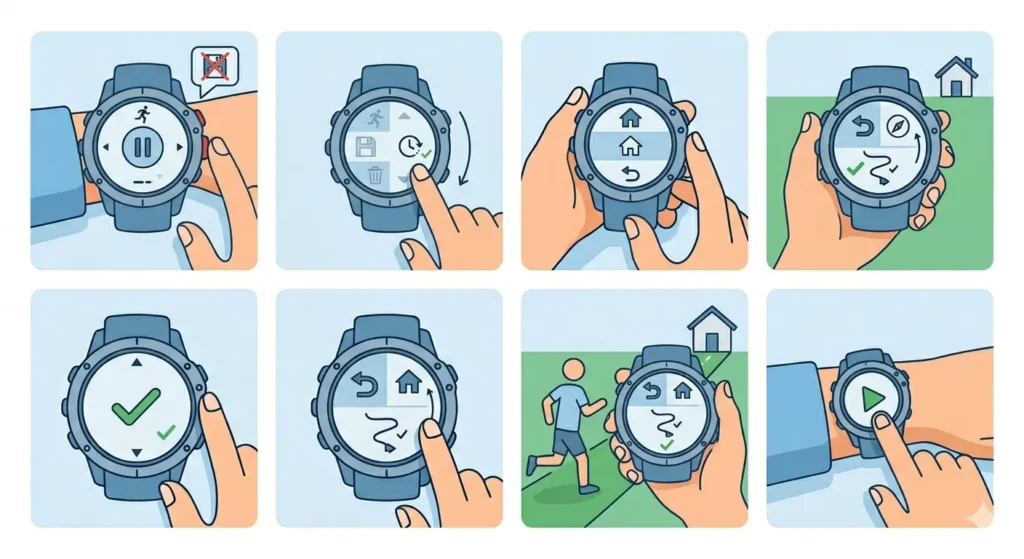
- Step 1: Press the STOP button to pause the current activity
- Step 2: Scroll through options and select ‘Resume Later’ instead of ‘Save’ or ‘Discard’
- Step 3: The watch automatically prompts with navigation options – select ‘Back to Start’
- Step 4: The device displays the route without actively recording the activity
- Step 5: Resume the activity recording when ready by pressing START again
How to Use Back-to-Start on Garmin Handheld GPS Devices
Handheld Garmin GPS units like the GPSMAP, eTrex, and Montana series offer TracBack functionality for route reversal.
Activating TracBack Navigation
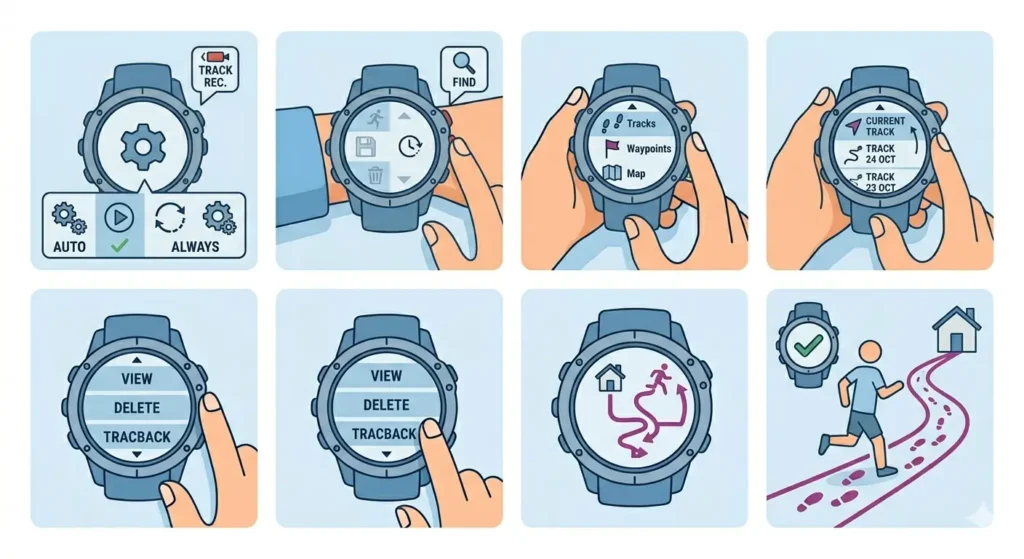
- Step 1: Ensure track recording is enabled before starting the journey (Settings > Tracks > Record Mode set to ‘Auto’ or ‘Always’)
- Step 2: Press the FIND or MENU button while at the destination point
- Step 3: Navigate to ‘Tracks’ or ‘Track Manager’ in the menu system
- Step 4: Select the current track or the most recent saved track
- Step 5: Choose ‘TracBack’ or ‘Navigate’ option from the track options
- Step 6: The device creates a reverse route and displays it on the map screen
- Step 7: Follow the purple or magenta line on the map display back to the origin point
The online stopwatch can help track elapsed navigation time when planning outdoor activities with specific time constraints.
How to Use Back-to-Start on Suunto Watches
Suunto devices provide navigation features through dedicated menu systems accessible during outdoor activities.
Method 1: Suunto 9, 7, and 5 Series
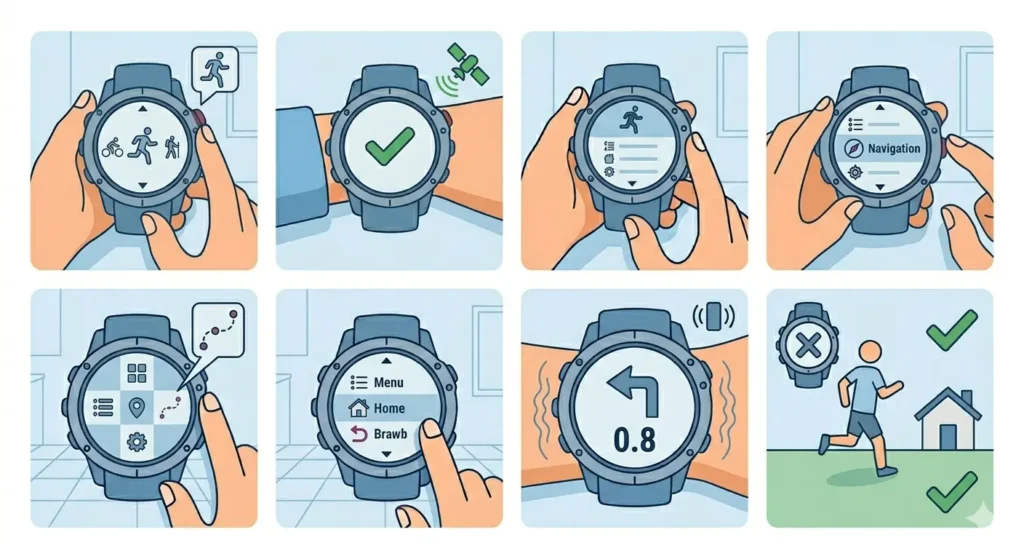
- Step 1: Start an exercise by pressing the upper right button and selecting the activity type
- Step 2: Wait for GPS signal confirmation (green indicator) before beginning movement
- Step 3: During the activity, press the middle button to access the options menu
- Step 4: Scroll to ‘Navigation’ and press the middle button again
- Step 5: Select ‘Breadcrumb’ to view the traveled route
- Step 6: Choose ‘Find back’ or similar option to activate return navigation
- Step 7: Follow the on-screen arrow and distance indicators – the watch vibrates when off-course
- Step 8: Continue until the device indicates arrival at the starting location
Method 2: Suunto Spartan and Ambit Series
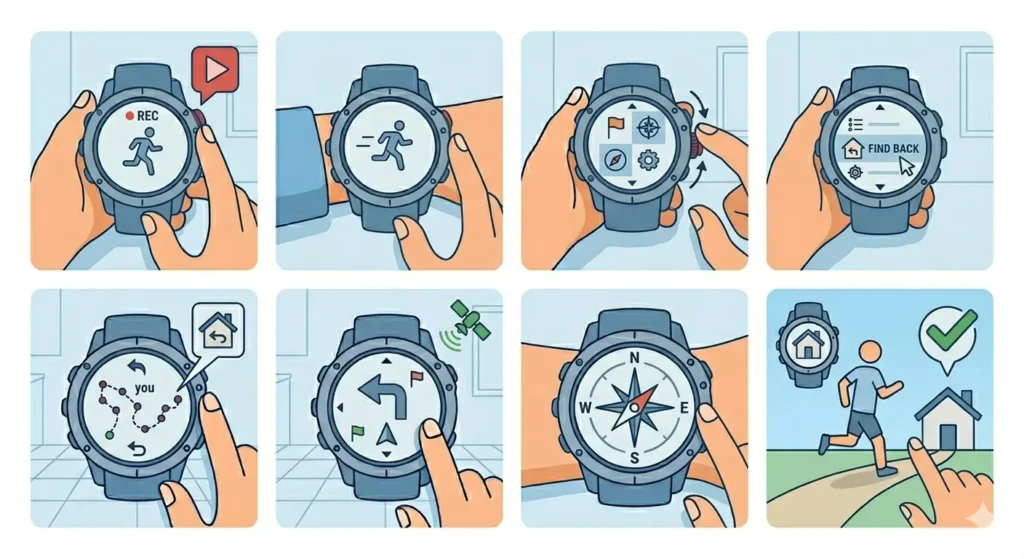
- Step 1: Begin recording the activity using the start button
- Step 2: Access navigation by pressing the ‘Next’ or middle button during exercise
- Step 3: Navigate through screens until finding ‘Navigation’ or ‘Find Back’
- Step 4: Activate the breadcrumb view showing the tracked path
- Step 5: The device displays a simplified route with directional guidance
- Step 6: Follow compass bearing and distance readings to return to start
Pro-Tip: Suunto devices perform best when the battery mode is set to ‘Performance’ or ‘Endurance’ rather than ‘Ultra’ mode, as GPS accuracy directly affects navigation quality. Check battery levels before starting long journeys.
Tips for Effective Back-to-Start Navigation
- Always wait for strong GPS signal acquisition (4+ satellites) before starting any activity to ensure accurate tracking
- Enable track recording or breadcrumb features before departing – navigation cannot work without recorded data
- Keep the device charged above 20% battery as GPS navigation drains power faster than normal activity tracking
- Update device software regularly to access improved navigation algorithms and bug fixes
- Test the back-to-start feature in familiar areas before relying on it during critical situations
- Download offline maps when available to supplement GPS navigation in remote locations
- Mark waypoints at important junctions or decision points for additional navigation reference
- Avoid switching between activities mid-journey as this may reset tracking data
- Use world time comparison when coordinating outdoor activities across time zones
Common Problems and Troubleshooting
Fix 1: Device Shows ‘Insufficient Track Data’
This occurs when the device hasn’t recorded enough GPS points to create a navigation route. Move at least 0.5-1 kilometer from the starting point before attempting to activate back-to-start navigation. The device needs sufficient data points to calculate a return path.
Fix 2: Navigation Arrow Spins or Points Wrong Direction
Calibrate the compass by accessing device settings and following the figure-8 movement pattern. Hold the device flat and move it in a horizontal figure-eight motion for 10-15 seconds. Poor calibration causes directional errors in navigation guidance.
Fix 3: Back-to-Start Option Not Appearing
Verify that GPS is enabled and track recording is active in device settings. Some models require specific activity profiles to enable navigation features. Check that the selected activity type supports navigation (outdoor activities like hiking, trail running, or cycling).
Fix 4: Route Displayed Incorrectly or Cuts Through Obstacles
When selecting ‘Straight Line’ navigation, the device creates a direct path ignoring terrain features. Switch to ‘Along Track’ or ‘TracBack’ mode to follow the exact recorded path. This retraces actual steps rather than calculating a theoretical direct route.
Fix 5: GPS Signal Lost During Navigation
Move to an open area away from dense tree cover, buildings, or canyon walls. The device continues showing the last known position but cannot update without satellite connection. Wait 1-2 minutes for signal reacquisition in clear conditions.
Frequently Asked Questions
Does back-to-start navigation work without phone connection?
Yes, back-to-start navigation functions completely independently using the device’s built-in GPS receiver. No phone connection, cellular signal, or internet access is required. The watch or GPS unit records the path using satellite signals and calculates the return route internally.
How accurate is back-to-start navigation on Garmin and Suunto devices?
GPS accuracy typically ranges from 3-10 meters under good satellite conditions. Navigation precision depends on factors like satellite visibility, atmospheric conditions, and device GPS chip quality. Devices record track points every few seconds, creating a detailed breadcrumb trail accurate enough for safe return navigation in most outdoor scenarios.
Can back-to-start navigation be used after saving an activity?
Once an activity is saved and stopped completely, most devices cannot activate back-to-start navigation for that session. However, saved tracks can be loaded from activity history and used for navigation by selecting ‘Navigate’ on the saved track file. This process varies by model but generally requires accessing saved activities or track manager.
What’s the difference between straight line and along track navigation?
Straight line navigation draws a direct route from current position to starting point, potentially crossing obstacles, water, or private property. Along track (TracBack) retraces the exact recorded path, following the same route taken outbound. Always use along track when hiking through forests, mountains, or areas with navigation hazards.
How much battery does back-to-start navigation consume?
Navigation adds approximately 5-15% additional battery drain compared to standard activity tracking because the GPS must remain active and the screen displays continuous guidance. Exact consumption varies by device model, screen brightness, and GPS update frequency. Most Garmin and Suunto watches provide 10-40 hours of GPS tracking depending on the model and settings.
Will back-to-start work if GPS signal is temporarily lost?
The device retains the recorded track even during temporary GPS signal loss. Navigation continues showing the last known position and recorded path. Once GPS signal is reacquired, the device updates current location and resumes real-time navigation guidance. Extended signal loss may create gaps in the recorded track.
Can multiple waypoints be added during an activity for complex navigation?
Yes, most Garmin and Suunto devices allow manual waypoint marking during activities. Press and hold designated buttons (often the LAP button on Garmin or middle button on Suunto) to mark current position. These waypoints can be accessed later through navigation menus for creating routes or returning to specific locations.
Does elevation affect back-to-start navigation accuracy?
GPS altitude readings are less accurate than horizontal position data, but barometric altimeters in most outdoor watches compensate for this limitation. Elevation changes don’t significantly impact horizontal navigation accuracy. The device tracks 3D position, so uphill and downhill movements are recorded as part of the breadcrumb trail.
Is internet connectivity needed to download maps for back-to-start?
Basic back-to-start navigation requires no maps or internet connection – it simply follows GPS coordinates. However, devices with mapping capabilities (like Garmin Fenix or Suunto 9 Peak Pro) benefit from preloaded maps that provide visual context. Maps should be downloaded before trips to remote areas without connectivity.
How far back can a device navigate using back-to-start?
Distance limitations depend on device memory and track point recording frequency rather than actual distance. Most devices can store tracks covering 100-500 kilometers before memory fills. High-end models with expanded memory handle even longer routes. The device continues recording until memory is full or battery depletes.
Final Thoughts
Back-to-start navigation transforms Garmin and Suunto devices into reliable outdoor safety tools beyond simple activity tracking. Understanding the activation methods, choosing appropriate navigation modes, and maintaining proper device settings ensures confident exploration knowing a digital breadcrumb trail leads back home. Regular practice with these features in low-risk environments builds familiarity before venturing into challenging terrain where navigation becomes critical.