
Using a Garmin watch for triathlon training transforms how athletes prepare for swim-bike-run events. These multisport GPS watches offer specialized features like automatic sport switching, brick workout support, and performance metrics that help triathletes track progress across all three disciplines effectively.
Quick Summary Table
| Setup Time | 15-20 minutes for initial configuration |
| Key Features | Multisport mode, swim metrics, cycling dynamics, run analytics |
| Battery Life | 16-48 hours in GPS mode (model-dependent) |
| Best For | Sprint, Olympic, Half Ironman, and Ironman distances |
| Training Platforms | Garmin Connect, TrainingPeaks, Strava compatible |
Setting Up the Garmin Watch for Triathlon Training
Before starting triathlon-specific training, the watch needs proper configuration to track all three sports accurately. This initial setup ensures accurate data collection across swimming, cycling, and running activities.
Method 1: Configure User Profile and Preferences
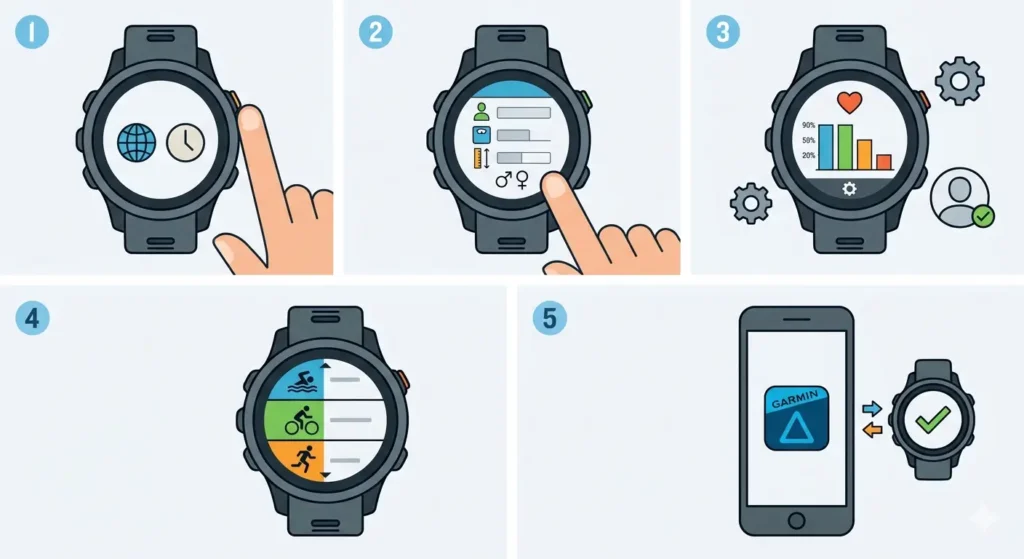
- Step 1: Power on the Garmin watch and complete the initial language and time zone setup
- Step 2: Enter accurate personal data including age, weight, height, and gender in the settings menu
- Step 3: Set the heart rate zones by selecting ‘User Profile’ then ‘Heart Rate Zones’ and choosing either automatic or manual configuration
- Step 4: Navigate to ‘Activity Profiles’ and ensure Swim, Bike, and Run are enabled and visible
- Step 5: Pair the watch with a smartphone using the Garmin Connect app for automatic data syncing
Method 2: Enable Multisport Mode
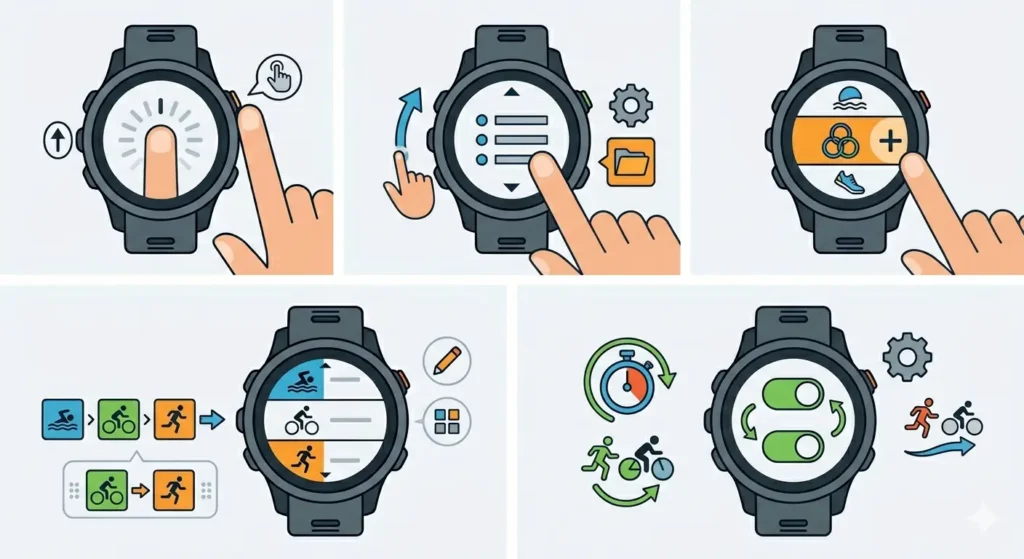
- Step 1: Press and hold the ‘Up’ button to access the main menu
- Step 2: Scroll to ‘Activities & Apps’ and select it
- Step 3: Find ‘Multisport’ or ‘Triathlon’ in the activity list and select ‘Add’ if not already present
- Step 4: Customize the sport order by selecting ‘Edit’ and arranging them as Swim-Bike-Run or Bike-Run based on training needs
- Step 5: Enable automatic sport switching by toggling ‘Auto Lap’ and ‘Auto Transition’ settings within the multisport profile
Tracking Swim Training Sessions
Swimming presents unique challenges for GPS tracking, but Garmin watches handle pool and open water workouts differently. The watch uses accelerometer data for pool swimming and GPS for open water sessions.
Pool Swimming Setup
- Step 1: Before entering the pool, select ‘Pool Swim’ from the activities menu
- Step 2: Set the correct pool length (25 meters, 50 meters, or 25 yards) by pressing the ‘Up’ button during activity selection
- Step 3: Press ‘Start’ to begin recording and push off from the wall
- Step 4: Rest at the wall between intervals – the watch automatically detects rest periods
- Step 5: Press ‘Lap’ button at the wall to manually mark interval sets if needed
- Step 6: Press ‘Stop’ then ‘Save’ after completing the workout
Open Water Swimming Setup
- Step 1: Select ‘Open Water Swim’ from the activities list
- Step 2: Wait outdoors until the watch acquires GPS signal (indicated by a green GPS icon)
- Step 3: Wear the watch snugly on the wrist, positioned above the wrist bone
- Step 4: Press ‘Start’ and begin swimming – the GPS tracks distance and route
- Step 5: Use the online stopwatch feature before the session to plan interval timing
Pro-Tip: For more accurate stroke detection in pool swimming, ensure the watch is worn on the dominant arm and set the ‘Handedness’ setting correctly in the user profile. This significantly improves stroke count accuracy and SWOLF score calculations.
Monitoring Cycling Workouts
Cycling metrics provide valuable insights into power output, cadence, and route performance. Garmin watches support both indoor trainer sessions and outdoor rides with different tracking methods.
Outdoor Cycling Configuration
- Step 1: Select ‘Bike’ or ‘Cycling’ from the activities menu
- Step 2: Wait for GPS signal acquisition before starting the ride
- Step 3: Pair external sensors like speed, cadence, or power meters by accessing ‘Settings’ then ‘Sensors’ during activity setup
- Step 4: Customize data screens to display preferred metrics such as speed, distance, cadence, heart rate, and power
- Step 5: Press ‘Start’ and begin riding – Auto Pause can be enabled to stop recording during traffic lights
- Step 6: Press ‘Lap’ button to mark segments or intervals manually during the ride
Indoor Trainer Sessions
- Step 1: Choose ‘Indoor Bike’ from the activity profiles
- Step 2: Pair ANT+ or Bluetooth smart trainers through the sensors menu
- Step 3: Connect to training apps like Zwift or TrainerRoad if desired for structured workouts
- Step 4: Start the activity and follow on-screen workout instructions if using a training plan
Recording Running Activities
Running data forms the foundation of triathlon preparation. Garmin watches offer advanced running metrics including cadence, vertical oscillation, ground contact time, and training effect.
- Step 1: Select ‘Run’ from the main activities menu
- Step 2: Wait outdoors for GPS lock – the watch vibrates when ready
- Step 3: Configure Auto Lap to trigger every mile or kilometer for pace tracking
- Step 4: Enable Metronome feature for cadence training by accessing run settings
- Step 5: Press ‘Start’ and begin running with natural arm swing for accurate metrics
- Step 6: Monitor real-time pace, heart rate, and distance on the display during the run
- Step 7: Press ‘Lap’ to mark interval changes during speed work or tempo runs
- Step 8: Complete the run by pressing ‘Stop’ followed by ‘Save’
Using Brick Workout Features
Brick workouts combine two disciplines back-to-back, simulating race-day transitions. The multisport mode handles these seamlessly without stopping the activity.
- Step 1: Start a multisport activity instead of individual sport profiles
- Step 2: Complete the first discipline (typically bike) and press ‘Lap’ button when transitioning
- Step 3: The watch automatically switches to the next sport profile and continues recording
- Step 4: Transition time appears as a separate segment in the activity summary
- Step 5: Continue through all planned disciplines, pressing ‘Lap’ at each transition
- Step 6: Press ‘Stop’ and ‘Save’ after completing all sports in the brick session
Pro-Tip: Practice using the multisport mode during training to build muscle memory for race day. Fumbling with watch buttons during transitions wastes precious seconds, so rehearse the ‘Lap’ button press until it becomes automatic.
Analyzing Training Data
Post-workout analysis reveals patterns and progress. Garmin Connect provides detailed breakdowns of each training session with actionable insights.
Syncing Workout Data
- Step 1: Ensure Bluetooth is enabled on both the watch and smartphone
- Step 2: Open the Garmin Connect app – data syncs automatically when in range
- Step 3: Wait for the sync icon to disappear, confirming upload completion
- Step 4: Access the ‘Activities’ tab to view detailed workout summaries
Reviewing Performance Metrics
- Step 1: Open a specific activity in Garmin Connect to see comprehensive data
- Step 2: Examine swim metrics including stroke rate, SWOLF, pace per 100m, and rest times
- Step 3: Review cycling data such as average power, normalized power, cadence, and elevation gain
- Step 4: Analyze running metrics including pace zones, cadence, vertical oscillation, and ground contact time
- Step 5: Check Training Effect and Recovery Time recommendations for workout planning
- Step 6: Compare activities over time using the world time comparison tool to track workouts across different time zones during travel
Setting Up Training Plans
Structured training plans guide preparation for specific race distances. Garmin Coach and third-party platforms integrate directly with the watch.
- Step 1: Open Garmin Connect app and navigate to ‘Training’ section
- Step 2: Select ‘Training Plans’ and choose a triathlon-specific plan matching the target race distance
- Step 3: Input the race date and current fitness level when prompted
- Step 4: Sync the watch to download planned workouts
- Step 5: Access daily workouts directly from the watch by selecting ‘Training’ then ‘Workouts’
- Step 6: Start the prescribed workout – the watch guides through intervals with alerts
- Step 7: Follow on-screen instructions for warm-up, work intervals, recovery periods, and cool-down
Tips for Effective Garmin Watch Use
- Charge the watch fully before long training sessions to avoid mid-workout battery death
- Clean the watch and optical heart rate sensor regularly with fresh water, especially after pool swimming
- Update firmware monthly through Garmin Connect to access new features and bug fixes
- Experiment with different data screens during easy workouts to find preferred layouts before race day
- Use the clock tab feature to maintain awareness during long training blocks
- Enable smart notifications selectively to avoid distraction during focused interval work
- Calibrate the barometric altimeter before hilly rides by setting known elevation manually
- Wear the watch consistently, even on rest days, to track recovery metrics and resting heart rate trends
- Export activities to TrainingPeaks or other platforms for deeper analysis with coaches
- Replace watch bands with quick-release versions for faster transitions during brick workouts
Common Problems and Solutions
GPS Signal Issues
When the watch struggles to acquire GPS, move to an open area away from tall buildings and dense tree cover. Ensure GPS + GLONASS or GPS + Galileo is enabled in settings for faster satellite lock. Allow 30-60 seconds outdoors before starting the activity.
Inaccurate Heart Rate Readings
Optical heart rate sensors can lose accuracy during high-intensity efforts or cold weather. Tighten the watch band one notch during workouts and wear it higher on the forearm. For critical training sessions, pair a chest strap heart rate monitor for improved accuracy.
Incorrect Swim Stroke Count
Pool swimming accuracy depends on consistent stroke technique. Ensure the pool length setting matches the actual facility dimensions. Avoid excessive gliding or unconventional strokes that confuse the accelerometer. Push off walls decisively to help the watch detect lap turns.
Battery Draining Quickly
Reduce GPS recording frequency from ‘Every Second’ to ‘Smart Recording’ for longer battery life during ultra-distance training. Disable unnecessary features like music, Wi-Fi, and Pulse Ox during activities. Lower screen brightness and reduce backlight timeout duration in settings.
Data Not Syncing
Force close and restart the Garmin Connect app if automatic syncing fails. Toggle Bluetooth off and on within phone settings. Ensure the watch has sufficient battery – syncing may pause below 10% charge. Check for app updates in the device app store.
Transition Time Recording Errors
During multisport activities, press the ‘Lap’ button firmly and deliberately when switching disciplines. Quick, hesitant presses may not register. Practice the transition button press during training to develop consistent technique.
Frequently Asked Questions
Can Garmin watches track all three triathlon sports in one activity?
Yes, Garmin multisport or triathlon mode records swim, bike, and run segments within a single activity. Press the ‘Lap’ button during transitions to switch between sports automatically while maintaining continuous recording of the entire session.
Do Garmin watches work for both pool and open water swimming?
Garmin watches support separate profiles for pool and open water swimming. Pool swim mode uses accelerometer data and requires manual pool length input, while open water swim mode uses GPS tracking for distance and route mapping.
How accurate is the heart rate monitor during swimming?
Optical heart rate sensors struggle underwater due to water interference and arm movement. Accuracy improves in open water versus pool swimming. For precise heart rate data during swimming, consider a compatible HRM-Swim or HRM-Pro chest strap.
Can training plans sync directly to the Garmin watch?
Training plans from Garmin Coach, TrainingPeaks, and other supported platforms sync directly to compatible Garmin watches. Daily workouts appear in the watch menu with step-by-step guidance including interval timing, target pace or power, and recovery periods.
How long does the battery last during an Ironman race?
Battery life varies by model – Forerunner 945 lasts approximately 36 hours in GPS mode, while Fenix 7 with solar charging can exceed 100 hours. Enable UltraTrac mode or reduce GPS recording frequency to extend battery life during ultra-distance events.
What sensors can pair with Garmin watches for triathlon training?
Garmin watches pair with speed and cadence sensors, power meters, heart rate chest straps, running dynamics pods, bike radar, and smart trainers via ANT+ or Bluetooth. External sensors provide more accurate data than built-in watch sensors for specific metrics.
Can multiple sport profiles be customized with different data fields?
Each sport profile supports independent data field customization. Swimming can display stroke rate and SWOLF, cycling can show power and cadence, while running displays pace and ground contact time – all within the same watch with different configurations per sport.
How does Auto Lap work differently for swimming, cycling, and running?
Auto Lap triggers vary by sport: swimming marks laps at pool wall turns or every set distance in open water, cycling triggers every mile or kilometer, and running activates at specified distance intervals. Each sport profile allows independent Auto Lap configuration.
What is Training Effect and how does it help triathlon training?
Training Effect measures workout impact on aerobic and anaerobic fitness using a 1-5 scale. Values above 3.0 improve fitness, while lower values maintain current fitness. This metric helps balance hard training days with recovery to prevent overtraining across three disciplines.
Can workout data be exported to coaching platforms?
Garmin Connect automatically syncs with Strava, TrainingPeaks, and other third-party platforms when connected. Activity files export as FIT or TCX formats containing detailed metrics coaches use for analysis, plan adjustments, and performance tracking throughout training cycles.