
Smartwatch notifications can either be incredibly useful or overwhelmingly distracting. Learning how to tame them properly transforms a smartwatch from a constant interruption into a productivity tool. This guide walks through the exact steps to customize, manage, and control notifications across different smartwatch platforms, helping users reclaim their focus while staying connected to what truly matters.
Key Takeaways
- Most smartwatches allow granular control over which apps can send notifications
- Setting up ‘Do Not Disturb’ schedules prevents interruptions during meetings, sleep, or focused work
- Custom vibration patterns help identify important alerts without looking at the screen
- Notification grouping reduces clutter and makes critical messages easier to spot
- Regular notification audits ensure only relevant apps continue sending alerts
Understanding Smartwatch Notification Basics
Smartwatch notifications mirror alerts from a paired smartphone, but they appear on the wrist instead. Every app installed on a phone can potentially send notifications to a smartwatch unless specifically blocked. This default setting often leads to notification overload, with dozens of unnecessary alerts vibrating throughout the day.
The good news is that smartwatches provide extensive customization options. Users can control which apps send notifications, how those alerts appear, and when the watch should stay silent. The key is to configure these settings intentionally rather than accepting the defaults.
Method 1: Manage App Notifications on Apple Watch
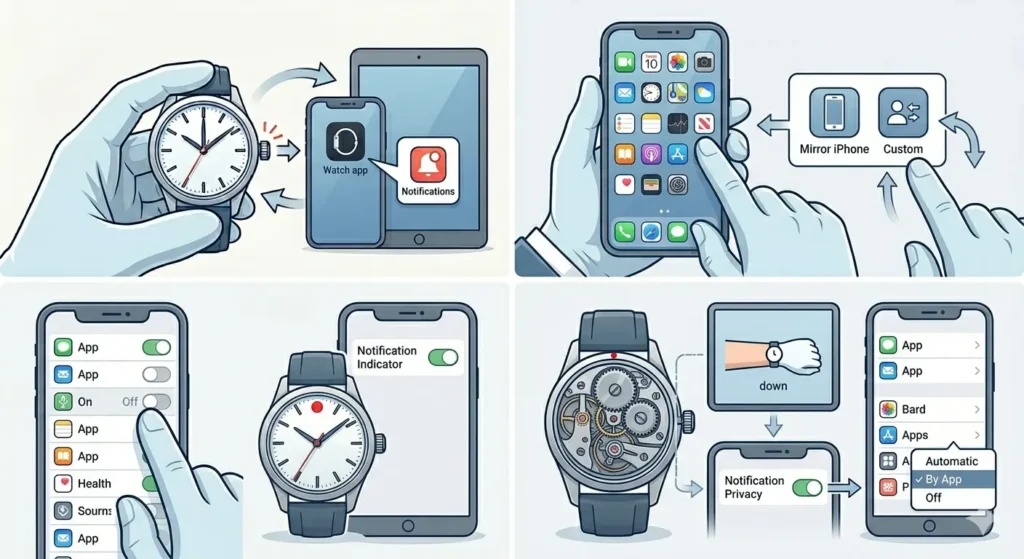
Apple Watch gives users detailed control over notifications through both the watch itself and the paired iPhone. The process involves reviewing each app individually and deciding whether it deserves wrist access.
Configure Notifications Through iPhone
- Step 1: Open the Watch app on the paired iPhone
- Step 2: Tap ‘Notifications’ from the main menu
- Step 3: Scroll through the list of installed apps
- Step 4: Tap any app to access its notification settings
- Step 5: Toggle ‘Allow Notifications’ off for apps that should not send alerts
- Step 6: For apps that should send notifications, choose between ‘Mirror my iPhone’ or custom settings
- Step 7: Enable ‘Notifications Indicator’ to show a red dot when unread alerts exist
Pro Tip: The ‘Mirror my iPhone’ setting automatically syncs notification preferences from the phone to the watch. This saves time but may send more alerts than needed. For better control, select ‘Custom’ and configure each app independently based on wrist-notification priorities rather than general phone preferences.
Adjust Notification Privacy Settings
- Step 1: Open the Watch app on iPhone
- Step 2: Navigate to ‘Notifications’
- Step 3: Scroll down to ‘Notification Privacy’
- Step 4: Turn on ‘Notification Privacy’ to hide notification content when the wrist is down
- Step 5: Raise the wrist to reveal full notification details
Set Up Notification Grouping
- Step 1: Open the Watch app on iPhone
- Step 2: Tap ‘Notifications’
- Step 3: Select an app from the list
- Step 4: Choose ‘Automatic’, ‘By App’, or ‘Off’ under notification grouping
- Step 5: Repeat for each app that sends multiple notifications
Method 2: Control Notifications on Wear OS Watches
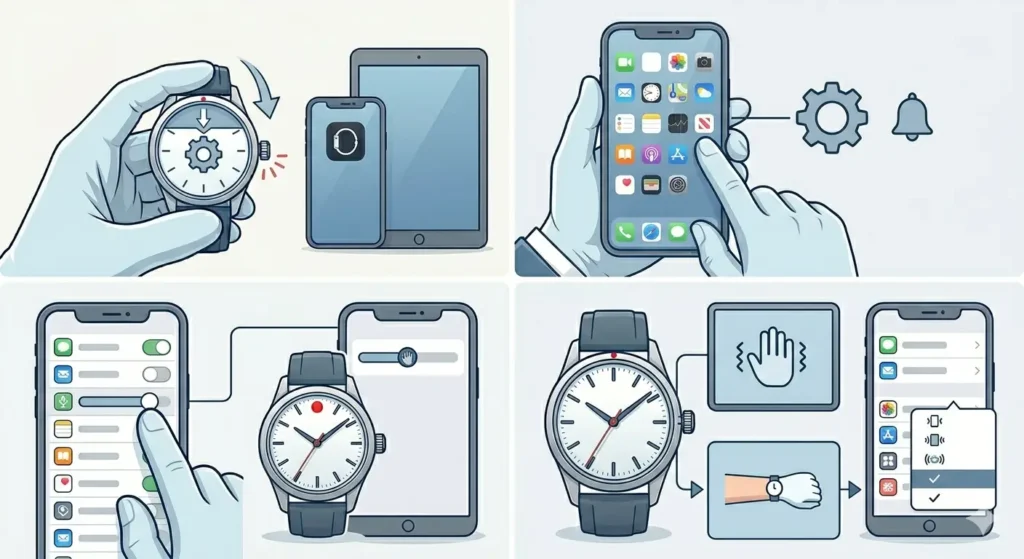
Wear OS watches from Samsung, Google, and other manufacturers offer robust notification management through both the watch interface and companion smartphone apps. The approach differs slightly from Apple Watch but provides similar customization depth.
Manage Notifications Through the Watch
- Step 1: Swipe down from the top of the watch face to access quick settings
- Step 2: Tap the gear icon to open Settings
- Step 3: Select ‘Apps & notifications’
- Step 4: Tap ‘App notifications’ to see all installed apps
- Step 5: Choose an app and toggle notifications on or off
- Step 6: For enabled apps, select notification priority level (urgent, high, medium, or low)
Configure Notifications via Smartphone App
- Step 1: Open the companion app on the paired smartphone (Wear OS app for Google watches, Galaxy Wearable for Samsung)
- Step 2: Tap ‘Notifications’ or ‘Watch settings’
- Step 3: Select ‘App notifications’
- Step 4: Review the list of apps and toggle notifications for each one
- Step 5: Enable ‘Block all notifications’ for temporary silence without changing individual app settings
Customize Vibration Patterns
- Step 1: Open Settings on the watch
- Step 2: Navigate to ‘Vibration & haptics’
- Step 3: Adjust vibration intensity using the slider
- Step 4: Some models allow custom patterns for specific apps – tap ‘Customize’ if available
- Step 5: Test different patterns to find what works best
Method 3: Set Up Do Not Disturb Schedules
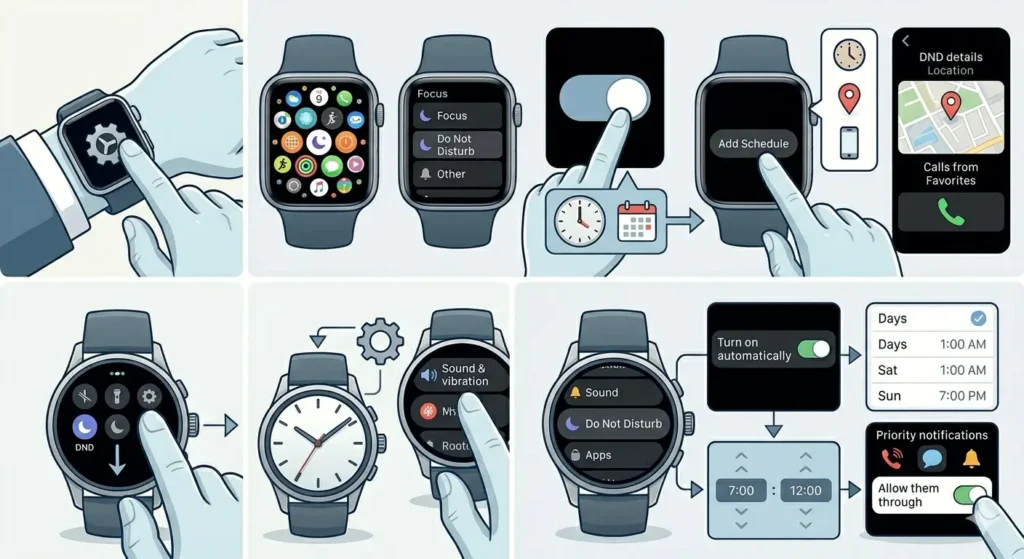
Do Not Disturb mode silences all notifications temporarily, making it essential for meetings, sleep, focused work sessions, or any time interruptions should stop. Scheduling this mode automatically ensures consistent quiet periods without manual toggling.
Configure Do Not Disturb on Apple Watch
- Step 1: Open Settings on the Apple Watch
- Step 2: Tap ‘Focus’
- Step 3: Select ‘Do Not Disturb’ from the list
- Step 4: Enable ‘Do Not Disturb’ manually or set up schedules
- Step 5: Tap ‘Add Schedule’ to create automatic quiet periods
- Step 6: Choose time-based, location-based, or app-based triggers
- Step 7: For time-based schedules, set start and end times plus which days apply
- Step 8: Allow calls from favorites or repeated calls if urgent contact is needed
Enable Do Not Disturb on Wear OS
- Step 1: Swipe down from the watch face
- Step 2: Tap the Do Not Disturb icon (moon symbol)
- Step 3: For automatic schedules, open Settings on the watch
- Step 4: Select ‘Sound & vibration’
- Step 5: Tap ‘Do Not Disturb’
- Step 6: Enable ‘Turn on automatically’
- Step 7: Set the schedule times and days
- Step 8: Choose whether priority notifications can break through
Pro Tip: Set Do Not Disturb schedules to align with existing routines. Most people benefit from automatic silence during sleep hours (10 PM – 7 AM), work focus blocks (9 AM – 11 AM), and family time (6 PM – 8 PM). Using time zone comparison tools helps coordinate schedules for those working across multiple regions.
Method 4: Create Priority Notification Lists
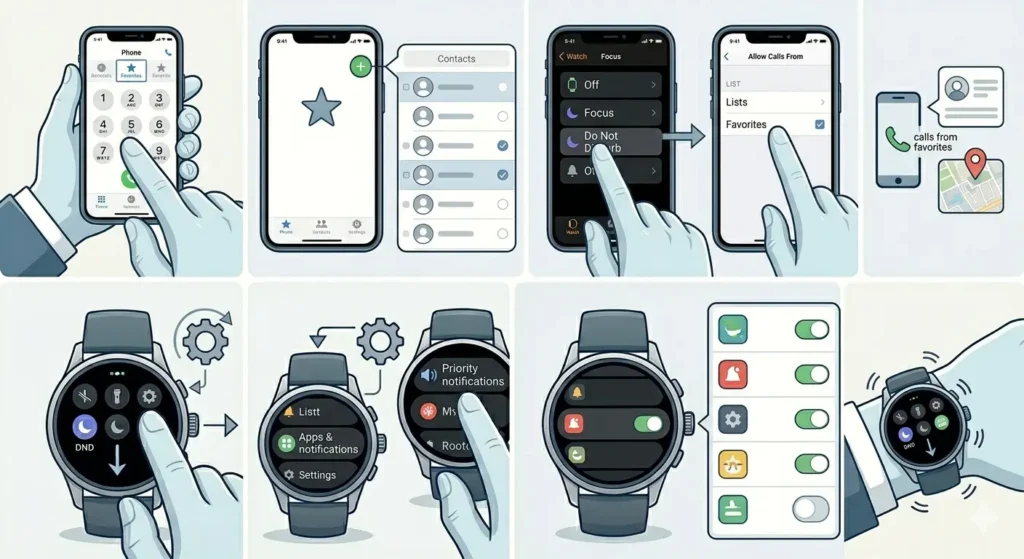
Priority lists ensure important contacts and apps always reach through, even during Do Not Disturb periods. This creates a safety net for emergencies while maintaining general silence.
Set Up Priority Contacts on Apple Watch
- Step 1: Open the Phone app on iPhone
- Step 2: Tap ‘Favorites’ at the bottom
- Step 3: Tap the ‘+’ icon to add priority contacts
- Step 4: Select contacts from the list
- Step 5: Open the Watch app
- Step 6: Go to ‘Focus’ settings
- Step 7: Under Do Not Disturb, enable ‘Allow Calls From’ and select ‘Favorites’
Configure Priority Apps on Wear OS
- Step 1: Open Settings on the watch
- Step 2: Navigate to ‘Apps & notifications’
- Step 3: Select ‘Priority notifications’
- Step 4: Choose which apps can send priority alerts
- Step 5: These apps will vibrate even during Do Not Disturb mode
Tips for Maintaining Clean Notification Settings
Notification preferences drift over time as new apps install and usage patterns change. Regular maintenance keeps the smartwatch useful rather than annoying.
- Review notification settings monthly – new apps often enable notifications by default
- Disable notifications for social media apps unless they serve critical communication needs
- Turn off promotional notifications from shopping and news apps
- Use different watch faces for different contexts (work face with calendar alerts, weekend face with fewer notifications)
- Enable notification summaries instead of instant delivery for non-urgent apps
- Set specific hours when email notifications should appear rather than 24/7 delivery
- Mute group chats on the watch while keeping direct messages active
- Use theater mode during movies or performances to prevent screen wake on wrist raise
- Leverage time tracking tools to measure how often notifications interrupt focused work
Common Problems When Managing Smartwatch Notifications
Fix 1: Notifications Not Appearing on Smartwatch
When expected notifications fail to appear on the watch, several factors could be responsible. First, verify Bluetooth connection between the watch and phone – notifications require active pairing. Check that the companion app has all necessary permissions, including notification access. On iPhone, confirm that the Watch app has notification permissions enabled in Settings > Privacy > Notifications. For Wear OS, ensure the companion app is not battery optimized, as aggressive power saving can block notification syncing.
Another common cause is conflicting settings between phone and watch. If notifications are disabled on the phone, they will not reach the watch either. Review phone notification settings for affected apps and ensure alerts are enabled. Finally, restart both devices to refresh the connection and clear any temporary syncing issues.
Fix 2: Too Many Duplicate Notifications
Duplicate notifications occur when both the phone and watch alert for the same event, or when notification grouping is not properly configured. To eliminate phone vibrations while wearing the watch, enable ‘Notification on Wrist’ mode (Apple Watch automatically silences the phone when the watch is worn and unlocked). For Wear OS, check that notifications are set to appear on the watch only rather than both devices.
App-specific duplication often happens with messaging apps that have both phone and watch components. Disable notifications in one location while keeping the other active. Email apps particularly benefit from disabling instant phone notifications while allowing smartwatch alerts for VIP senders only.
Fix 3: Notifications Disappearing Too Quickly
When notifications vanish from the watch screen before there is time to read them, adjust the display timeout settings. On Apple Watch, notification banners automatically dismiss after several seconds, but they remain accessible in Notification Center (swipe down from the top). To keep notifications visible longer, enable ‘Persistent Notifications’ if available through third-party apps.
Wear OS users can adjust notification timeout in Settings > Display > Screen timeout. Increasing this value keeps notifications visible longer. Some watches also offer ‘Keep screen awake while viewing’ options that prevent dismissal during active reading.
Frequently Asked Questions
How do notifications work between smartwatch and smartphone?
Smartwatches receive notifications through Bluetooth connection with a paired smartphone. When an app on the phone generates an alert, the notification is mirrored to the watch if that app has watch notification permissions enabled. The watch vibrates and displays the message, allowing users to view, dismiss, or sometimes respond without touching the phone. This mirroring happens in real-time as long as both devices maintain active pairing.
Can different apps have different notification settings on a smartwatch?
Yes, smartwatches allow granular control over individual app notifications. Each app can be configured independently with its own alert style, vibration pattern, grouping preference, and even specific quiet hours. This means email can vibrate strongly while social media notifications appear silently, or calendar alerts can override Do Not Disturb while promotional messages remain blocked entirely.
What happens to notifications when the smartwatch battery dies?
When a smartwatch battery depletes completely, notifications return to the paired smartphone exclusively. The phone will vibrate, ring, and display alerts normally as if the watch were not connected. Once the watch charges and reconnects, notification mirroring resumes automatically. Any notifications that arrived during the disconnection period will not retroactively appear on the watch – only new alerts after reconnection.
Do smartwatch notifications drain battery faster?
Notifications do consume battery power, but the impact varies based on frequency and type. Each notification wakes the display, activates the vibration motor, and uses processing power. Hundreds of notifications daily can noticeably reduce battery life, which is why limiting alerts to essential apps improves both battery performance and user experience. Disabling unnecessary notifications can extend watch battery by several hours per day.
Can notifications be scheduled to only appear during certain hours?
Most modern smartwatches support time-based notification control through Do Not Disturb schedules and focus modes. Users can set specific hours when all notifications should be silent, or configure certain apps to only send alerts during designated time windows. For example, work email can be limited to business hours (9 AM – 5 PM weekdays) while personal messages remain active 24/7.
How do notification privacy settings protect sensitive information?
Notification privacy prevents message content from displaying when the watch screen is inactive. With privacy enabled, an incoming notification shows the sender name and app icon but hides the actual message text until the user raises their wrist to view the watch directly. This protects sensitive information from being visible to nearby people when a notification arrives while the watch rests on a desk or table.
What is the difference between mirroring iPhone notifications and custom watch settings?
Mirroring means the watch uses identical notification settings as the iPhone – whatever alerts appear on the phone will also appear on the watch with the same style and priority. Custom settings allow different configurations, so an app can send banner notifications on the phone but only badge notifications on the watch, or vice versa. Custom settings provide more control but require configuring each app twice.
Can notifications be completely disabled temporarily without changing all settings?
Yes, both Apple Watch and Wear OS offer quick toggles to silence all notifications without modifying individual app settings. Do Not Disturb mode, theater mode, and sleep mode all temporarily block notifications while preserving the underlying configuration. When these modes are disabled, notifications resume with all previous settings intact. This is ideal for meetings, movies, or other temporary quiet periods.
How can important notifications be prioritized during Do Not Disturb?
Priority notification systems allow specific contacts or apps to break through Do Not Disturb mode. By designating certain contacts as favorites or marking specific apps as priority-level, those alerts will still vibrate and appear even when all other notifications are silenced. This creates a safety net for emergencies while maintaining general quiet during focus periods.
Why do some apps not send notifications to the smartwatch?
Several reasons prevent certain apps from sending smartwatch notifications. The app may not support watch notifications at all, or notification permissions may be disabled in the phone settings. Some apps require companion watch apps to be installed separately. Additionally, if the phone has the app’s notifications disabled, the watch cannot receive them either since it mirrors phone alerts. Checking permissions in both the phone settings and watch companion app usually reveals the issue.