
Maximizing battery life on a Wear OS watch requires adjusting display settings, managing apps, and optimizing connectivity features. This guide provides actionable steps to extend battery performance while maintaining essential functionality.
Quick Summary Table
| Setting | Battery Impact | Recommended Action |
|---|---|---|
| Always-On Display | High | Disable or use tilt-to-wake |
| Screen Brightness | High | Set to auto or 50% or lower |
| Wi-Fi | Medium | Turn off when not needed |
| Location Services | High | Use only when necessary |
| Background Apps | Medium-High | Limit or disable unused apps |
| Heart Rate Monitoring | Medium | Reduce frequency or disable |
Method 1: Adjust Display Settings
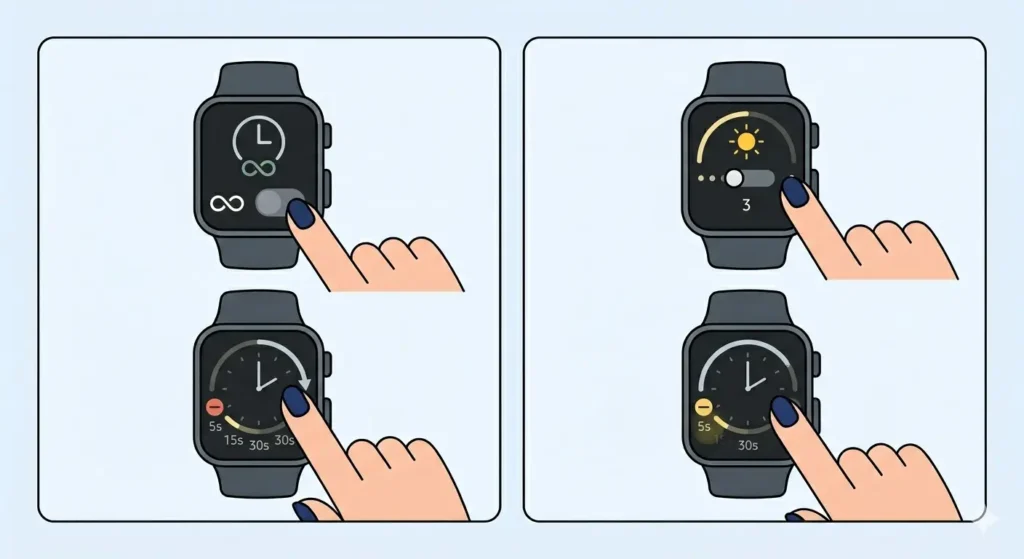
The display consumes the most battery power on any Wear OS watch. Optimizing screen settings delivers immediate improvements in battery longevity.
Disable Always-On Display
- Step 1: Open the Settings app on the watch
- Step 2: Scroll down and tap Display
- Step 3: Select Always-on screen
- Step 4: Toggle the switch to Off
This single change can extend battery life by 20-30% since the screen won’t remain active when the wrist is down.
Lower Screen Brightness
- Step 1: Go to Settings and tap Display
- Step 2: Select Brightness
- Step 3: Choose Automatic or manually set brightness to 3 or lower
Pro-Tip: Automatic brightness adapts to ambient lighting conditions, providing the perfect balance between visibility and battery conservation without manual adjustments throughout the day.
Reduce Screen Timeout Duration
- Step 1: Navigate to Settings and open Display
- Step 2: Tap Screen timeout
- Step 3: Select the shortest duration, typically 5 or 10 seconds
Method 2: Manage Connectivity Features
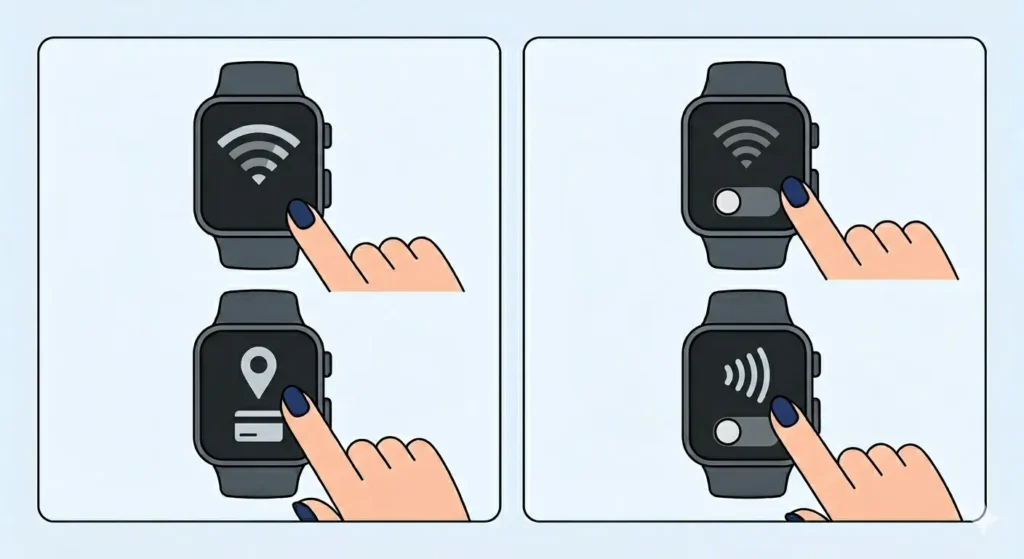
Wireless connections drain battery significantly when left active continuously. Strategic management of these features preserves power without sacrificing functionality.
Turn Off Wi-Fi When Connected to Phone
- Step 1: Swipe down from the top of the watch face to access Quick Settings
- Step 2: Tap the Wi-Fi icon to disable it
- Step 3: Confirm the watch remains connected via Bluetooth to the phone
Wi-Fi becomes redundant when the watch pairs with a phone via Bluetooth. Disabling it prevents unnecessary battery consumption.
Disable Location Services When Not Tracking Workouts
- Step 1: Open Settings on the watch
- Step 2: Scroll to Location and tap it
- Step 3: Toggle Location to Off
GPS tracking consumes substantial power. Enable it only during fitness activities that require route mapping.
Turn Off NFC When Not Making Payments
- Step 1: Access Settings from the app drawer
- Step 2: Tap Connectivity
- Step 3: Find NFC and toggle it Off
Method 3: Optimize App Usage and Notifications
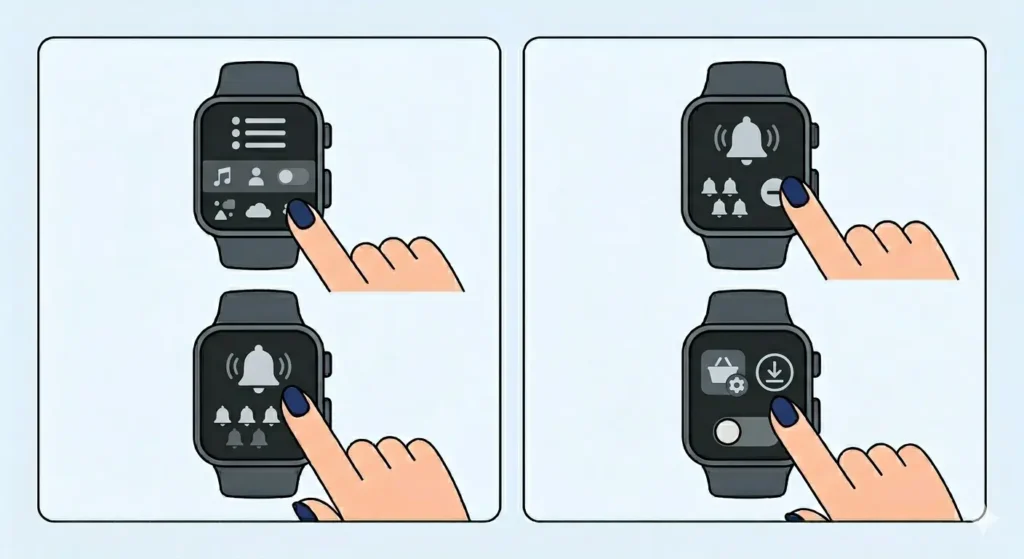
Background apps and constant notifications contribute significantly to battery drain. Controlling these elements maintains battery health.
Limit Background App Activity
- Step 1: Open the Wear OS app on the paired phone
- Step 2: Tap the settings icon and select Apps on watch
- Step 3: Review installed apps and uninstall unused ones
- Step 4: For remaining apps, disable background data where possible
Reduce Notification Frequency
- Step 1: Launch the Wear OS app on the phone
- Step 2: Go to Notifications
- Step 3: Select which apps can send notifications to the watch
- Step 4: Disable notifications from non-essential apps
Each notification activates the display and vibration motor. Limiting them to critical apps prevents unnecessary battery usage.
Disable Automatic App Updates
- Step 1: Open the Play Store on the watch
- Step 2: Tap the menu icon (three horizontal lines)
- Step 3: Select Settings
- Step 4: Tap Auto-update apps
- Step 5: Choose ‘Don’t auto-update apps’
Method 4: Adjust Health and Fitness Monitoring
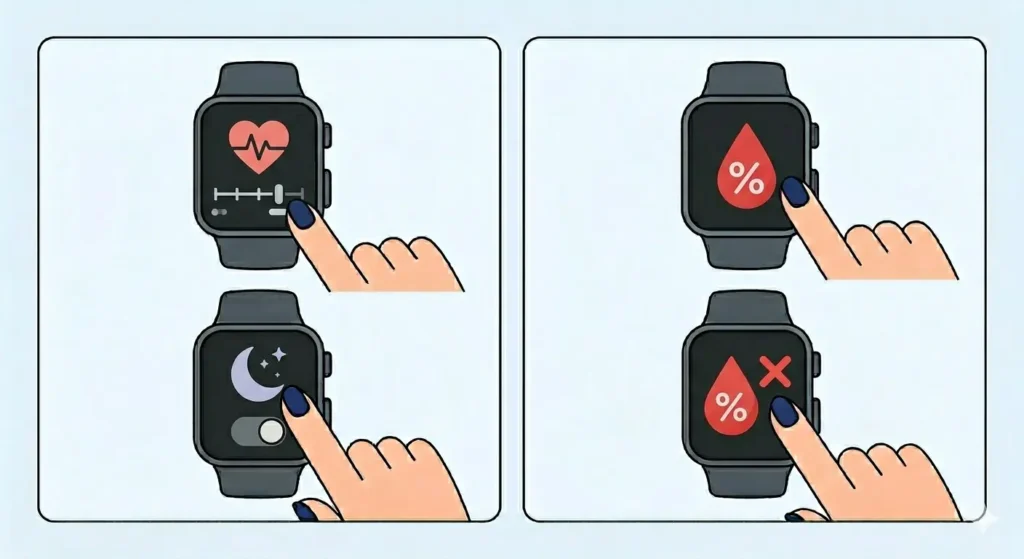
Continuous health tracking provides valuable data but impacts battery performance. Balancing monitoring frequency optimizes power consumption.
Reduce Heart Rate Monitoring Frequency
- Step 1: Open the health app on the watch (Google Fit or manufacturer’s app)
- Step 2: Access Settings within the app
- Step 3: Locate Heart rate monitoring
- Step 4: Change from Continuous to ‘During workouts only’ or reduce measurement frequency
Disable Sleep Tracking
- Step 1: Open the health tracking app
- Step 2: Navigate to Sleep settings
- Step 3: Toggle Sleep tracking to Off
Sleep tracking monitors movement and heart rate throughout the night. Disabling this feature when not needed preserves battery for daytime use.
Turn Off Blood Oxygen Monitoring
- Step 1: Access the health app settings
- Step 2: Find SpO2 or Blood oxygen settings
- Step 3: Disable continuous monitoring
- Step 4: Use manual measurements when needed instead
Pro-Tip: Most people don’t require continuous SpO2 monitoring unless tracking specific health conditions. On-demand measurements provide the same data without constant battery drain, making this one of the most effective battery-saving adjustments.
Method 5: Enable Battery Saver Features
Wear OS includes built-in battery optimization modes that extend runtime when power runs low.
Activate Battery Saver Mode
- Step 1: Swipe down from the watch face to open Quick Settings
- Step 2: Tap the battery icon
- Step 3: Select Battery Saver mode
- Step 4: Confirm activation
Battery Saver mode disables most features except time display and essential notifications, significantly extending remaining battery life.
Set Up Automatic Battery Saver
- Step 1: Open Settings on the watch
- Step 2: Tap Battery
- Step 3: Select Battery Saver
- Step 4: Enable ‘Turn on automatically’
- Step 5: Set the battery percentage threshold (typically 15% or 20%)
Use Theater Mode During Meetings
- Step 1: Swipe down to access Quick Settings
- Step 2: Tap the theater mask icon
- Step 3: The screen will stay off until the button is pressed
Theater mode prevents the display from activating with wrist movements, useful during meetings or movies when checking the current time frequently isn’t necessary.
Method 6: Optimize Watch Face Selection
Watch faces vary dramatically in battery consumption based on complexity and animation.
Choose Simple Watch Faces
- Step 1: Long-press the current watch face
- Step 2: Swipe through available faces
- Step 3: Select a minimalist design with fewer complications
- Step 4: Tap to apply
Animated or highly detailed watch faces with multiple complications require more processing power and display resources.
Reduce Complications
- Step 1: Long-press the watch face and tap Customize
- Step 2: Swipe to the complications section
- Step 3: Tap each complication slot
- Step 4: Select ‘Empty’ for non-essential complications
Each complication updates data regularly, consuming battery. Keeping only essential information on the watch face reduces this drain.
Method 7: Update Software and Restart Regularly
Software optimization improves battery efficiency over time through bug fixes and performance enhancements.
Install System Updates
- Step 1: Ensure the watch has at least 50% battery and is on the charger
- Step 2: Open Settings on the watch
- Step 3: Scroll to System and tap it
- Step 4: Select System updates
- Step 5: Tap Check for updates
- Step 6: Download and install available updates
Restart the Watch Weekly
- Step 1: Press and hold the power button
- Step 2: Tap Restart from the menu
- Step 3: Wait for the watch to reboot completely
Regular restarts clear memory caches and terminate background processes that may consume power unnecessarily.
Method 8: Manage Do Not Disturb and Bedtime Modes
Scheduled quiet modes prevent unnecessary wake events during inactive periods.
Schedule Do Not Disturb
- Step 1: Open Settings on the watch
- Step 2: Tap Sound and vibration
- Step 3: Select Do Not Disturb
- Step 4: Enable Schedule
- Step 5: Set start and end times (typically 10 PM to 7 AM)
Enable Bedtime Mode
- Step 1: Swipe down to open Quick Settings
- Step 2: Tap the moon icon for Bedtime mode
- Step 3: The screen will turn off and Do Not Disturb activates
Bedtime mode combines screen-off functionality with notification silencing, perfect for overnight battery conservation.
Tips for Long-Term Battery Health
- Avoid letting the battery drain completely before charging – maintain charge between 20% and 80% when possible
- Remove the watch from the charger once it reaches 100% to prevent overcharging stress
- Store the watch with approximately 50% charge if not using it for extended periods
- Clean the charging contacts monthly with a soft, dry cloth to ensure efficient charging
- Keep the watch firmware updated as manufacturers release battery optimization improvements
- Consider replacing the battery after 2-3 years if runtime degrades significantly despite optimization
- Use the original charger or certified alternatives to prevent charging inefficiencies
- Avoid extreme temperatures when charging or storing the watch
Common Problems and Solutions
Battery Drains Quickly After Update
System updates sometimes require a full charge cycle to recalibrate battery management. Allow the watch to drain completely once, then charge to 100% uninterrupted. If the problem persists after three days, perform a factory reset.
Watch Gets Hot During Charging
Slight warmth during charging is normal. Excessive heat indicates a problem with the charger or battery. Remove the watch immediately, let it cool, and try a different charging cable. If overheating continues, contact the manufacturer for battery diagnostics.
Battery Percentage Jumps Erratically
This indicates battery calibration issues. Fully discharge the watch until it powers off, then charge it to 100% without interruption. Repeat this cycle twice to recalibrate the battery meter. For persistent issues when tracking time across different zones, reset the watch settings.
Standby Drain Exceeds Normal Levels
Check Settings under Battery to identify apps consuming excessive background power. Uninstall recently added apps one at a time to isolate the culprit. Enable Airplane mode overnight as a test – if standby improves dramatically, wireless connections are the issue.
New Watch Has Poor Battery Life
New Wear OS watches often sync data, download updates, and index content during the first few days, causing higher than normal battery consumption. Allow 3-5 days for initial setup processes to complete before evaluating true battery performance.
Frequently Asked Questions
How long should a Wear OS watch battery last on a single charge?
Most Wear OS watches provide 18-24 hours of battery life with moderate use. Heavy usage with always-on display, GPS tracking, and continuous heart rate monitoring may reduce runtime to 12-16 hours. With aggressive battery optimization, some models can achieve 36-48 hours between charges.
Does turning off Bluetooth save battery on Wear OS?
No, disabling Bluetooth disconnects the watch from the phone, forcing it to use Wi-Fi or LTE instead, which consume more power. Bluetooth Low Energy uses minimal battery and should remain enabled for optimal efficiency.
Will factory resetting the watch improve battery life?
Factory reset can help if software glitches or corrupted apps cause abnormal battery drain. Back up important data first, perform the reset, and reinstall only essential apps to determine if battery performance improves.
How does ambient mode differ from always-on display?
Ambient mode displays a simplified, low-power version of the watch face when the wrist is down, while always-on display shows the full watch face continuously. Ambient mode consumes less battery but still uses more power than completely turning off the display when inactive.
Can third-party watch faces drain battery faster?
Yes, poorly optimized third-party watch faces with complex animations, multiple complications, or frequent updates can significantly reduce battery life. Stick to official watch faces or those from reputable developers with good reviews regarding battery efficiency.
Should the watch be charged every night?
Charging nightly is practical for daily wear, though lithium batteries last longer when kept between 20-80% charge. For optimal battery longevity, remove the watch from the charger once it reaches 100% rather than leaving it connected overnight. Using a timer can help track charging duration.
Does turning off tilt-to-wake save significant battery?
Disabling tilt-to-wake provides moderate battery savings by preventing accidental screen activations. The power saved depends on daily wrist movements – highly active individuals benefit more from this setting than sedentary users.
How much battery does GPS tracking use during workouts?
GPS tracking typically consumes 15-25% battery per hour of active use. A one-hour run with GPS enabled will drain significantly more power than standard watch usage. Disable GPS for indoor workouts where route tracking isn’t needed.
Will using a darker watch face extend battery life?
On OLED and AMOLED displays, darker watch faces save battery because black pixels are turned off completely. On LCD displays, color makes no difference to power consumption. Most modern Wear OS watches use OLED technology, so dark watch faces do provide measurable savings.
What is the biggest battery drain on Wear OS watches?
The display consumes the most battery, particularly with always-on enabled and high brightness settings. GPS tracking during workouts and continuous health monitoring (heart rate, SpO2) are secondary contributors. Addressing display settings first provides the greatest immediate impact on battery life.