
Setting up a Wear OS watch with an Android phone creates a seamless connection between your wearable device and smartphone, enabling notifications, fitness tracking, and quick access to apps right from your wrist. This step-by-step guide walks through the complete setup process, from initial preparation to final customization, ensuring a smooth pairing experience for both new and experienced users.
Quick Summary Table
| Total Setup Time | 5-10 minutes |
| Required Items | Wear OS watch, Android phone (Android 6.0+), Wear OS app, Wi-Fi connection |
| Key Steps | Charge watch, install Wear OS app, enable Bluetooth, pair devices, complete on-screen setup |
| Common Issues | Pairing failures, Bluetooth connectivity, app permissions |
Before You Begin: Preparation Steps
Proper preparation ensures a hassle-free setup process. The watch needs adequate battery power, and the phone requires the official Wear OS application.
Charge Your Wear OS Watch
Place the watch on its charging dock and let it charge to at least 50% battery. Most Wear OS watches take 60-90 minutes to reach sufficient charge levels. The device may automatically power on when placed on the charger.
Install the Wear OS App
Download the Wear OS by Google app from the Google Play Store on the Android phone. This application manages all communication between the watch and phone, handling everything from initial pairing to ongoing synchronization.
Check Phone Compatibility
Verify that the Android phone runs Android 6.0 (Marshmallow) or newer. Most phones from 2015 onwards meet this requirement. Check the Android version by navigating to Settings > About Phone > Android Version.
Setting Up Your Wear OS Watch with Android Phone
Method 1: Standard Pairing Process
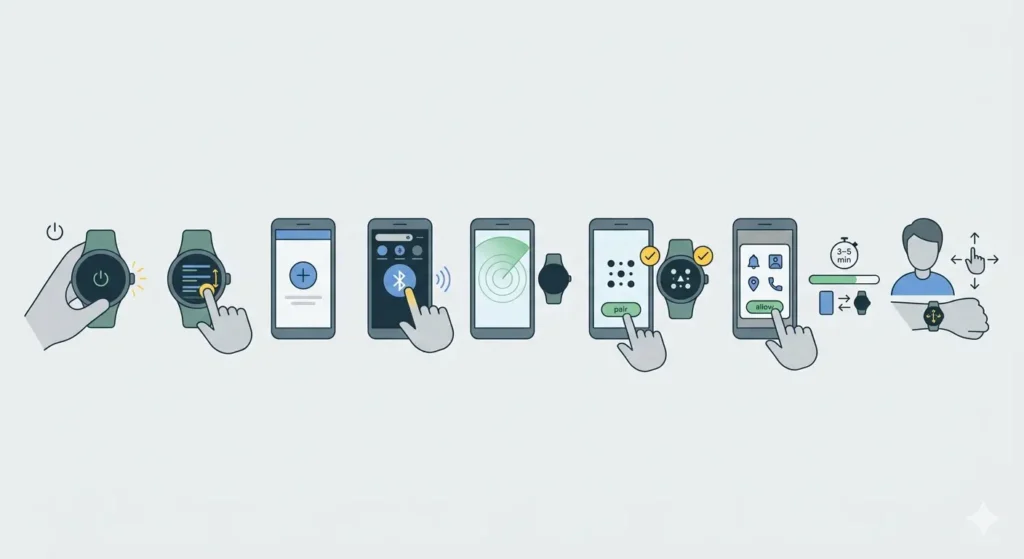
- Step 1: Power on the Wear OS watch by pressing and holding the side button for 2-3 seconds until the screen lights up.
- Step 2: Select your preferred language from the list displayed on the watch screen.
- Step 3: Open the Wear OS app on the Android phone and tap ‘Set up a new watch’ or ‘Add a watch’ if setting up additional devices.
- Step 4: Enable Bluetooth on the phone by swiping down from the top of the screen and tapping the Bluetooth icon, or through Settings > Connected devices > Connection preferences > Bluetooth.
- Step 5: The app will search for nearby watches. When the watch name appears on the phone screen, tap it to initiate pairing.
- Step 6: A pairing code will display on both the watch and phone. Verify that the codes match exactly before proceeding.
- Step 7: Tap ‘Pair’ on both devices to establish the connection.
- Step 8: Grant the requested permissions on the phone, including notifications, contacts, call logs, and location access. These permissions allow the watch to display alerts and track fitness activities.
- Step 9: Wait for the initial synchronization to complete. This process typically takes 3-5 minutes as the watch downloads essential updates and syncs data.
- Step 10: Follow the on-watch tutorial to learn basic gestures and navigation.
Pro-Tip: Keep both devices within 3 feet of each other during the pairing process to maintain a strong Bluetooth connection and prevent interruptions.
Method 2: Quick Pair Using NFC (If Available)
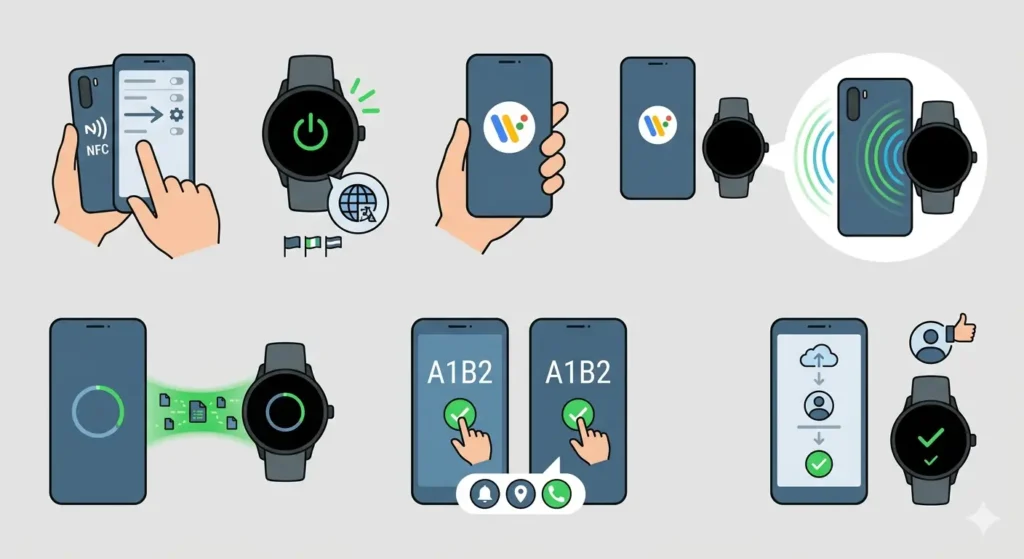
- Step 1: Ensure NFC is enabled on the Android phone through Settings > Connected devices > Connection preferences > NFC.
- Step 2: Power on the Wear OS watch and wait for the language selection screen.
- Step 3: Open the Wear OS app on the phone.
- Step 4: Hold the back of the phone against the watch face when prompted.
- Step 5: The devices will automatically detect each other and begin the pairing process.
- Step 6: Confirm the pairing code on both screens and grant necessary permissions.
- Step 7: Complete the setup by following the remaining on-screen instructions.
Post-Setup Configuration
Connect to Wi-Fi
After pairing, connect the watch to a Wi-Fi network for improved functionality when the phone is out of Bluetooth range. Swipe down on the watch face, tap Settings > Connectivity > Wi-Fi, and select a network from the available list.
Customize Watch Face
Press and hold the current watch face until customization options appear. Swipe left or right to browse available faces, then tap to select one. Many faces allow further personalization of colors, complications, and displayed information.
Configure Notifications
Open the Wear OS app on the phone, tap ‘Watch preferences,’ then ‘Notifications.’ Toggle which apps can send alerts to the watch. This prevents notification overload while ensuring important messages reach the wrist.
Set Up Google Account
The watch uses the phone’s primary Google account by default. To access the world time comparison tool and other services, ensure the account is properly synced through Settings > Google on the watch.
Tips for Optimal Watch Performance
- Keep the Wear OS app updated on the phone for the latest features and bug fixes.
- Restart both devices weekly to clear temporary files and maintain smooth operation.
- Enable ‘Always-on screen’ sparingly, as this feature significantly reduces battery life.
- Use the clock tab feature to access multiple time zones if traveling frequently.
- Disable unused sensors like GPS or heart rate monitoring when not needed to conserve battery.
- Position the watch one finger-width above the wrist bone for accurate heart rate readings.
- Clean the charging contacts weekly with a soft, dry cloth to ensure proper charging.
- Update watch software regularly through Settings > System > About > System updates.
Pro-Tip: Enable ‘Battery Saver’ mode on the watch when battery drops below 15% to extend usage time until the next charge. This mode disables most smart features but keeps basic time display active.
Common Problems and Solutions
Fix 1: Watch Not Appearing in Bluetooth Search
Restart both the watch and phone completely. Ensure the watch displays the pairing screen and hasn’t already completed setup with another device. Factory reset the watch if it was previously paired by going to Settings > System > Disconnect & reset.
Fix 2: Pairing Code Mismatch
Cancel the pairing attempt and restart the process. Move closer to eliminate Bluetooth interference from other devices. Disable and re-enable Bluetooth on the phone, then attempt pairing again.
Fix 3: Notifications Not Syncing
Verify notification permissions are granted in the Wear OS app and phone settings. Open Settings > Apps > Wear OS > Permissions and ensure all requested permissions are allowed. Check that ‘Do Not Disturb’ mode is disabled on both devices.
Fix 4: Slow Synchronization
Keep both devices close together during setup. Connect to a stable Wi-Fi network to speed up app and update downloads. Clear cache in the Wear OS app through phone Settings > Apps > Wear OS > Storage > Clear cache.
Fix 5: Battery Draining Quickly After Setup
Allow 2-3 days for battery performance to stabilize as the watch completes initial updates and learns usage patterns. Reduce screen brightness, disable always-on display, and limit fitness tracking features if drainage persists.
Fix 6: Unable to Install Apps on Watch
Ensure the watch has sufficient storage space by checking Settings > Apps > App info. Uninstall unused applications to free up memory. Verify the phone has an active internet connection for downloading watch apps.
Frequently Asked Questions
Can a Wear OS watch work with multiple Android phones?
Wear OS watches pair with one phone at a time. To switch phones, factory reset the watch and complete the setup process with the new device. Previous data and settings will not transfer automatically.
Does the phone need to be nearby for the watch to function?
The watch needs Bluetooth proximity (approximately 30 feet) for full functionality. When connected to Wi-Fi, some features like notifications continue working even when the phone is farther away, though call answering and certain apps require close proximity.
How long does the initial setup process take?
Standard setup takes 5-10 minutes, including pairing, permission grants, and initial synchronization. Additional time may be needed if system updates download during setup or if multiple apps are being installed.
What happens if the pairing process is interrupted?
If interrupted, restart the setup from the beginning. The watch may need a factory reset if partially completed setup causes issues. Access reset options through Settings > System > Disconnect & reset on the watch.
Can older Android phones pair with new Wear OS watches?
Any Android phone running version 6.0 or newer can pair with Wear OS watches. Older phones may experience limited functionality or slower performance with the latest watch models. Check manufacturer specifications for optimal phone compatibility.
Why does the watch request so many permissions during setup?
Permissions allow the watch to display notifications, track fitness activities, make calls, and access location data. Each permission serves a specific function, and denying certain permissions will limit corresponding watch features.
Is internet connection required for setup?
Active internet connection is required for downloading the Wear OS app, completing initial watch updates, and syncing Google account data. Setup can be initiated without internet, but full functionality requires connectivity at some point.
How to verify the watch is properly connected?
Open the Wear OS app on the phone – a connected watch displays its name at the top with a ‘Connected’ status. Alternatively, swipe down on the watch face to check for the cloud icon with a checkmark, indicating active connection.
Can the watch be used while charging during setup?
The watch can remain on the charger throughout the setup process. This ensures sufficient battery during initial updates and synchronization, which can consume significant power. Most manufacturers recommend charging during first-time setup.
What should be done if the Wear OS app crashes during setup?
Force close the app through phone Settings > Apps > Wear OS > Force stop, then reopen and restart setup. If crashes persist, clear app cache and data, uninstall and reinstall the Wear OS app, then attempt setup again.
How often should the watch sync with the phone?
The watch continuously syncs with the phone when Bluetooth is enabled and devices are in range. Manual syncing is unnecessary for normal operation. The online stopwatch and similar timing features update automatically when connected.