
The Walkie-Talkie feature on Apple Watch transforms the device into a quick communication tool, allowing instant voice messages with contacts who also have compatible Apple Watches. This step-by-step guide walks through setting up and using Walkie-Talkie, from initial activation to sending messages and managing contacts efficiently.
Key Takeaways
- Both users need Apple Watch Series 1 or later with watchOS 5.3 or higher
- FaceTime must be set up on the paired iPhone for Walkie-Talkie to work
- Each user must add the other as a contact and accept the invitation
- Walkie-Talkie works over Wi-Fi or cellular connection
- Press and hold the talk button to send voice messages instantly
Setting Up Walkie-Talkie on Apple Watch
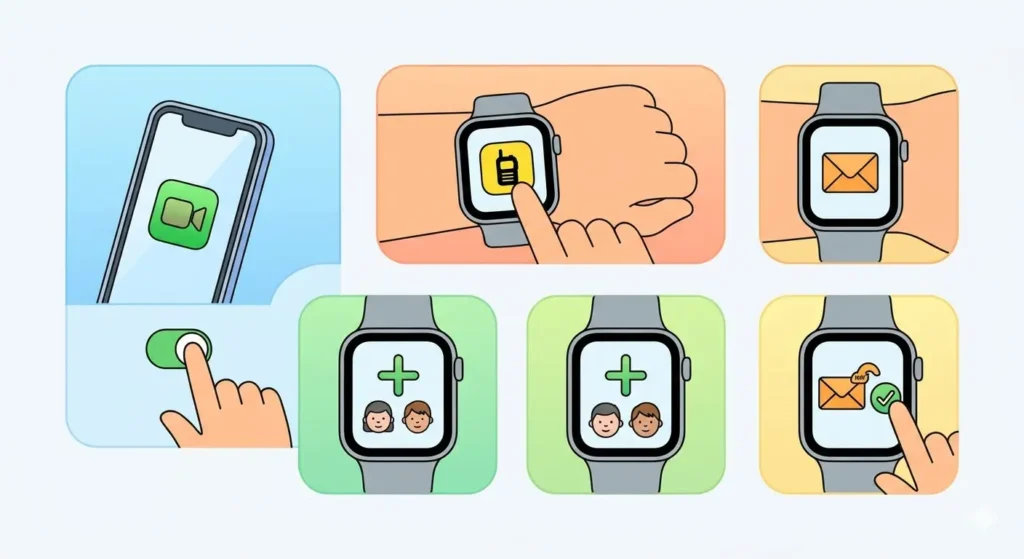
Before using Walkie-Talkie, the feature needs proper setup on both Apple Watches. This involves enabling FaceTime and adding contacts through the Walkie-Talkie app.
Enable FaceTime on iPhone
FaceTime serves as the foundation for Walkie-Talkie functionality. Without it, the feature cannot establish connections between devices.
- Step 1: Open the Settings app on the iPhone paired with the Apple Watch
- Step 2: Scroll down and tap FaceTime
- Step 3: Toggle the FaceTime switch to the ON position (green)
- Step 4: Ensure the Apple ID is signed in under ‘You can be reached by FaceTime at’
- Step 5: Verify that the phone number and email addresses are checked
Open the Walkie-Talkie App
The Walkie-Talkie app comes pre-installed on Apple Watch with watchOS 5.3 or later. Locating and opening it is the first step toward communication.
- Step 1: Press the Digital Crown on the Apple Watch to view all apps
- Step 2: Scroll through the app grid or list to find the yellow Walkie-Talkie icon
- Step 3: Tap the Walkie-Talkie icon to open the app
If the app is not visible, swipe down on the app view and use the search field to type ‘Walkie-Talkie’ for quick access.
Add a Contact
Walkie-Talkie requires adding specific contacts who also use Apple Watch. This process sends an invitation that the other person must accept.
- Step 1: Open the Walkie-Talkie app on Apple Watch
- Step 2: Tap the yellow plus (+) button at the top of the screen
- Step 3: Scroll through the contacts list or use the Digital Crown to find the desired contact
- Step 4: Tap the contact’s name to send a Walkie-Talkie invitation
- Step 5: Wait for the contact to accept the invitation on their Apple Watch
Pro-Tip: The contact must have an Apple Watch Series 1 or later with watchOS 5.3 or higher, and FaceTime must be enabled on their paired iPhone. Both devices need to be connected to Wi-Fi or have cellular service active for invitations to go through.
Accept an Invitation
When someone sends a Walkie-Talkie invitation, accepting it enables two-way communication between both Apple Watches.
- Step 1: Look for a notification on the Apple Watch when an invitation arrives
- Step 2: Tap the notification to open the Walkie-Talkie invitation screen
- Step 3: Tap ‘Always Allow’ to accept the invitation and enable communication
Alternatively, open the Walkie-Talkie app where pending invitations appear at the top. Tap the invitation and select ‘Always Allow’ to complete the setup.
Using Walkie-Talkie to Send Messages
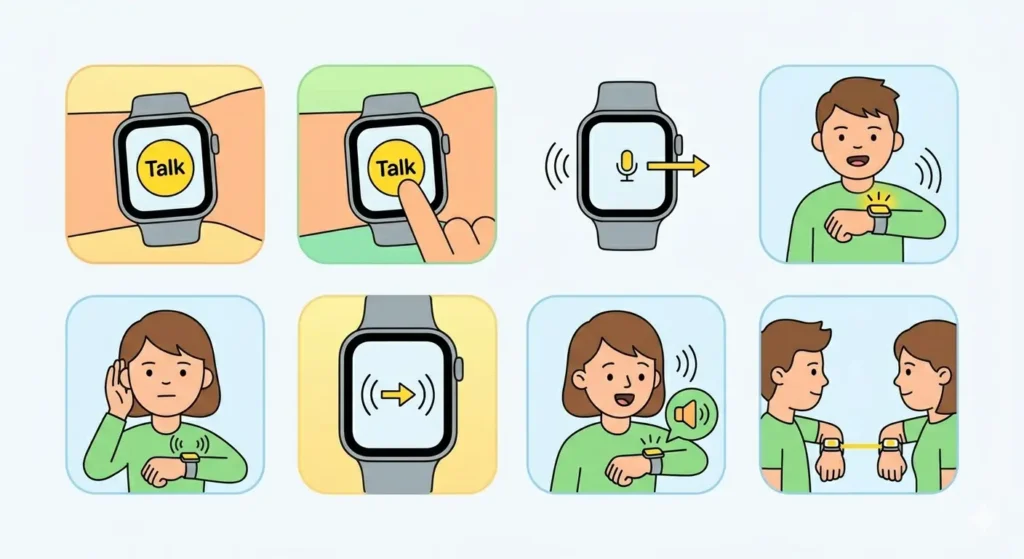
Once contacts are added and invitations accepted, sending voice messages becomes quick and straightforward. The process mimics traditional walkie-talkie devices with a push-to-talk button.
Start a Walkie-Talkie Conversation
- Step 1: Open the Walkie-Talkie app on Apple Watch
- Step 2: Tap the contact name to select the person to talk with
- Step 3: Wait for the connection to establish (indicated by a color change or status message)
- Step 4: Press and hold the large yellow talk button at the bottom of the screen
- Step 5: Speak the message clearly while holding the button
- Step 6: Release the button when finished speaking to send the message
The contact receives the voice message immediately on their Apple Watch. Most people find that speaking close to the watch produces clearer audio quality than holding the wrist at a distance.
Receive Walkie-Talkie Messages
Incoming Walkie-Talkie messages play automatically through the Apple Watch speaker when the app is open and the contact is available.
- Step 1: Keep the Walkie-Talkie app open or running in the background
- Step 2: Listen for the incoming message which plays immediately through the speaker
- Step 3: Press and hold the talk button to respond instantly
When the Walkie-Talkie app is not active, incoming messages do not come through. The app must be open and the status set to ‘Available’ for real-time communication. Need to track how long conversations last? Try this online stopwatch to monitor communication time during important exchanges.
Managing Walkie-Talkie Settings
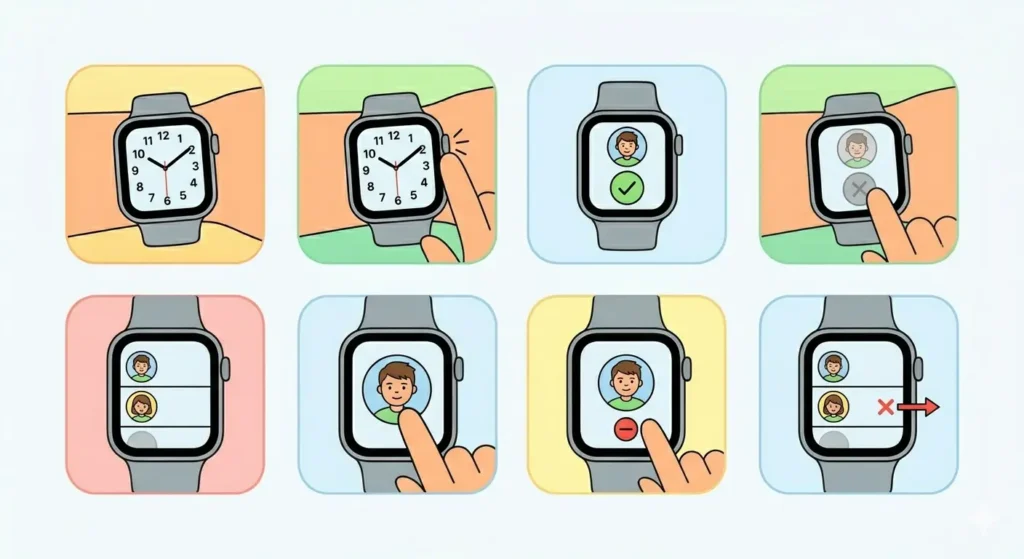
Controlling availability and managing contacts helps customize the Walkie-Talkie experience for different situations and privacy needs.
Toggle Availability Status
The availability toggle controls whether incoming Walkie-Talkie messages can reach the Apple Watch.
- Step 1: Open the Walkie-Talkie app
- Step 2: Look for the toggle switch at the top of the screen showing ‘Available’ or ‘Unavailable’
- Step 3: Tap the toggle to switch between Available (yellow) and Unavailable (gray)
Setting status to ‘Unavailable’ prevents any Walkie-Talkie messages from coming through, similar to a do-not-disturb mode specifically for this feature.
Remove a Contact
Removing contacts from Walkie-Talkie stops all communication with that person through the feature.
- Step 1: Open the Walkie-Talkie app on Apple Watch
- Step 2: Find the contact to remove in the contacts list
- Step 3: Swipe left on the contact’s name
- Step 4: Tap the red ‘X’ or ‘Delete’ button that appears
- Step 5: Confirm the removal when prompted
This action removes the contact only from Walkie-Talkie, not from the main contacts list on iPhone or Apple Watch.
Tips for Better Walkie-Talkie Experience
- Raise the Apple Watch close to the mouth when speaking for clearer audio transmission
- Keep messages brief since the other person hears them in real-time without playback control
- Check that both Apple Watches have adequate battery life before extended conversations
- Use Wi-Fi or cellular data in areas with strong signal for best connection quality
- Set status to ‘Unavailable’ during meetings, movies, or situations requiring silence
- Add Walkie-Talkie to the watch face as a complication for faster access
- Remember that messages do not save or create a history – communication is live only
- Coordinate with contacts about when both parties will be available for Walkie-Talkie use
Pro-Tip: For coordinating availability across different time zones, use this world time comparison tool to find overlapping hours when both parties can be reached for Walkie-Talkie conversations.
Common Problems and Solutions
Fix 1: Walkie-Talkie App Not Appearing
The Walkie-Talkie app might be hidden or removed from the Apple Watch home screen.
- Press the Digital Crown and search for ‘Walkie-Talkie’ using the search field
- Open the Watch app on iPhone, go to My Watch tab, scroll to Walkie-Talkie, and ensure it’s installed
- Check that watchOS version is 5.3 or later by going to Settings > General > About on Apple Watch
- Restart both Apple Watch and iPhone if the app still does not appear
Fix 2: Cannot Send or Receive Invitations
Invitation problems typically stem from FaceTime configuration or connectivity issues.
- Verify FaceTime is enabled on both iPhones paired with the Apple Watches
- Confirm both users are signed in with their Apple ID in FaceTime settings
- Check that both Apple Watches have active Wi-Fi or cellular connections
- Toggle FaceTime off and back on in iPhone Settings to refresh the connection
- Sign out and sign back in to Apple ID on iPhone if problems persist
Fix 3: Walkie-Talkie Shows ‘Unavailable’ Status
When a contact appears as unavailable, several factors might be preventing connection.
- Verify the contact has their Walkie-Talkie status set to ‘Available’ on their Apple Watch
- Confirm the contact’s Apple Watch is connected to Wi-Fi or cellular network
- Check if the contact has enabled Do Not Disturb mode which blocks Walkie-Talkie
- Ask the contact to open their Walkie-Talkie app and check their availability toggle
Fix 4: Poor Audio Quality or Choppy Messages
Audio issues during Walkie-Talkie conversations usually relate to connection strength or hardware settings.
- Move to an area with stronger Wi-Fi signal or better cellular coverage
- Clean the Apple Watch speaker and microphone openings with a soft, dry cloth
- Increase the volume on Apple Watch by using the Digital Crown or Settings
- Disable Bluetooth headphones if connected, as Walkie-Talkie works best with the watch speaker
- Ask the other person to speak closer to their Apple Watch microphone
Fix 5: Walkie-Talkie Disconnects Frequently
Frequent disconnections interrupt conversations and require troubleshooting the network or device settings.
- Ensure both Apple Watches remain connected to stable Wi-Fi or cellular networks
- Disable VPN connections on iPhone which may interfere with Walkie-Talkie
- Reset network settings on iPhone by going to Settings > General > Transfer or Reset iPhone > Reset > Reset Network Settings
- Update watchOS and iOS to the latest versions available
- Unpair and re-pair the Apple Watch with iPhone if disconnections continue
Frequently Asked Questions
Does Walkie-Talkie work without cellular service?
Yes, Walkie-Talkie works over Wi-Fi connections even without cellular service. Both Apple Watches need to be connected to Wi-Fi networks with internet access. The feature uses FaceTime audio infrastructure which operates over any data connection, not just cellular networks.
Can Walkie-Talkie be used with AirPods or Bluetooth headphones?
Walkie-Talkie typically routes audio through the Apple Watch speaker and microphone by default. While some Bluetooth audio devices may work, the feature is designed for the watch’s built-in audio hardware. For best results, use the Apple Watch speaker and speak directly toward the device.
Is there a distance limit for Walkie-Talkie on Apple Watch?
No distance limit exists for Walkie-Talkie as long as both devices have internet connectivity. Users can communicate across cities, countries, or continents provided both Apple Watches connect to Wi-Fi or cellular networks. The feature works globally unlike traditional walkie-talkies with radio range limitations.
Do Walkie-Talkie messages get saved or recorded?
No, Walkie-Talkie messages are live-only and do not save, record, or create any history. Once a message is spoken and received, it disappears completely. This makes Walkie-Talkie ideal for quick, informal communication but unsuitable for important information that needs to be referenced later.
Can multiple people join a Walkie-Talkie conversation?
No, Walkie-Talkie only supports one-to-one communication between two Apple Watch users. Group conversations or conference calls are not possible with this feature. Each Walkie-Talkie session connects exactly two people, similar to a traditional two-way radio.
Why does Walkie-Talkie require FaceTime to be enabled?
Walkie-Talkie uses FaceTime’s audio infrastructure and authentication system to establish secure connections between Apple devices. FaceTime provides the underlying technology for real-time voice transmission, encryption, and user verification. Without FaceTime enabled, the Walkie-Talkie feature cannot create connections or verify users.
Can Walkie-Talkie drain Apple Watch battery quickly?
Active Walkie-Talkie use does consume more battery than when the watch is idle, but impact varies based on conversation length and frequency. Keeping the app open and status set to ‘Available’ uses minimal power. Extended conversations with frequent messages will drain battery faster than occasional brief exchanges. For long sessions, monitor battery levels using the watch face or Control Center.
What happens if someone sends a Walkie-Talkie message while the status is set to Unavailable?
When status is set to ‘Unavailable’, incoming Walkie-Talkie messages do not come through at all. The sender sees that the recipient is unavailable, and the message is not delivered or queued. There is no missed message notification or callback feature – communication only works in real-time when both parties are available.
Is Walkie-Talkie available on all Apple Watch models?
Walkie-Talkie requires Apple Watch Series 1 or later running watchOS 5.3 or higher. The feature works on Apple Watch Series 1, 2, 3, 4, 5, 6, 7, 8, 9, SE, SE 2, Ultra, and Ultra 2 models. Older Apple Watch Series 0 models do not support Walkie-Talkie regardless of software updates.
Can Walkie-Talkie work if one person has an iPhone and the other has an Apple Watch?
No, both users must have Apple Watch devices for Walkie-Talkie to function. The feature is exclusively designed for Apple Watch to Apple Watch communication. iPhones do not have a Walkie-Talkie app or compatible feature – both parties need an Apple Watch paired with an iPhone that has FaceTime enabled.