
Sideloading apps on a Wear OS watch allows users to install applications that aren’t available on the Google Play Store. This process involves transferring APK files directly to the watch using ADB (Android Debug Bridge) commands. Whether looking to test beta apps or install region-locked applications, this step-by-step guide covers everything needed to successfully sideload apps onto any Wear OS smartwatch.
Quick Summary Table
| Time Required | 10-15 minutes |
| Tools Needed | Computer, USB cable, ADB installed |
| Difficulty Level | Moderate |
| Prerequisites | Developer mode enabled on watch |
| Compatibility | All Wear OS devices |
Enable Developer Options on the Wear OS Watch
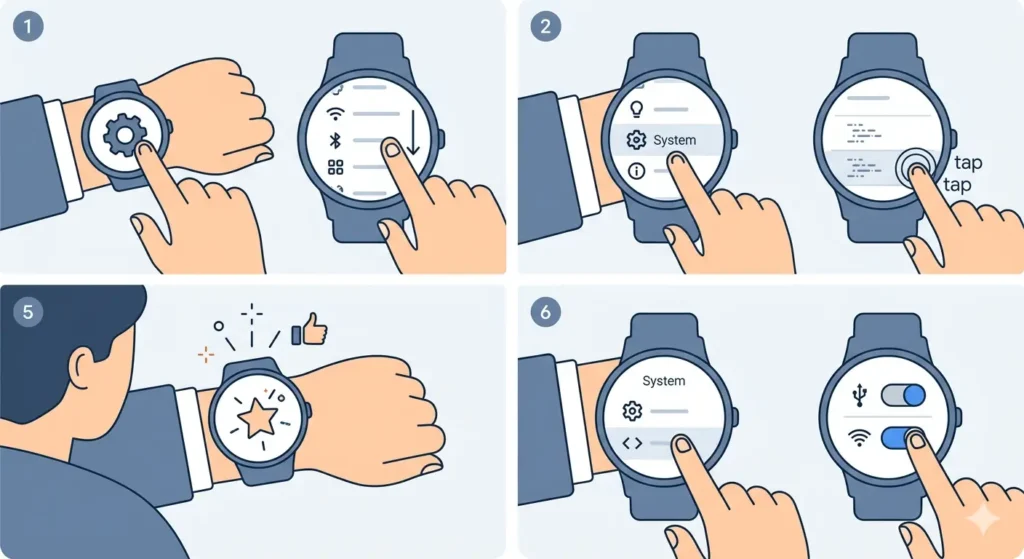
Before sideloading any apps, developer options must be activated on the Wear OS watch. This unlocks access to debugging features required for the installation process.
- Step 1: Open the Settings app on the Wear OS watch
- Step 2: Scroll down and tap on ‘System’
- Step 3: Select ‘About’ from the menu
- Step 4: Find ‘Build number’ and tap it 7 times continuously
- Step 5: A message will appear confirming ‘You are now a developer’
- Step 6: Go back to the System menu and locate ‘Developer options’
- Step 7: Toggle on ‘ADB debugging’ and confirm when prompted
- Step 8: Enable ‘Debug over Wi-Fi’ if planning to connect wirelessly
Pro Tip: Keep the watch charging during the entire sideloading process to prevent interruptions from battery drain.
Install ADB on the Computer
ADB is the command-line tool that communicates with the Wear OS watch. Installing it properly ensures smooth file transfers and app installations.
For Windows Users
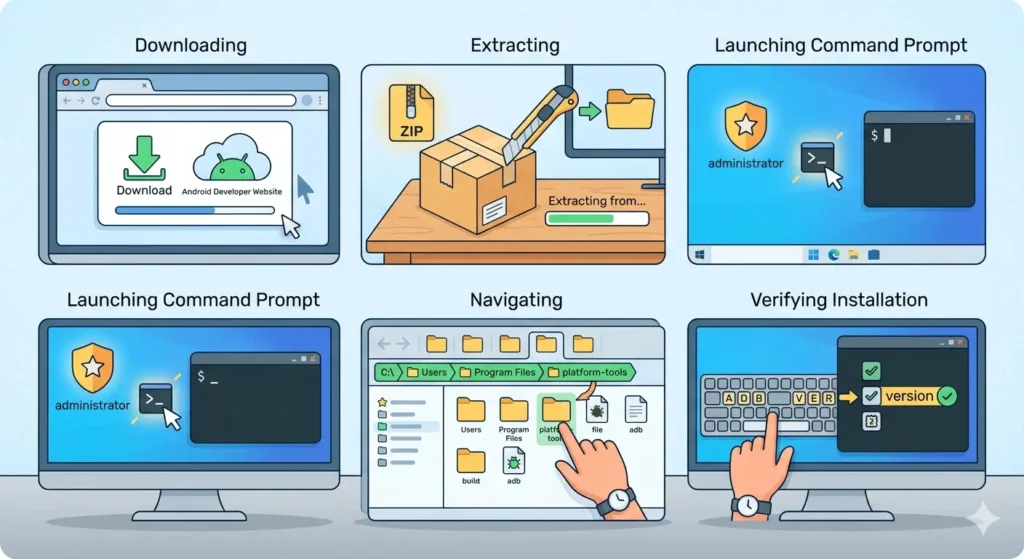
- Step 1: Download Android Platform Tools from the official Android developer website
- Step 2: Extract the ZIP file to an easily accessible folder like C:\platform-tools
- Step 3: Open Command Prompt as administrator
- Step 4: Navigate to the platform-tools folder using the ‘cd’ command
- Step 5: Type ‘adb version’ to verify installation
For Mac and Linux Users
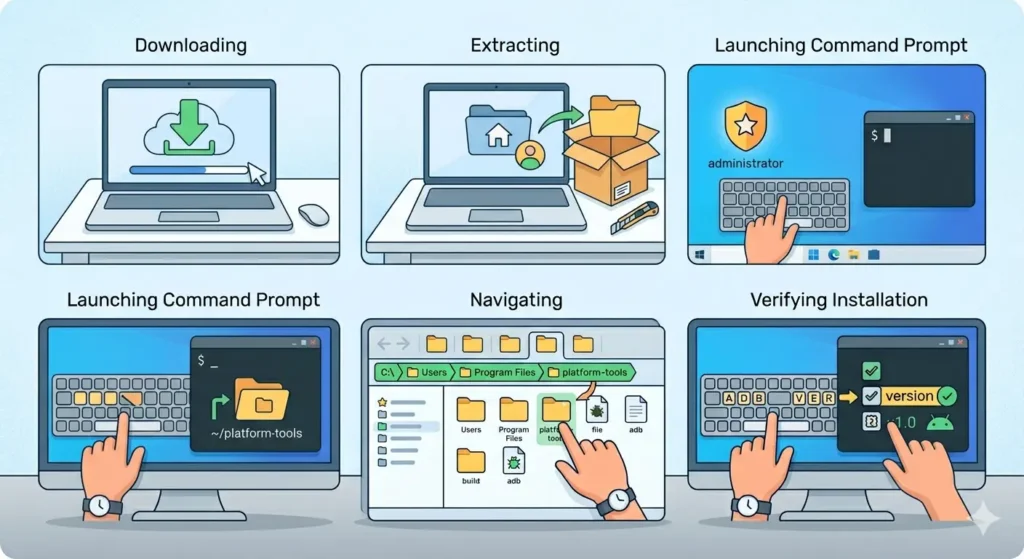
- Step 1: Download Android Platform Tools for the respective operating system
- Step 2: Extract the downloaded file to the home directory
- Step 3: Open Terminal application
- Step 4: Navigate to platform-tools using ‘cd ~/platform-tools’
- Step 5: Run ‘./adb version’ to confirm proper installation
Connect the Wear OS Watch to the Computer
Establishing a stable connection between the watch and computer is crucial for successful sideloading. There are two methods available depending on hardware availability.
Method 1: USB Connection
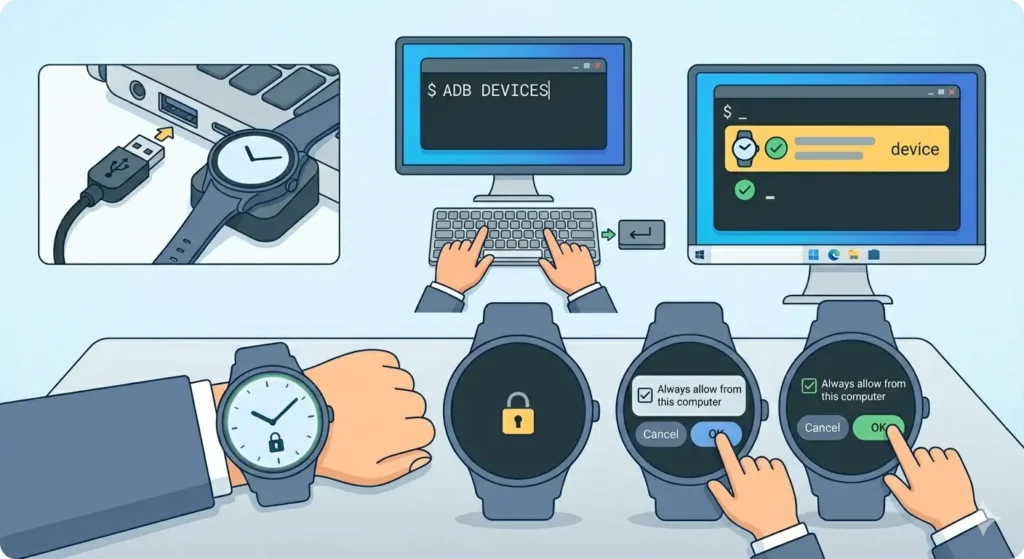
- Step 1: Connect the Wear OS watch to the computer using a USB cable
- Step 2: Ensure the watch is powered on and unlocked
- Step 3: Open Command Prompt or Terminal on the computer
- Step 4: Type ‘adb devices’ and press Enter
- Step 5: Check if the device appears in the list with ‘device’ status
- Step 6: If prompted on the watch, tap ‘Always allow from this computer’ and select OK
Method 2: Wireless Connection
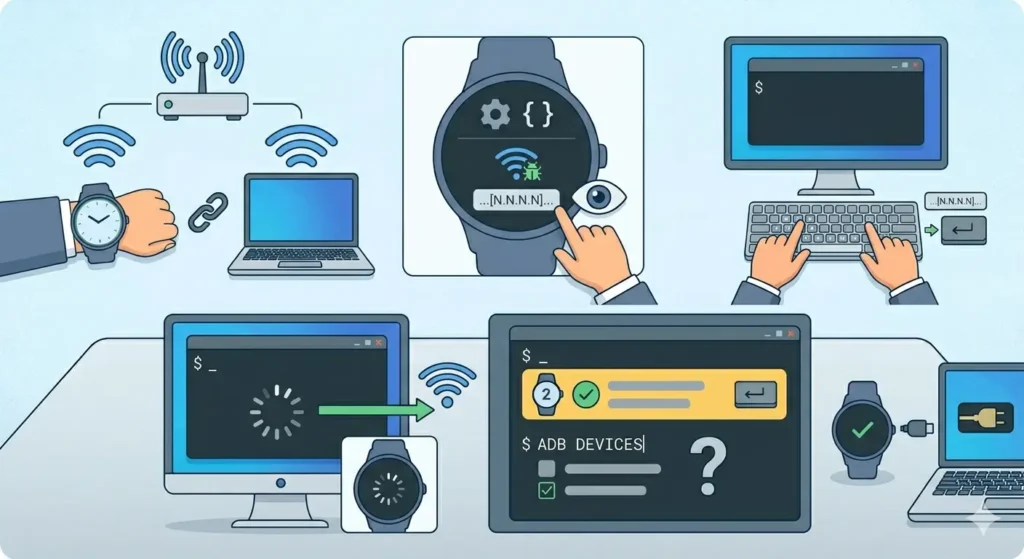
- Step 1: Ensure both the watch and computer are on the same Wi-Fi network
- Step 2: On the watch, go to Developer options and note the IP address shown under ‘Debug over Wi-Fi’
- Step 3: Open Command Prompt or Terminal on the computer
- Step 4: Type ‘adb connect [IP_ADDRESS]:5555’ (replace with actual IP address)
- Step 5: Wait for confirmation message ‘connected to [IP_ADDRESS]:5555’
- Step 6: Run ‘adb devices’ to verify the wireless connection
Download the APK File
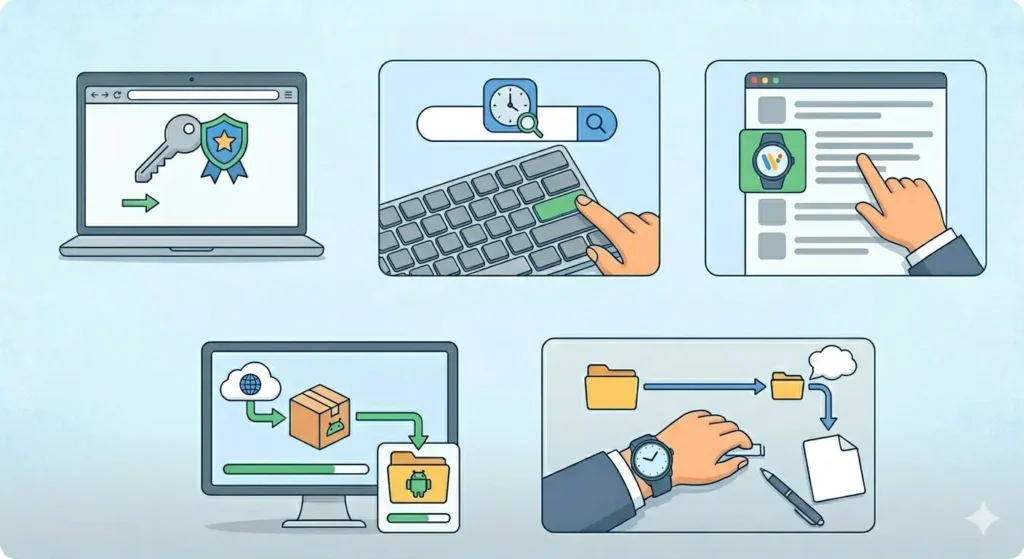
Obtaining the correct APK file is essential for successful installation. The file must be compatible with Wear OS architecture.
- Step 1: Visit a trusted APK repository like APKMirror or APKPure
- Step 2: Search for the desired application
- Step 3: Look for versions specifically marked as ‘Wear OS’ compatible
- Step 4: Download the APK file to a known location on the computer
- Step 5: Note the complete file path for the next steps
Pro Tip: Always verify that the APK is designed for Wear OS rather than smartphone Android versions, as phone apps typically won’t function properly on smartwatches.
Sideload the App Using ADB Commands
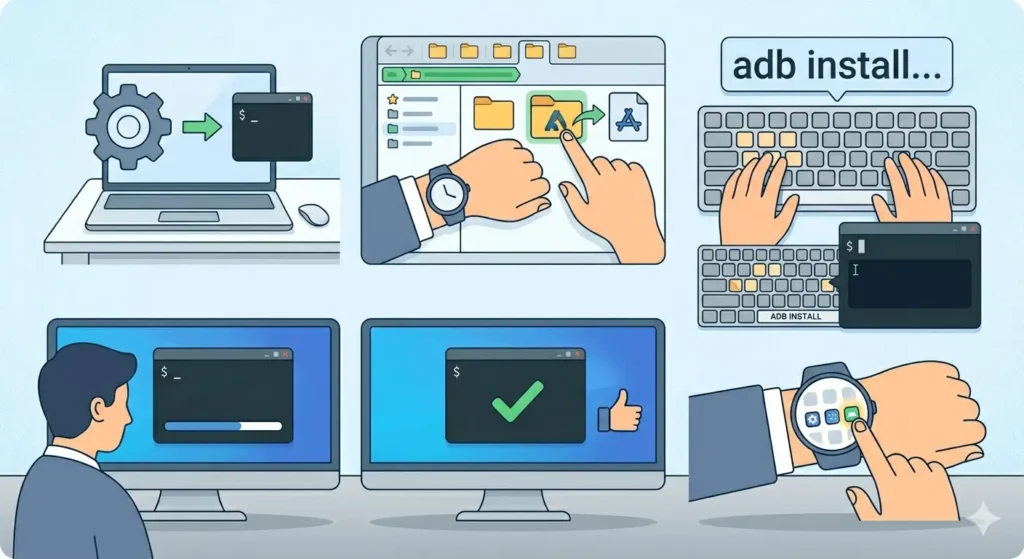
This is the main process where the APK file gets transferred and installed onto the Wear OS watch.
- Step 1: Open Command Prompt or Terminal on the computer
- Step 2: Navigate to the folder containing the downloaded APK file
- Step 3: Type ‘adb install [filename].apk’ (replace with actual filename)
- Step 4: Press Enter and wait for the installation process to complete
- Step 5: Look for the ‘Success’ message in the command window
- Step 6: Check the watch’s app drawer to find the newly installed application
The complete command looks like this: adb install app-wear-release.apk
If the APK is located in a different directory, use the full path: adb install C:\Downloads\app-wear-release.apk
Tips for Successful Sideloading
These practical suggestions help avoid common issues and ensure smooth installations every time.
- Always keep the watch screen active during installation to prevent connection drops
- Use APK files specifically compiled for Wear OS architecture to ensure compatibility
- Check available storage space on the watch before attempting to install large apps
- Keep ADB platform tools updated to the latest version for best performance
- Disable battery optimization for ADB debugging to maintain stable connections
- Restart both the watch and computer if the device isn’t recognized by ADB
- Use an online stopwatch to monitor installation times for large files
- Verify app permissions after installation to ensure proper functionality
Common Problems and Solutions
Even with careful preparation, certain issues may arise during the sideloading process. Here are proven solutions to the most frequent problems.
Fix 1: Device Not Showing in ADB Devices List
When the watch doesn’t appear after running ‘adb devices’, several factors could be responsible. First, verify that USB debugging is enabled in Developer options on the watch. Try using a different USB cable, as some cables only support charging without data transfer. Reinstall the USB drivers on the computer by uninstalling and reconnecting the device. On Windows, check Device Manager to ensure proper driver installation. For wireless connections, confirm both devices are on the same network and the correct IP address is being used.
Fix 2: Installation Failed Error Message
This error typically indicates incompatibility or corrupted files. Download the APK again from a different source to rule out file corruption. Verify the app is specifically designed for Wear OS rather than standard Android. Check if sufficient storage space is available on the watch by going to Settings > Storage. Try uninstalling any previous version of the app before attempting to sideload. Use the command ‘adb install -r [filename].apk’ to force reinstallation over existing versions.
Fix 3: Connection Keeps Dropping During Installation
Unstable connections interrupt the installation process and cause failures. Ensure the watch remains unlocked throughout the entire procedure. Disable battery optimization for ADB-related processes on both devices. For USB connections, try different USB ports on the computer, preferably USB 2.0 ports which are more stable. When using Wi-Fi connections, move the watch closer to the router to improve signal strength. Using tools like a time comparison tool can help schedule installations during low-network-traffic periods for better stability.
Fix 4: App Installs But Doesn’t Appear
Sometimes apps install successfully but remain invisible in the app drawer. Restart the Wear OS watch to refresh the system. Check if the app appears under Settings > Apps on the watch. Some apps require specific permissions before they become visible – grant all requested permissions. Verify that the APK version matches the Wear OS version running on the watch. Certain apps may have launcher requirements that aren’t met by standard Wear OS home screens.
Fix 5: Unauthorized Device Error
This security feature prevents unauthorized access to the watch. When this message appears, look at the watch screen for an authorization prompt. Tap ‘Allow’ and select the checkbox for ‘Always allow from this computer’. If no prompt appears, run ‘adb kill-server’ followed by ‘adb start-server’ to reset the connection. Revoke USB debugging authorizations from Developer options on the watch, then re-enable debugging and reconnect.
Frequently Asked Questions
Can any Android app be sideloaded onto a Wear OS watch?
Not all Android apps work on Wear OS devices. Only applications specifically designed or compiled for Wear OS architecture will function properly. Standard smartphone apps may install but typically won’t display correctly or function as intended due to screen size and interface differences. Always look for Wear OS-compatible versions when downloading APK files.
Is sideloading apps safe for the Wear OS watch?
Sideloading itself is safe when done correctly and with trusted APK sources. The process doesn’t void warranties or damage the device. However, installing apps from unknown sources carries security risks. Only download APK files from reputable repositories like APKMirror or the official app developer’s website to avoid malware or compromised applications.
Will sideloaded apps receive automatic updates?
No, sideloaded applications do not receive automatic updates through the Google Play Store. Updates must be manually downloaded and installed using the same ADB process. To update a sideloaded app, download the newer APK version and use the ‘adb install -r’ command to replace the existing installation while preserving app data.
Does sideloading require root access on the Wear OS watch?
Sideloading does not require root access or bootloader unlocking. The standard ADB debugging feature available in Developer options provides sufficient permissions for installing apps. Rooting is only necessary for system-level modifications, not for basic app installations through ADB.
How much storage space is needed for sideloading?
Storage requirements depend on the app size. Most Wear OS watches have limited storage (4GB to 16GB), with the system occupying a significant portion. Before sideloading, check available space in Settings > Storage. As a general rule, maintain at least 500MB of free space to ensure smooth operation and successful installations.
Can sideloaded apps be uninstalled like regular apps?
Yes, sideloaded applications can be uninstalled exactly like apps installed from the Play Store. Go to Settings > Apps on the watch, select the sideloaded app, and tap ‘Uninstall’. Alternatively, use the ADB command ‘adb uninstall [package.name]’ from the computer to remove apps remotely.
Why does the watch show a security warning after sideloading?
Wear OS displays security warnings for apps installed from unknown sources as a protective measure. This is normal behavior and doesn’t indicate a problem with the app or installation. The warning reminds users that sideloaded apps haven’t been verified by Google Play Protect. Trusted apps from reputable sources are generally safe despite this warning.
Can multiple APK files be installed at once?
While ADB allows batch installations, it’s better to install apps one at a time on Wear OS devices to avoid overwhelming the limited resources. Installing multiple apps simultaneously can cause connection instabilities or partial installations. For multiple apps, complete each installation and verify functionality before proceeding to the next one.
What happens if the installation process is interrupted?
If an installation gets interrupted due to connection loss or battery drain, the process simply fails without damaging the watch. No partial app installations remain on the device. Simply reconnect the watch and retry the installation from the beginning. Tools like a clock tab can help track installation times to prevent timing-related interruptions.
Do sideloaded apps work with all Wear OS versions?
App compatibility depends on the minimum Wear OS version required by the application. Check the APK details before downloading to ensure it supports the Wear OS version running on the watch. Newer apps may not work on older Wear OS versions, while apps designed for older versions usually function on newer systems.