
Setting up Google Wallet or Apple Pay on a smartwatch makes contactless payments incredibly convenient. This step-by-step guide shows exactly how to configure and use digital wallets on wearable devices, whether using an Apple Watch or a Wear OS smartwatch.
Quick Summary Table
| Device Type | Wallet App | Setup Time | Requirements |
|---|---|---|---|
| Apple Watch | Apple Pay | 3-5 minutes | iPhone paired, passcode enabled |
| Wear OS Watch | Google Wallet | 5-7 minutes | Android phone paired, screen lock enabled |
Setting Up Apple Pay on Apple Watch
Method 1: Add Cards from iPhone
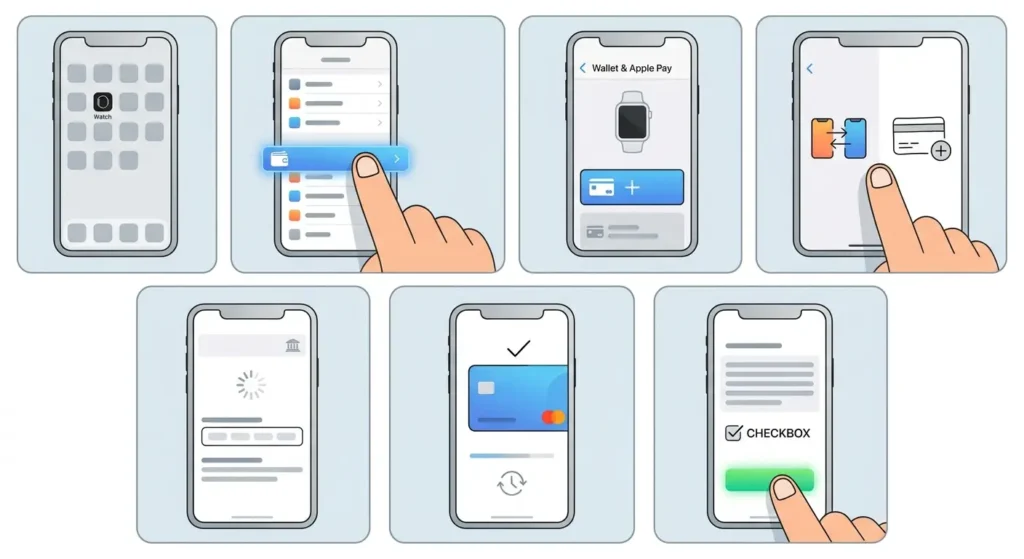
- Step 1: Open the Watch app on the paired iPhone
- Step 2: Scroll down and tap ‘Wallet & Apple Pay’
- Step 3: Tap ‘Add Card’ under the watch name
- Step 4: Choose to add a card from the iPhone or add a new card manually
- Step 5: Follow the on-screen prompts to verify the card with the bank
- Step 6: Wait for the bank to approve the card (usually takes 1-3 minutes)
- Step 7: Agree to the terms and conditions when prompted
Pro Tip: Cards already saved in Apple Pay on the iPhone can be added to the Apple Watch with just a few taps and a verification code from the bank. This saves significant time compared to entering card details manually.
Method 2: Add Cards Directly on Apple Watch
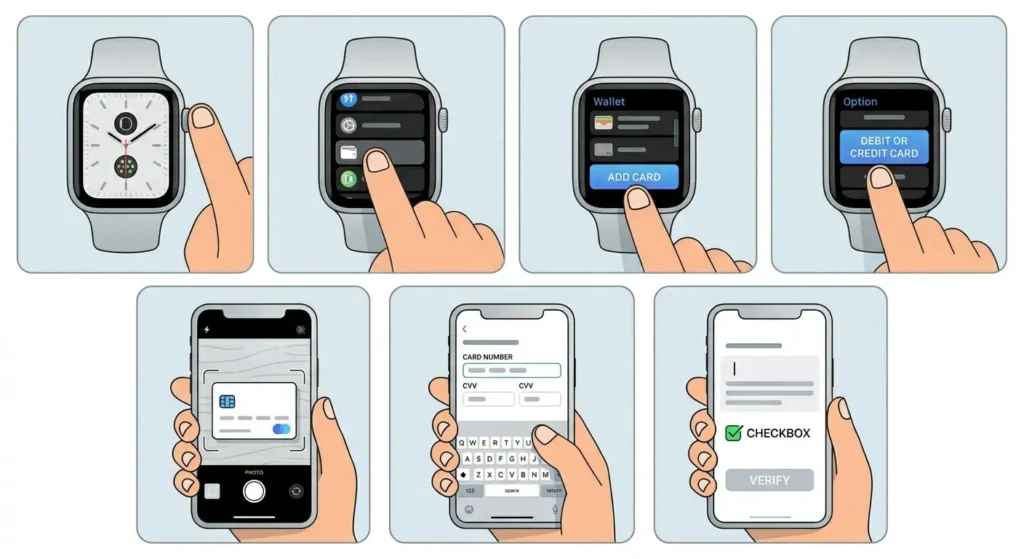
- Step 1: Press the Digital Crown to view the app screen
- Step 2: Open the Wallet app on the Apple Watch
- Step 3: Scroll to the bottom and tap ‘Add Card’
- Step 4: Tap ‘Debit or Credit Card’
- Step 5: Use the camera on the paired iPhone to scan the card or enter details manually
- Step 6: Complete the verification process with the bank
Setting Up Google Wallet on Wear OS Watch
Method 1: Setup via Phone App
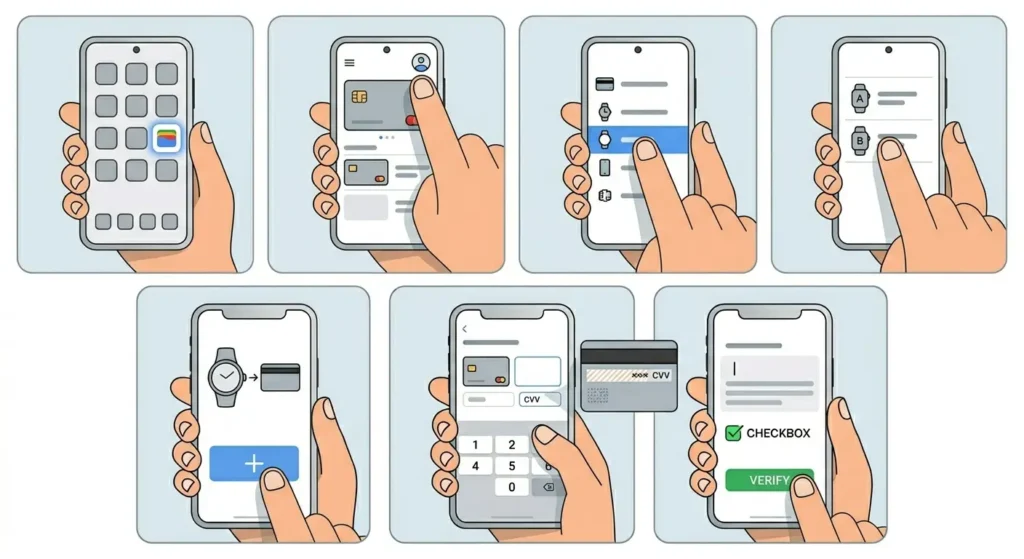
- Step 1: Open the Google Wallet app on the paired Android phone
- Step 2: Tap the profile icon in the top right corner
- Step 3: Select ‘Watch’ from the menu options
- Step 4: Choose the connected Wear OS device
- Step 5: Tap ‘Add a card to your watch’
- Step 6: Select an existing card or tap ‘New credit or debit card’
- Step 7: Enter the card security code or add new card details
- Step 8: Accept the terms and verify with the bank
Method 2: Setup Directly on Watch
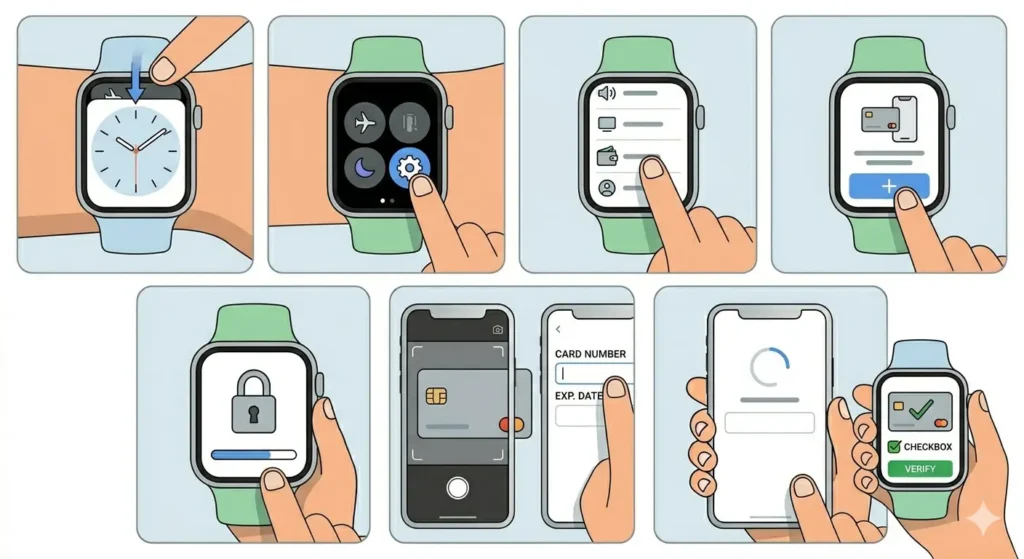
- Step 1: Swipe down from the watch face to access quick settings
- Step 2: Tap the settings gear icon
- Step 3: Scroll down and select ‘Google Wallet’
- Step 4: Tap ‘Set up for in-store payments’
- Step 5: Follow the prompts to enable screen lock if not already active
- Step 6: Add a payment card by scanning it with the phone camera or entering details manually
- Step 7: Complete bank verification when prompted
Pro Tip: A screen lock (PIN, pattern, or password) must be enabled on the Wear OS watch before Google Wallet will allow payment cards to be added. This security measure protects against unauthorized transactions if the watch is lost or stolen.
Making Payments with Your Watch
Using Apple Pay at Checkout
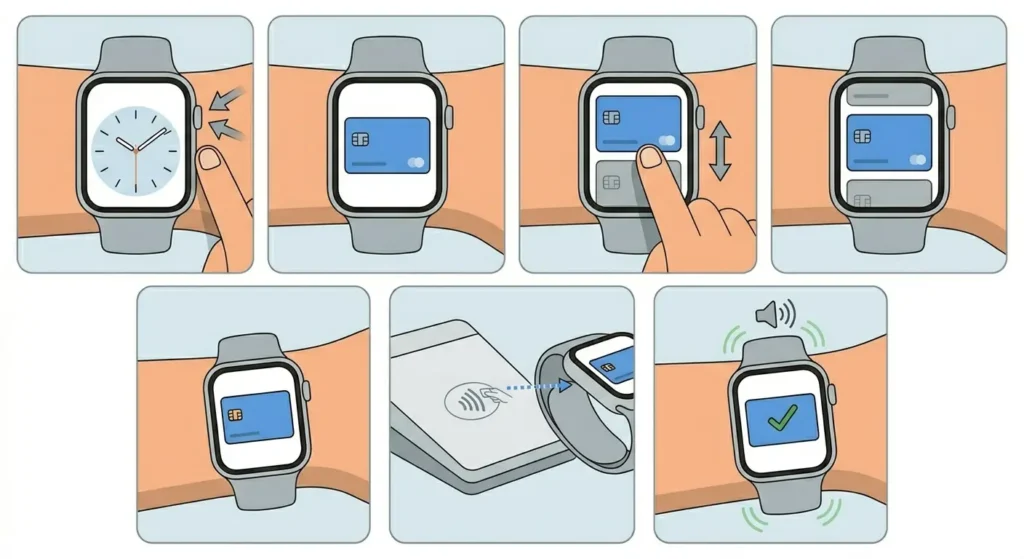
- Step 1: Double-click the side button on the Apple Watch
- Step 2: The default card will appear on the screen
- Step 3: Scroll to select a different card if needed
- Step 4: Hold the watch display near the contactless payment terminal
- Step 5: Wait for a gentle tap and beep confirming the payment
Using Google Wallet at Checkout
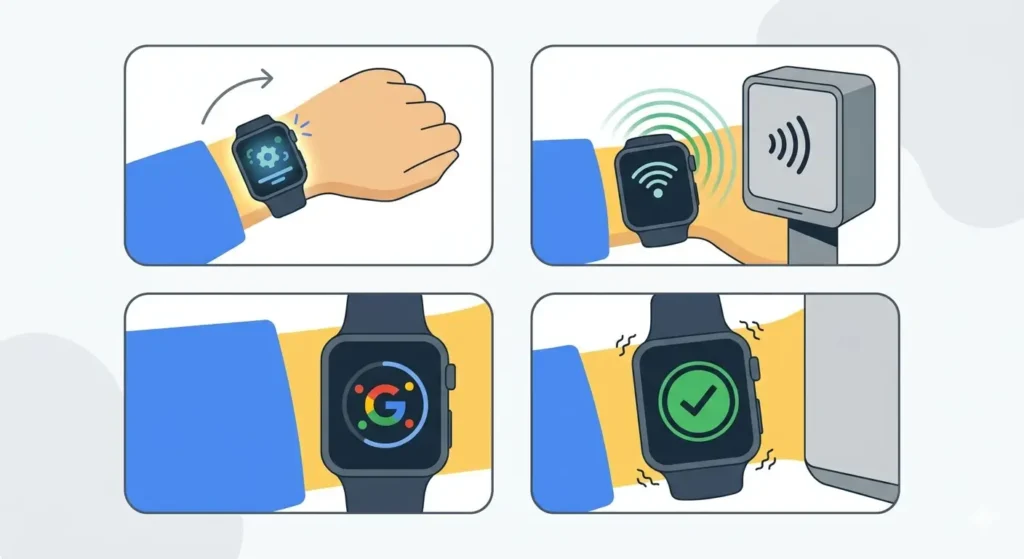
- Step 1: Wake the watch screen by raising the wrist or tapping the display
- Step 2: Hold the watch near the contactless payment reader
- Step 3: The watch will automatically activate Google Wallet
- Step 4: Wait for the confirmation vibration and checkmark on screen
Most modern payment terminals support contactless payments. Look for the contactless symbol (four curved lines) on the reader. The transaction typically completes in 1-2 seconds.
Tips for Smooth Watch Payments
- Set a default card in the wallet settings to speed up transactions
- Keep the watch charged above 10% battery as some watches disable payments at low battery levels
- Hold the watch within 1-2 inches of the payment terminal for best results
- Remove any thick watch cases or metal bands that might interfere with NFC signals
- Enable transaction notifications to monitor all purchases made with the watch
- Update the wallet app regularly to access new features and security improvements
- When traveling, check world time zones to avoid confusion with transaction timestamps
- Use the online stopwatch feature to track payment processing times during busy checkout periods
Common Problems and Troubleshooting
Fix 1: Payment Not Working at Terminal
Check that the watch screen is unlocked and awake. Both Apple Pay and Google Wallet require the watch to be actively worn with screen lock authentication completed. If the watch has been off the wrist for more than a few minutes, enter the passcode again.
Ensure NFC is enabled on the watch. On Wear OS devices, go to Settings > Connectivity > NFC and verify it’s turned on. Apple Watch has NFC enabled by default and cannot be disabled.
Fix 2: Card Won’t Add to Watch
Verify that the card issuer supports digital wallet payments on smartwatches. Not all banks allow watch payments even if they support phone payments. Contact the bank directly to confirm compatibility.
Check that the watch has the latest software update installed. Outdated watch operating systems may have compatibility issues with newer wallet features.
Fix 3: Transaction Declined at Store
Confirm the card has sufficient funds or available credit. Declined transactions usually indicate an issue with the card itself rather than the watch payment system.
Remove and re-add the card to the watch wallet. Sometimes the secure element token needs to be refreshed, especially after traveling internationally or changing phone numbers.
Fix 4: Watch Requires Passcode Too Frequently
Tighten the watch band to ensure proper skin contact. Wrist detection sensors need consistent contact to keep the watch unlocked. If the watch slides around too much, it will lock repeatedly.
Clean the watch sensors on the back of the device. Dirt, sweat, or lotion can interfere with wrist detection and cause the watch to think it has been removed.
Frequently Asked Questions
Can both Google Wallet and Apple Pay be used on the same watch?
No, smartwatches only support one digital wallet system based on their operating system. Apple Watch exclusively uses Apple Pay, while Wear OS watches use Google Wallet. The hardware and software are designed to work with only one payment ecosystem.
Do watch payments work without a phone nearby?
Yes, once cards are added to the watch, payments work independently of the phone. The watch stores encrypted payment credentials locally in a secure element chip. However, adding new cards or receiving bank notifications may require the phone to be connected.
Are there transaction limits when paying with a watch?
Transaction limits depend on the merchant and card issuer, not the watch itself. Many stores have higher limits for contactless payments compared to traditional tap-to-pay cards. Some merchants may require a PIN for purchases above certain amounts, which cannot be entered on the watch.
Will payments work if the watch battery dies?
Apple Watch has a Power Reserve mode that allows Apple Pay to work for up to 5 hours after the battery appears dead, but only if Express Transit was enabled before the battery depleted. Wear OS watches completely disable Google Wallet when the battery is critically low, usually below 5-10%.
Can multiple cards be stored on the watch?
Yes, both Apple Pay and Google Wallet support multiple payment cards on a single watch. Apple Watch can store up to 12 cards depending on the model, while Wear OS watches generally support up to 10 cards. Switch between cards before tapping to pay.
Is paying with a watch more secure than using a physical card?
Watch payments are generally more secure than physical cards. Each transaction uses a one-time dynamic security code instead of the actual card number. The card details are never shared with merchants, and biometric authentication (wrist detection) prevents unauthorized use if the watch is stolen.
Do all stores accept watch payments?
Any store with a contactless payment terminal that accepts tap-to-pay cards will accept watch payments. The terminal doesn’t distinguish between a phone, watch, or contactless card – they all use the same NFC technology. Look for the contactless symbol at checkout.
Can transit passes be added to the watch wallet?
Yes, many public transportation systems support digital transit cards in both Apple Pay and Google Wallet. Supported cities include London, Tokyo, New York, San Francisco, and dozens of others. The watch can be tapped on transit readers just like payment terminals.
What happens to watch payments if the phone is reset?
Cards stored on the watch remain functional even if the paired phone is reset or replaced. The watch maintains its own secure payment credentials independent of the phone. However, managing cards or adding new ones will require re-pairing the watch with a phone.
Are there fees for using digital wallets on watches?
No, both Apple Pay and Google Wallet are free to use. There are no fees from Apple or Google for making payments with the watch. Card issuers and merchants do not charge extra fees for contactless transactions compared to traditional card swipes or chip insertions.