
Setting up a Samsung Galaxy Watch is straightforward when following the correct steps. This guide walks through the complete process, from unboxing to wearing a fully functional smartwatch on the wrist. Whether it’s a Galaxy Watch 6, Watch 5, or an older model, the setup process remains consistent across most Samsung wearables.
Quick Summary Table
| Setup Stage | Time Required | Key Requirement |
|---|---|---|
| Charging the watch | 30-60 minutes | Wireless charging pad |
| Installing Galaxy Wearable app | 2-3 minutes | Compatible smartphone |
| Pairing and initial setup | 10-15 minutes | Bluetooth enabled |
| Account and customization | 5-10 minutes | Samsung account (optional) |
What’s Needed Before Starting
Before beginning the setup process, gather these essential items:
- Samsung Galaxy Watch and its wireless charging pad
- Compatible smartphone (Android 8.0 or higher, iOS 15.0 or higher for limited features)
- Stable Wi-Fi connection
- Samsung account credentials (recommended but optional)
- Power outlet for charging
Charging the Galaxy Watch
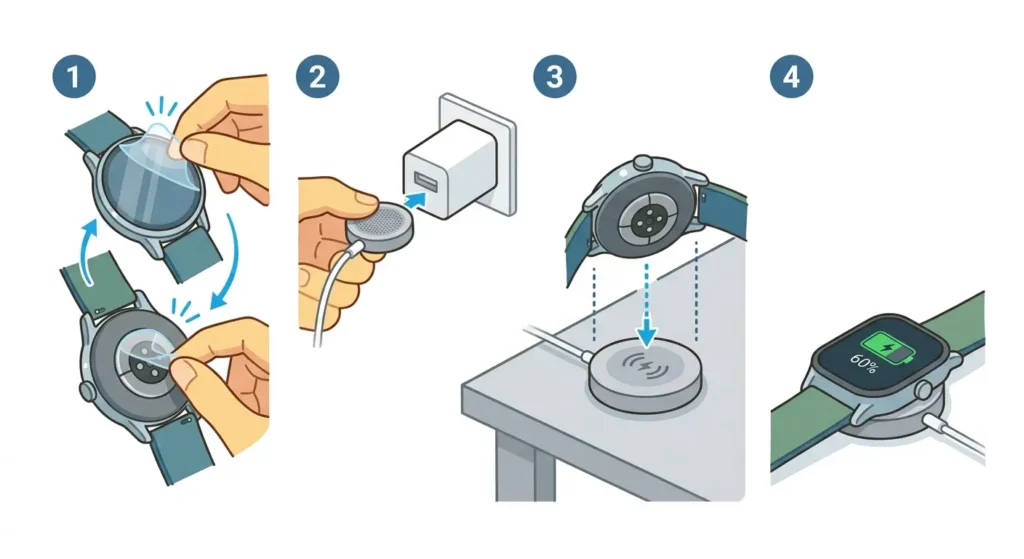
The first step involves ensuring the watch has sufficient battery life for setup:
- Step 1: Remove the protective film from the watch screen and back sensor
- Step 2: Connect the wireless charging pad to a power adapter
- Step 3: Place the watch on the charging pad, aligning the back of the watch with the center of the pad
- Step 4: Wait for the charging icon to appear on the watch screen
- Step 5: Charge until the battery reaches at least 50% before proceeding
Pro-Tip: Charging the watch to at least 50% prevents interruptions during the setup process. Most people find that starting with a well-charged device creates a smoother experience and allows immediate exploration of features after setup.
Installing the Galaxy Wearable App
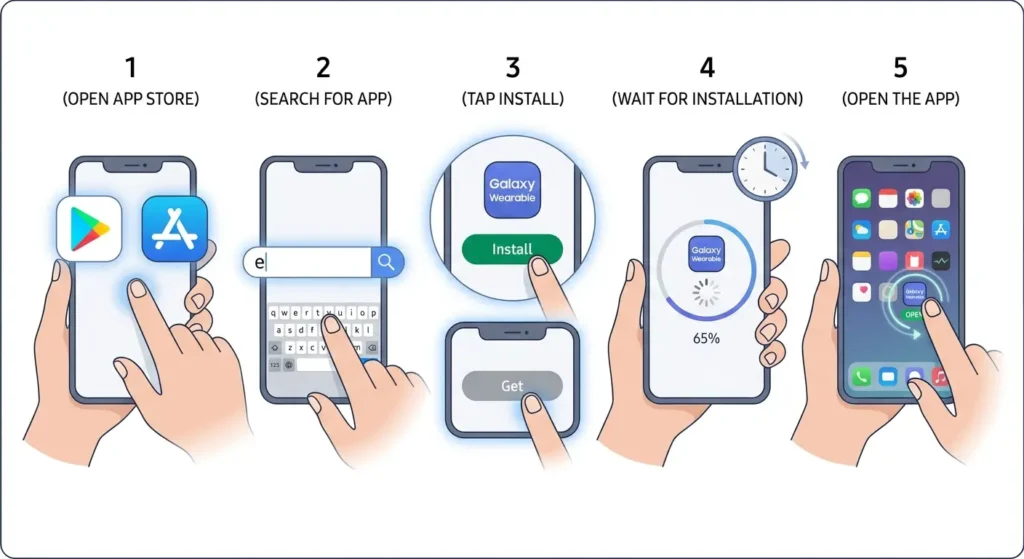
The Galaxy Wearable app serves as the bridge between the smartphone and the watch:
- Step 1: Open the Google Play Store (Android) or App Store (iOS) on the smartphone
- Step 2: Search for ‘Galaxy Wearable’ or ‘Samsung Galaxy Watch’
- Step 3: Tap ‘Install’ or ‘Get’ to download the app
- Step 4: Wait for the installation to complete
- Step 5: Open the Galaxy Wearable app once installed
Pairing the Watch with a Smartphone
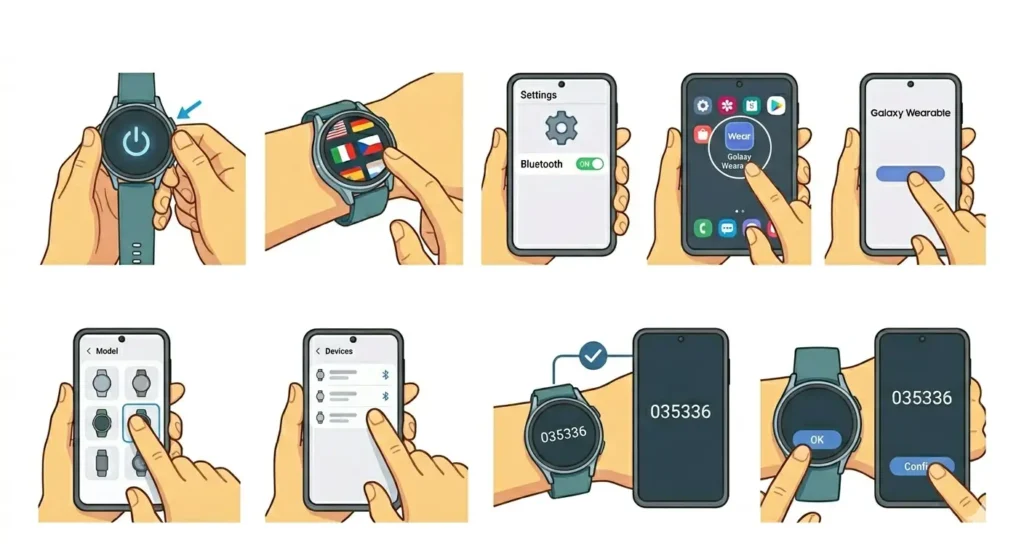
This stage connects the Galaxy Watch to the smartphone wirelessly:
- Step 1: Press and hold the Home button on the watch to power it on
- Step 2: Select the preferred language on the watch screen
- Step 3: Enable Bluetooth on the smartphone through Settings
- Step 4: Open the Galaxy Wearable app on the smartphone
- Step 5: Tap ‘Start’ or ‘Start the Journey’ when prompted
- Step 6: Select the Galaxy Watch model from the list of available devices
- Step 7: Tap the watch name when it appears in the app
- Step 8: Confirm the pairing code matches on both devices
- Step 9: Tap ‘OK’ or ‘Confirm’ on both the watch and smartphone
Completing Initial Configuration
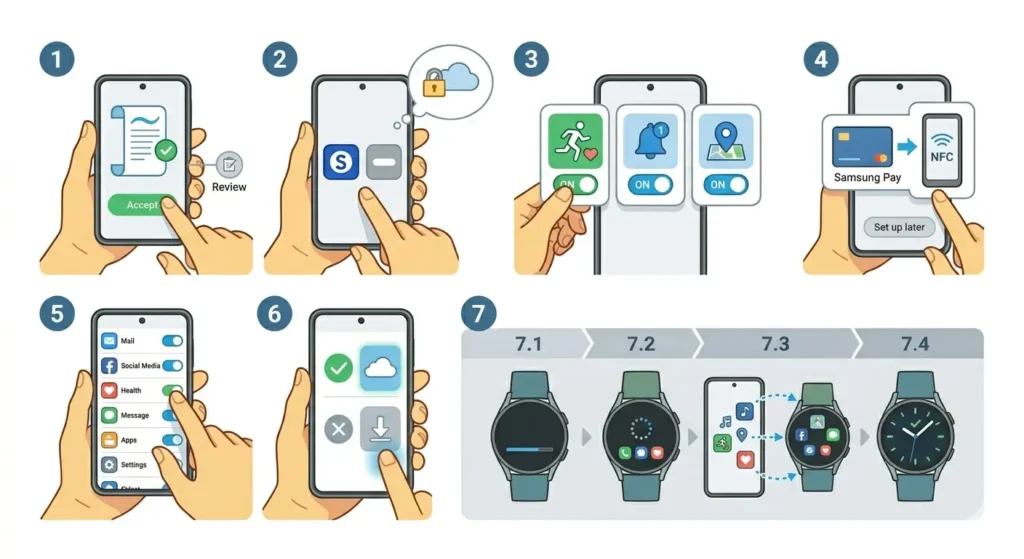
After pairing, the app guides through essential settings:
- Step 1: Review and accept the terms and conditions
- Step 2: Choose whether to sign in with a Samsung account (recommended for backup and additional features)
- Step 3: Grant necessary permissions for health tracking, notifications, and location services
- Step 4: Set up Samsung Pay if desired (requires compatible payment cards)
- Step 5: Choose which apps can send notifications to the watch
- Step 6: Configure automatic app updates preference
- Step 7: Wait for the initial sync to complete (this may take several minutes)
Customizing Watch Settings
Personalizing the watch enhances daily usability:
Selecting a Watch Face
- Step 1: Press and hold the watch screen on the home display
- Step 2: Swipe left or right to browse available watch faces
- Step 3: Tap the preferred watch face to apply it
- Step 4: Tap ‘Customize’ to adjust colors, complications, and displayed information
Adjusting Display Settings
- Step 1: Swipe down from the top of the watch screen to access Quick Settings
- Step 2: Tap the gear icon to open Settings
- Step 3: Select ‘Display’ from the menu
- Step 4: Adjust brightness, screen timeout, and always-on display preferences
Setting Up Health Features
- Step 1: Open Samsung Health on the watch or smartphone
- Step 2: Enter personal information (height, weight, age) for accurate tracking
- Step 3: Set daily activity goals for steps, exercise, and active time
- Step 4: Enable automatic heart rate monitoring if desired
- Step 5: Configure sleep tracking preferences
Pro-Tip: Taking a few minutes to set up health features accurately from the start provides more meaningful insights over time. The key is to enter honest measurements rather than aspirational numbers for the most useful health data.
Connecting to Wi-Fi
Wi-Fi connectivity allows the watch to function independently when away from the smartphone:
- Step 1: Open Settings on the watch
- Step 2: Scroll down and tap ‘Connections’
- Step 3: Select ‘Wi-Fi’
- Step 4: Toggle Wi-Fi to ‘On’
- Step 5: Tap the desired Wi-Fi network from the list
- Step 6: Enter the password using the on-screen keyboard
- Step 7: Tap ‘Connect’ to establish the connection
Installing Additional Apps
Expanding functionality through apps enhances the watch experience:
- Step 1: Open the Galaxy Wearable app on the smartphone
- Step 2: Tap ‘Watch faces and apps’ or ‘Galaxy Store’
- Step 3: Browse or search for desired apps
- Step 4: Tap the app to view details
- Step 5: Tap ‘Install’ to download the app to the watch
- Step 6: Wait for installation to complete
- Step 7: Access the new app from the watch’s app menu
Adjusting the Watch Band
Proper fit ensures comfort and accurate sensor readings:
- Step 1: Place the watch on the wrist
- Step 2: Thread the band through the buckle or clasp
- Step 3: Adjust tightness so the watch sits snugly but comfortably
- Step 4: Ensure the watch sits about a finger’s width from the wrist bone
- Step 5: Check that the back sensors make consistent contact with skin
The watch should be tight enough to prevent sliding but loose enough to allow skin to breathe. Most people find that wearing it slightly tighter during workouts and looser during rest provides the best balance.
Tips for Optimal Galaxy Watch Use
- Restart the watch weekly to maintain smooth performance and clear temporary files
- Update the watch software regularly through the Galaxy Wearable app for new features and security patches
- Enable power saving mode when battery runs low to extend usage time
- Clean the watch band and back sensors weekly with a soft, damp cloth
- Disable unused features like always-on display or continuous heart rate monitoring to improve battery life
- Use a stopwatch feature for workouts and timing activities directly from the watch
- Set up emergency contacts through the SOS feature for safety
- Sync the watch with the smartphone daily to ensure data accuracy
- Explore different watch faces to match various occasions and outfits
Common Problems and Solutions
Fix 1: Watch Won’t Power On
Place the watch on the charger for at least 30 minutes. If still unresponsive, press and hold both buttons simultaneously for 10 seconds to force a restart.
Fix 2: Pairing Fails Repeatedly
Restart both the watch and smartphone. Ensure Bluetooth is enabled and the devices are within 3 feet of each other. Clear the Bluetooth cache on the smartphone by going to Settings > Apps > Bluetooth > Storage > Clear Cache.
Fix 3: Notifications Not Appearing
Open the Galaxy Wearable app, tap Notifications, and verify that the desired apps have permission enabled. Also check that Do Not Disturb mode is disabled on both devices.
Fix 4: Poor Battery Life
Disable always-on display, reduce screen brightness, and limit continuous heart rate monitoring. Check for apps consuming excessive power in the Galaxy Wearable app under Battery settings.
Fix 5: Inaccurate Health Tracking
Ensure the watch fits snugly on the wrist and the back sensors remain clean. Recalibrate personal information in Samsung Health and wear the watch consistently for better pattern recognition.
Fix 6: Watch Disconnects Frequently
Keep the smartphone within Bluetooth range (approximately 30 feet). Disable battery optimization for the Galaxy Wearable app in smartphone settings to prevent background restrictions.
Frequently Asked Questions
Can the Galaxy Watch be used without a smartphone?
Yes, but with limitations. LTE models can make calls and use data independently with a cellular plan. All models can track fitness, play stored music, and use offline features without a smartphone nearby, though initial setup requires a phone.
Which smartphones are compatible with Samsung Galaxy Watch?
Samsung Galaxy Watches work with Android devices running version 8.0 or higher. Limited functionality is available with iPhones running iOS 15.0 or later, though features like Samsung Pay and some health metrics may not be accessible.
How long does the initial setup process take?
The complete setup typically takes 20-30 minutes, including charging time. The actual pairing and configuration process requires about 10-15 minutes, while charging to an adequate level adds another 30-60 minutes.
Is a Samsung account required for setup?
No, a Samsung account is optional but highly recommended. It enables features like automatic backup, Samsung Pay, remote watch location tracking, and seamless synchronization across Samsung devices.
Can multiple watches be connected to one smartphone?
Yes, the Galaxy Wearable app supports multiple watch connections, though only one can actively connect at a time. Switch between watches through the app settings when needed.
What happens to data when switching to a new smartphone?
Data backed up to a Samsung account transfers automatically when signing in on the new device. Without an account, the watch needs to be reset and set up fresh, losing stored data like settings and health history.
How often should the watch software be updated?
Check for updates monthly through the Galaxy Wearable app. Enable automatic updates to receive critical security patches and feature improvements as soon as they become available.
Can the watch band be replaced with third-party options?
Yes, most Galaxy Watch models use standard band sizes (20mm or 22mm depending on the model). Third-party bands compatible with these sizes work perfectly, offering more style and material options.
Does the Galaxy Watch work with Google Assistant?
Recent models support both Bixby and Google Assistant. Download Google Assistant from the Galaxy Store and set it as the preferred assistant in the watch settings after installation.
How accurate is the sleep tracking feature?
Sleep tracking accuracy improves over time as the watch learns sleep patterns. Wearing the watch consistently at night and ensuring proper fit against the skin provides the most reliable data for sleep stage analysis.