
Using a smartwatch to control your smart home brings convenience right to your wrist, allowing instant access to lights, thermostats, locks, and more without reaching for a phone. This step-by-step guide shows how to set up and use smartwatch controls for popular smart home platforms, making daily routines faster and more efficient.
Quick Summary Table
| Key Step | What It Does | Time Required |
|---|---|---|
| Install Smart Home App | Connects smartwatch to your devices | 2-3 minutes |
| Pair Smartwatch | Links watch to smartphone | 5 minutes |
| Add Devices | Brings smart devices into control system | 3-5 minutes per device |
| Set Up Quick Actions | Creates one-tap controls | 2 minutes |
| Voice Commands | Enables hands-free control | 1 minute setup |
Setting Up Your Smartwatch for Smart Home Control
The foundation of smartwatch smart home control starts with proper setup. Most smartwatches work with Google Home, Amazon Alexa, Apple HomeKit, or Samsung SmartThings, and the process shares similar steps across platforms.
Method 1: Apple Watch with HomeKit
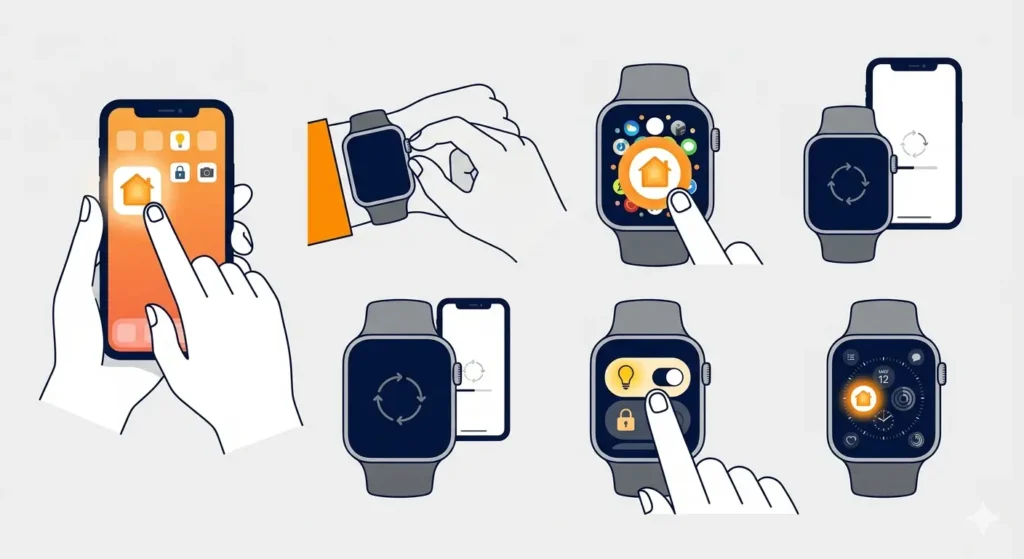
- Step 1: Open the Home app on the paired iPhone and ensure all smart devices appear in the app
- Step 2: On the Apple Watch, press the Digital Crown to access the app grid
- Step 3: Locate and tap the Home app icon (orange house symbol)
- Step 4: Wait for devices to sync automatically from the iPhone to the watch
- Step 5: Test a device by tapping its icon and toggling it on or off
- Step 6: Add Home app to watch face complications by customizing the watch face settings for faster access
Pro-Tip: Adding the Home app as a complication on the watch face provides single-tap access to smart home controls without opening the full app, saving valuable seconds throughout the day.
Method 2: Wear OS with Google Home
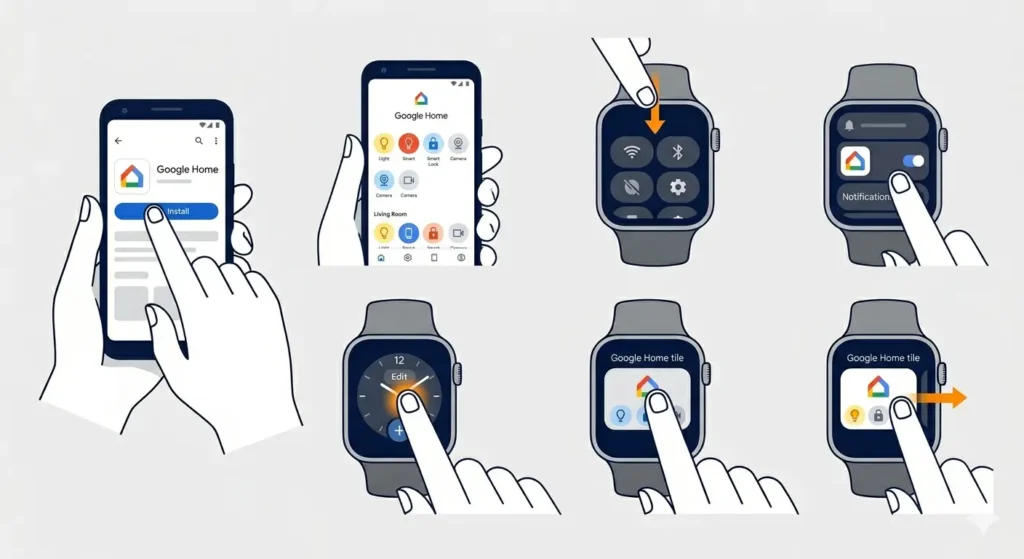
- Step 1: Download Google Home app from Play Store on the paired Android phone if not already installed
- Step 2: Open Google Home app on the phone and verify all smart devices are added
- Step 3: On the Wear OS watch, swipe down from the top to access quick settings
- Step 4: Tap the settings gear icon and select ‘Apps’
- Step 5: Find Google Home in the app list and enable notifications and permissions
- Step 6: Press and hold the watch face, select ‘Add tile’, then choose Google Home tile
- Step 7: Swipe left or right from the watch face to access the Google Home tile
Method 3: Galaxy Watch with SmartThings
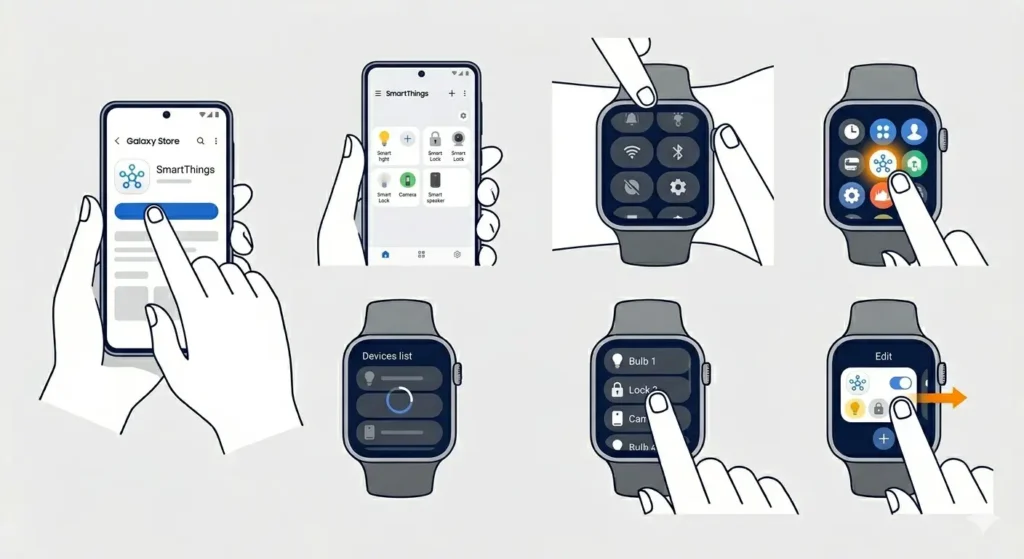
- Step 1: Install SmartThings app on the paired Samsung phone from Galaxy Store
- Step 2: Add all smart devices to SmartThings app on the phone
- Step 3: On the Galaxy Watch, open the Apps screen by pressing the Home button
- Step 4: Scroll to find and tap the SmartThings app
- Step 5: Allow the app to sync devices from the phone (this takes 30-60 seconds)
- Step 6: Tap any device name to view available controls
- Step 7: Create quick toggles by adding SmartThings widget to watch face
Method 4: Any Smartwatch with Alexa
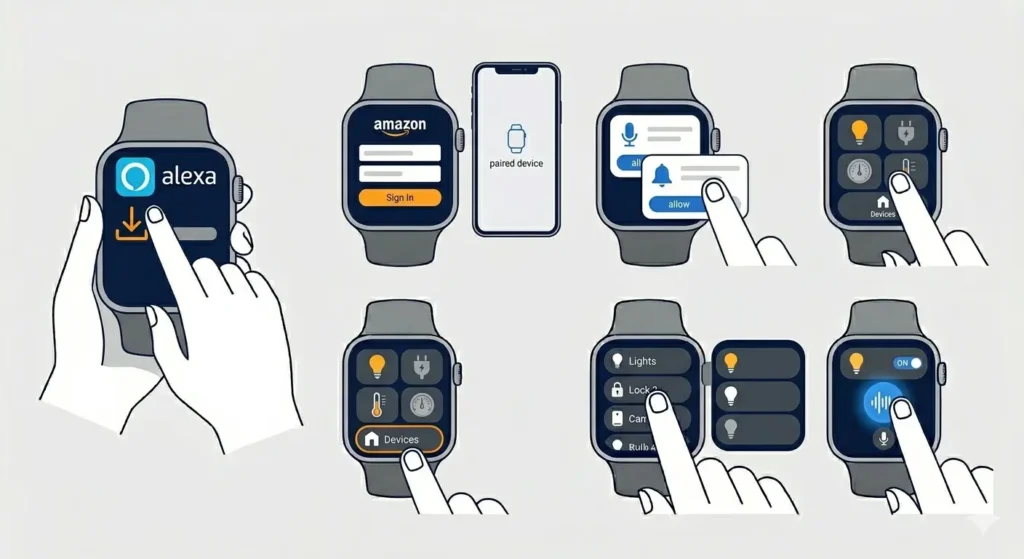
- Step 1: Download Amazon Alexa app from the watch’s app store (available on most platforms)
- Step 2: Open Alexa app on the smartwatch and sign in with Amazon account credentials
- Step 3: Grant microphone and notification permissions when prompted
- Step 4: Tap ‘Devices’ at the bottom of the Alexa watch app
- Step 5: Select device categories (Lights, Plugs, Thermostats) to view available controls
- Step 6: Tap any device to control it directly or use voice commands by saying ‘Alexa’ followed by the command
Controlling Specific Smart Home Devices
Different device types require specific control methods through smartwatches. Understanding these variations makes everyday use more efficient.
Smart Lights Control
- Step 1: Open the smart home app on the smartwatch
- Step 2: Tap the ‘Lights’ category or scroll to find specific light names
- Step 3: Tap once to toggle lights on or off
- Step 4: For brightness control, tap the light name to open detailed controls
- Step 5: Use the slider or rotating bezel to adjust brightness levels
- Step 6: For color changes, tap the color wheel icon and select desired color
Many smart home platforms allow grouping lights by room. Setting up these groups on the phone app makes watch control simpler, as entire rooms can be controlled with one tap rather than individual bulbs.
Smart Thermostat Adjustment
- Step 1: Navigate to thermostat in the smart home app on the watch
- Step 2: View current temperature and target temperature on the display
- Step 3: Tap the plus or minus buttons to adjust target temperature
- Step 4: For mode changes, tap ‘Mode’ and select Heat, Cool, or Auto
- Step 5: Confirm changes by tapping ‘Set’ or allowing the watch to auto-save after 3 seconds
Smart Lock Operations
- Step 1: Open smart home app and locate lock device
- Step 2: Tap the lock icon to view current status (locked or unlocked)
- Step 3: Tap ‘Unlock’ button and confirm action when prompted
- Step 4: Wait for confirmation notification (usually 2-5 seconds)
- Step 5: For locking, tap ‘Lock’ button (usually no confirmation required)
Pro-Tip: Most smart home platforms require additional authentication (PIN or biometric) before unlocking doors from a smartwatch for security purposes. Set this up in the smartphone app’s security settings.
Smart Plug and Outlet Control
- Step 1: Find smart plugs in the devices list on the watch app
- Step 2: Tap the plug name or icon to toggle power on or off
- Step 3: For scheduled control, use voice commands like ‘Turn off bedroom fan in 30 minutes’
Setting Up Voice Commands
Voice control through smartwatches offers the fastest way to manage smart homes, especially when hands are occupied. Most modern smartwatches support Google Assistant, Siri, or Alexa.
Activating Voice Assistants
- Step 1: Press and hold the watch’s power button or Digital Crown for 2 seconds
- Step 2: Wait for the voice assistant screen to appear
- Step 3: Speak the command clearly, such as ‘Turn on living room lights’
- Step 4: Wait for voice confirmation that the command executed
For hands-free activation, enable wake word detection in the watch settings. This allows saying ‘Hey Google’, ‘Hey Siri’, or ‘Alexa’ to trigger the assistant without touching the watch.
Common Voice Commands
These voice commands work across most platforms when proper device names are used:
- ‘Turn on/off [device name]’
- ‘Set [device name] to [percentage] percent’
- ‘Dim/brighten [light name]’
- ‘Set temperature to [number] degrees’
- ‘Lock/unlock [door name]’
- ‘Turn on [room name] lights’
- ‘Set [light name] to [color]’
Creating Watch Face Shortcuts and Complications
Watch face complications provide the quickest access to frequently used smart home controls without opening apps.
- Step 1: Long-press the current watch face to enter edit mode
- Step 2: Tap ‘Customize’ or the edit icon
- Step 3: Swipe to the complications customization screen
- Step 4: Tap an empty complication slot
- Step 5: Scroll to find the smart home app (Home, Google Home, SmartThings, or Alexa)
- Step 6: Select the specific action or device to display
- Step 7: Tap outside the edit area to save changes
Complications can show device status (light on/off, current temperature, lock status) and provide one-tap toggles for frequently used devices. This works particularly well for bedside lamps, front door locks, and thermostat adjustments.
Setting Up Automation Triggers
While automations are primarily configured on smartphones, smartwatches can trigger pre-configured scenes and routines instantly.
Creating Scenes on Phone
- Step 1: Open the smart home app on the smartphone
- Step 2: Navigate to ‘Scenes’, ‘Routines’, or ‘Automations’ section
- Step 3: Tap ‘Create New Scene’ or the plus icon
- Step 4: Name the scene clearly (examples: ‘Good Morning’, ‘Movie Time’, ‘Bedtime’)
- Step 5: Add devices and set their states (lights at specific brightness, thermostat temperature, etc.)
- Step 6: Save the scene to make it available on the smartwatch
Activating Scenes from Watch
- Step 1: Open the smart home app on the smartwatch
- Step 2: Look for ‘Scenes’, ‘Routines’, or a similar tab
- Step 3: Scroll through available scenes
- Step 4: Tap the scene name to activate all included device settings at once
Voice commands also work for scenes: ‘Activate Good Morning scene’ or ‘Run Movie Time routine’ execute all configured actions simultaneously.
Tips for Better Smartwatch Smart Home Control
- Keep device names simple and distinct – avoid similar-sounding names that confuse voice commands
- Use room-based grouping to control multiple devices with single commands
- Enable location-based triggers on the phone to automate actions when arriving home (detected by watch GPS)
- Charge the smartwatch regularly since smart home control uses significant battery, especially with frequent voice commands
- Update both smartphone and smartwatch apps regularly for latest features and security patches
- Create a ‘Favorites’ section with most-used devices for faster access on small watch screens
- Use watch notifications to monitor smart home alerts (door unlocks, motion detection, temperature changes)
- Set up family sharing on HomeKit, Google Home, or Alexa so other household members can control devices from their watches
- Test connectivity range between watch, phone, and smart home hub to understand limitations
- Configure security settings to require authentication for sensitive controls like door locks and garage doors
Common Problems and Troubleshooting
Fix 1: Devices Not Appearing on Watch
- Verify Bluetooth connection between smartwatch and smartphone is active
- Force-close the smart home app on both watch and phone, then reopen
- Check that devices appear correctly in the smartphone app first
- Uninstall and reinstall the smart home app on the smartwatch
- Ensure the watch has internet connectivity through phone or Wi-Fi
Fix 2: Voice Commands Not Working
- Confirm microphone permissions are enabled for the voice assistant app
- Check that device names in the smart home app match what is being spoken
- Verify wake word detection is enabled in watch settings if using hands-free activation
- Move to a quieter environment and speak more clearly
- Restart both smartwatch and smartphone to refresh assistant connection
Fix 3: Slow Response Times
- Ensure smartphone stays within Bluetooth range of the smartwatch
- Check phone’s internet connection speed and stability
- Reduce number of complications on watch face to improve performance
- Clear cache for smart home apps on both devices
- Update router firmware if commands consistently time out
Fix 4: Controls Work on Phone But Not Watch
- Verify the smart home app is installed on the smartwatch (some platforms require separate installation)
- Re-pair the smartwatch to the smartphone
- Check for watch OS updates in settings
- Remove and re-add the smart home account on the watch
Fix 5: Battery Draining Quickly
- Disable always-on display when not needed
- Reduce frequency of smart home status syncing in app settings
- Remove unnecessary complications from watch face
- Turn off wake word detection and use button activation for voice commands
- Adjust screen brightness to lower levels
Frequently Asked Questions
Does the smartwatch need internet connection to control smart home devices?
Yes, smartwatches require either Wi-Fi or a Bluetooth connection to a paired smartphone with internet access. The watch sends commands through the cloud to smart home hubs, which then communicate with individual devices. Without internet connectivity, local-only commands may work on some platforms, but most cloud-based smart devices will not respond.
Can multiple smartwatches control the same smart home?
Absolutely. Each household member can control shared smart home devices from their own smartwatch as long as they have the appropriate permissions set up in the smart home platform. HomeKit, Google Home, Alexa, and SmartThings all support multi-user access. Simply invite family members through the smartphone app, and their watches will automatically gain access to shared devices.
Which smartwatches work best for smart home control?
Apple Watch works seamlessly with HomeKit devices, Samsung Galaxy Watch integrates perfectly with SmartThings, and Wear OS watches (like Pixel Watch or TicWatch) excel with Google Home. For Alexa compatibility, most smartwatches with Alexa app support work well, including Fitbit Sense and Versa series. The best choice depends on existing smart home ecosystem and preferred smartphone platform.
How far can the smartwatch be from the smartphone and still control devices?
Bluetooth range between smartwatch and smartphone typically extends 30-50 feet in open space, though walls and interference reduce this distance. However, LTE-enabled smartwatches can control smart homes without the phone nearby, as they connect directly to cellular networks. Standard Bluetooth-only watches must stay within range of the paired phone for commands to reach the internet.
Do smart home controls work when the watch is in airplane mode?
No, airplane mode disables all wireless connections including Bluetooth and Wi-Fi, preventing the smartwatch from communicating with the smartphone or smart home cloud services. To use smart home controls, disable airplane mode or manually re-enable Bluetooth and Wi-Fi if the watch allows selective connectivity in airplane mode.
Can smartwatches control smart home devices while traveling away from home?
Yes, remote control works as long as the smartwatch has internet connectivity (through phone or LTE) and the smart home devices remain connected to their hub and internet at home. Using a world time comparison tool helps coordinate automation schedules across time zones when traveling internationally, ensuring devices activate at appropriate local times.
What happens if the smartwatch battery dies during the day?
Smart home control simply becomes unavailable until the watch recharges. However, all smart devices continue functioning normally, and control remains available through the smartphone app, voice assistants on smart speakers, physical switches, and any automations already configured. Consider using an online stopwatch to time charging sessions and ensure the watch reaches adequate battery levels before important times when smart home access is needed.
Are there security risks with smartwatch smart home control?
Smartwatches add minimal security risk when properly configured. Enable wrist detection to lock the watch when removed, require PIN or biometric authentication for sensitive controls like door locks, and keep watch OS and apps updated. Most platforms require re-authentication for critical commands even when the watch is unlocked. Never share account credentials, and use two-factor authentication on smart home accounts for additional protection.
Can smartwatches create new automations or only trigger existing ones?
Most smartwatches can only trigger pre-configured scenes, routines, and automations created on the smartphone app. The small screen and limited input methods make creating complex automations impractical on watches. However, simple toggles and voice commands work perfectly, and some advanced watches allow basic scene editing through voice assistants by saying commands like ‘In Movie Time scene, set living room lights to 20 percent.’
How do smartwatch controls compare to using smartphone apps?
Smartwatches provide faster access since they’re already on the wrist, making them ideal for quick toggles and status checks. However, smartphones offer more detailed controls, easier device setup, and better interfaces for complex adjustments like color selection or scheduling. Using a clock tab alongside smart home controls on a smartphone provides convenient time reference when setting up device schedules and automation timing.