

Getting the most battery life from an Apple Watch requires smart settings adjustments and simple habit changes. These 10 proven tips help extend daily usage by reducing power-draining features while maintaining essential functionality. The strategies below work across all Apple Watch models and can significantly improve battery performance.
Quick Summary: Apple Watch Battery Optimization Tips
- Lower screen brightness to 40-60% for major battery savings
- Disable Always-On Display when not needed
- Turn off background app refresh for unused apps
- Reduce haptic feedback strength
- Disable unnecessary notifications
- Use Power Reserve mode for emergencies
- Limit workout GPS usage to outdoor activities only
- Disable Wi-Fi when connected to iPhone
- Turn off heart rate monitoring frequency
- Enable Optimized Battery Charging
1. Lower Screen Brightness
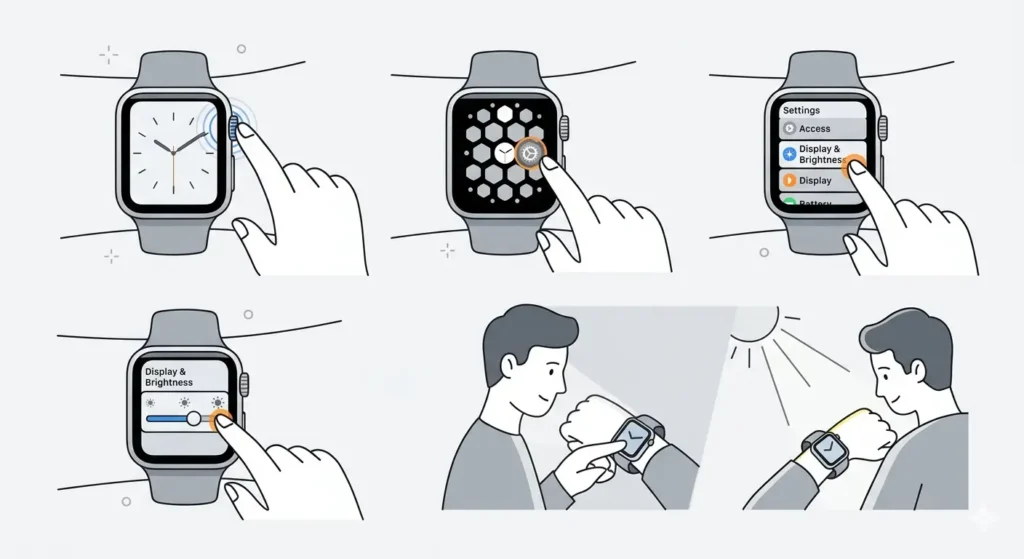
Screen brightness drains Apple Watch battery faster than any other feature. Reducing brightness to a comfortable level can extend battery life by 20-30% throughout the day.
- Step 1: Press the Digital Crown to access the app grid
- Step 2: Tap Settings (gear icon)
- Step 3: Select Display & Brightness
- Step 4: Drag the brightness slider to 40-60%
- Step 5: Test visibility in different lighting conditions
Most users find that 50% brightness works well for indoor use while still remaining readable outdoors. The screen automatically brightens when raising the wrist, so manual adjustments are rarely needed.
2. Disable Always-On Display
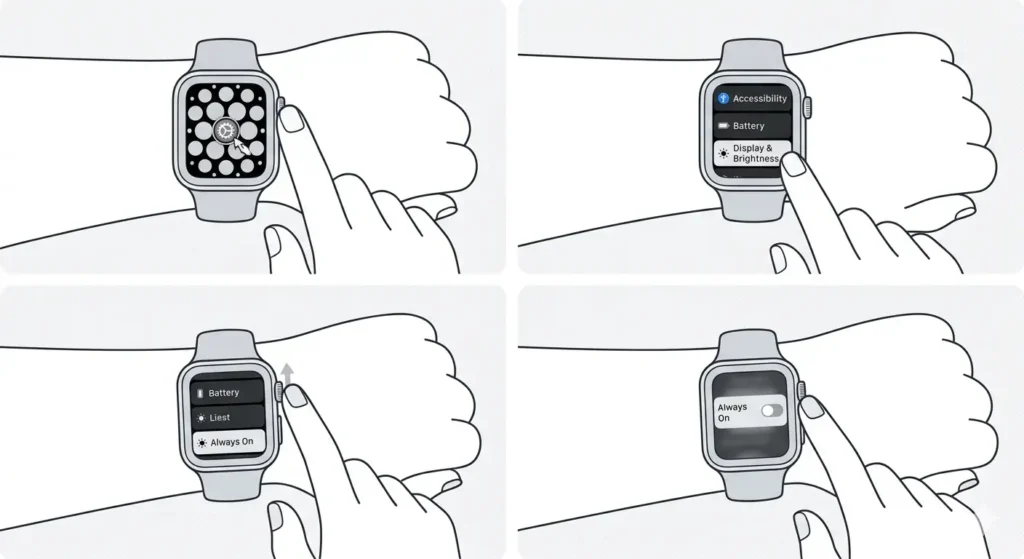
The Always-On Display feature keeps the watch face visible at all times, consuming significant battery power. Turning this off can add 2-4 hours of daily usage.
- Step 1: Open Settings on the Apple Watch
- Step 2: Tap Display & Brightness
- Step 3: Scroll to Always On
- Step 4: Toggle the switch to off (gray)
The display will now only activate when raising the wrist or tapping the screen. This setting works particularly well for users who check their watch periodically rather than constantly.
3. Turn Off Background App Refresh
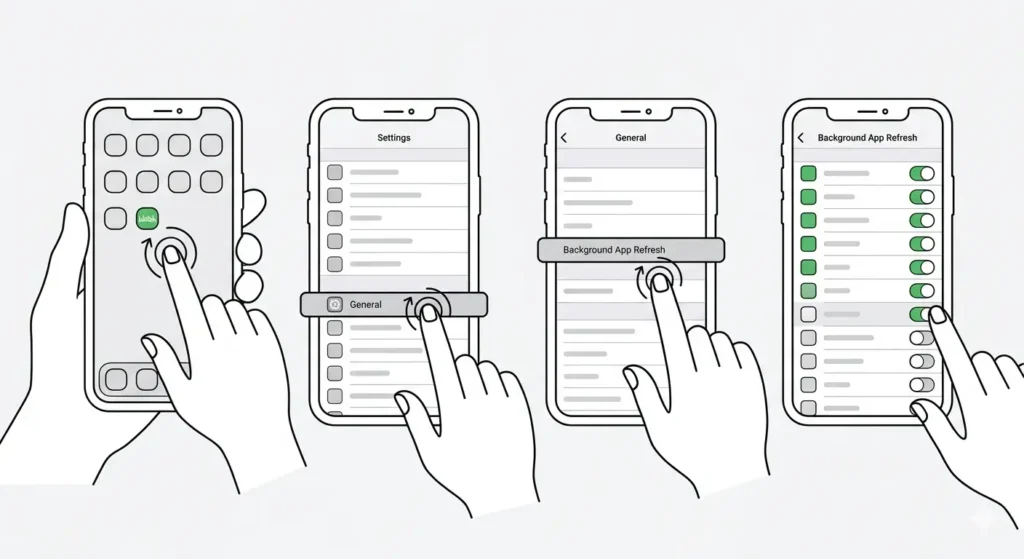
Background App Refresh allows apps to update content even when not actively used. Disabling this for non-essential apps prevents unnecessary battery drain.
- Step 1: Open the Watch app on iPhone
- Step 2: Tap General
- Step 3: Select Background App Refresh
- Step 4: Review the app list
- Step 5: Toggle off apps that don’t need constant updates
Keep Background App Refresh enabled only for essential apps like Messages, Calendar, or fitness tracking apps. Weather, news, and social media apps can safely be disabled without losing functionality.
Pro Tip: Check Your App Refresh Settings
Review Background App Refresh settings monthly. Newly installed apps often enable this feature by default, silently draining battery without providing noticeable benefits. Taking a few minutes to audit these settings can prevent gradual battery performance decline.
4. Reduce Haptic Feedback Strength
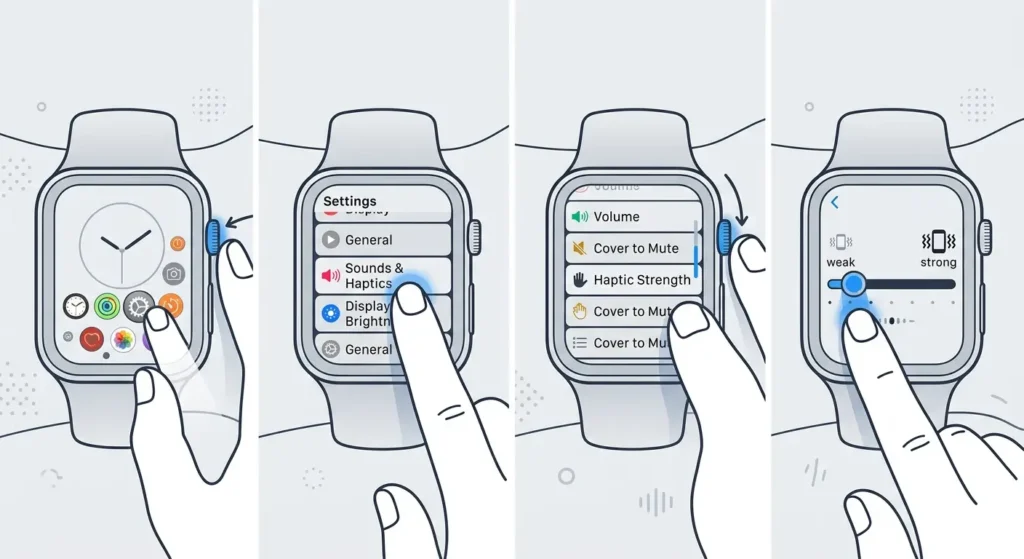
Haptic feedback uses a small motor to create vibrations for notifications and alerts. Lowering the intensity reduces power consumption while maintaining awareness of incoming alerts.
- Step 1: Open Settings on Apple Watch
- Step 2: Tap Sounds & Haptics
- Step 3: Locate Haptic Strength
- Step 4: Drag the slider to the left for lower intensity
The default haptic strength is often stronger than necessary. Reducing it to 60-70% still provides clear notification feedback while saving battery throughout the day.
5. Disable Unnecessary Notifications
Every notification lights up the display and triggers haptic feedback, both consuming battery power. Limiting notifications to essential apps can extend daily battery life by 15-20%.
- Step 1: Open the Watch app on iPhone
- Step 2: Scroll down and tap Notifications
- Step 3: Review each app in the list
- Step 4: Tap apps that send frequent notifications
- Step 5: Toggle off ‘Allow Notifications’ for non-essential apps
Focus on keeping notifications enabled for communication apps (Messages, Phone, Mail) and time-sensitive tools like online stopwatch features or calendar alerts. Social media, news, and promotional notifications can be safely disabled.
6. Use Power Reserve Mode for Emergencies
Power Reserve mode disables all features except basic timekeeping, extending battery life to 72+ hours. This emergency mode helps when charging isn’t immediately available.
- Step 1: Press and hold the side button until the power menu appears
- Step 2: Swipe the Power Reserve slider to the right
- Step 3: Tap Continue to confirm
In Power Reserve mode, only the time displays when pressing the side button. All other functionality stops until the watch is restarted by charging and holding the side button.
7. Limit Workout GPS Usage
GPS tracking consumes substantial battery power during workouts. Using GPS only for outdoor activities and relying on iPhone GPS for indoor exercises can save 30-40% of workout battery usage.
- Step 1: Open the Workout app on Apple Watch
- Step 2: Select the workout type
- Step 3: Tap the three dots (…) for workout settings
- Step 4: For indoor workouts, ensure GPS is not enabled
- Step 5: For outdoor workouts, keep iPhone nearby to share GPS data
Indoor activities like treadmill running, cycling, or strength training don’t require GPS tracking. The Apple Watch accurately tracks calories, heart rate, and duration without GPS activation.
8. Disable Wi-Fi When Connected to iPhone
The Apple Watch automatically searches for Wi-Fi networks when the iPhone is out of range. Disabling Wi-Fi when the iPhone is nearby prevents unnecessary network scanning.
- Step 1: Open Settings on Apple Watch
- Step 2: Tap Wi-Fi
- Step 3: Toggle Wi-Fi to off
This setting works best for users who keep their iPhone nearby throughout the day. The watch will automatically reconnect to Bluetooth without needing Wi-Fi connectivity.
9. Turn Off Continuous Heart Rate Monitoring
The Apple Watch checks heart rate every few seconds by default. Reducing this frequency to periodic measurements can save battery while maintaining health tracking accuracy.
- Step 1: Open the Watch app on iPhone
- Step 2: Tap Privacy
- Step 3: Select Health
- Step 4: Tap Heart Rate
- Step 5: Turn off ‘Heart Rate’ to disable constant monitoring
The watch will still measure heart rate during workouts and when requested manually. This setting is ideal for users who don’t need continuous health monitoring throughout the day.
Pro Tip: Balance Health Tracking and Battery Life
Heart rate monitoring provides valuable health insights, but continuous tracking isn’t necessary for everyone. Consider enabling it only during specific times when tracking health metrics matters most, such as during work hours or exercise sessions, then disable it during sleep or leisure time to maximize battery performance.
10. Enable Optimized Battery Charging
Optimized Battery Charging learns daily charging patterns and reduces battery aging by limiting charge to 80% until needed. This feature maintains long-term battery health without sacrificing daily usage.
- Step 1: Open the Watch app on iPhone
- Step 2: Tap General
- Step 3: Select Battery
- Step 4: Tap Battery Health
- Step 5: Toggle on Optimized Battery Charging
The watch analyzes charging habits and holds the charge at 80% during overnight charging, completing the final 20% just before the usual wake time. This reduces battery wear while ensuring a full charge when needed.
Additional Tips for Maximum Battery Performance
Restart Your Apple Watch Weekly
Background processes can accumulate over time, draining battery unnecessarily. A weekly restart clears these processes and refreshes system performance.
- Step 1: Press and hold the side button until ‘Power Off’ appears
- Step 2: Drag the Power Off slider
- Step 3: Wait 30 seconds
- Step 4: Press and hold the side button until the Apple logo appears
Update to Latest watchOS
Software updates often include battery optimization improvements. Keeping watchOS current ensures access to the latest power management features.
- Step 1: Place Apple Watch on its charger
- Step 2: Open the Watch app on iPhone
- Step 3: Tap General, then Software Update
- Step 4: If an update is available, tap Install
Manage Complications on Watch Face
Complications that update frequently (weather, stocks, activity rings) drain battery faster than static complications. Using simpler watch faces with fewer complications extends battery life.
- Step 1: Press and hold the current watch face
- Step 2: Swipe to browse available faces
- Step 3: Select a face with minimal complications
- Step 4: Tap on complications to customize or remove them
Common Battery Life Problems
Battery Drains Quickly After Update
Software updates sometimes cause temporary battery drain as the system re-indexes data and adjusts to new features. This typically resolves within 2-3 days of normal use. If battery drain persists beyond a week, unpair and re-pair the Apple Watch to reset system processes.
Watch Gets Hot During Charging
Mild warmth during charging is normal, but excessive heat indicates a problem. Remove any case or cover that might trap heat, ensure the charging puck is clean and free of debris, and charge in a well-ventilated area. If overheating continues, the battery may need service.
Battery Percentage Drops Rapidly
Sudden battery percentage drops often result from battery calibration issues. Allow the watch to drain completely until it powers off, then charge it uninterrupted to 100%. Repeat this process once monthly to maintain accurate battery readings.
New Apple Watch Has Poor Battery Life
New Apple Watches typically experience higher battery drain during the first week as the system downloads apps, syncs data, and learns usage patterns. Battery performance should stabilize after 5-7 days of regular use. During this period, tools like world time comparison features may sync additional data.
Frequently Asked Questions
How long should Apple Watch battery last per charge?
Apple Watch typically lasts 18 hours per charge with normal use. Series 7 and later models can reach up to 20 hours. Heavy usage with GPS tracking, cellular connectivity, or frequent app use may reduce battery life to 12-14 hours.
Does closing apps on Apple Watch save battery?
No, closing apps on Apple Watch does not improve battery life. watchOS manages apps efficiently in the background, and force-closing apps can actually increase battery usage when the system needs to reload them. Let the operating system handle app management automatically.
Should Apple Watch be charged every night?
Yes, charging Apple Watch every night ensures consistent daily performance. Lithium-ion batteries perform best with regular charging cycles rather than deep discharge cycles. Optimized Battery Charging protects battery health during overnight charging.
Does theater mode save battery on Apple Watch?
Theater mode saves minimal battery by preventing the screen from lighting up when raising the wrist. The battery savings are modest (approximately 5-10% per day) compared to disabling Always-On Display or reducing brightness. Theater mode primarily benefits users in dark environments where screen activation would be disruptive.
Can Apple Watch battery be replaced?
Yes, Apple offers battery replacement services for all Apple Watch models. The service costs vary by model and warranty status. Battery replacement typically takes 5-7 business days through Apple or authorized service providers. AppleCare+ covers battery replacement if the battery holds less than 80% of original capacity.
Does cellular Apple Watch drain battery faster?
Yes, cellular connectivity drains battery significantly faster than Bluetooth-only operation. Using cellular without an iPhone nearby can reduce battery life by 30-50%. For maximum battery life, keep the iPhone nearby and disable cellular in the Watch app under Cellular settings when not needed.
Why does Apple Watch lose battery overnight?
Apple Watch typically loses 10-30% battery overnight due to sleep tracking, blood oxygen monitoring, and background processes. To reduce overnight drain, disable sleep tracking features, turn off blood oxygen measurements, or enable Airplane Mode. Alternatively, charge the watch for 30 minutes before bed and track sleep with a full battery.
Does dark watch face save battery on Apple Watch?
Yes, dark watch faces save battery on Apple Watch models with OLED displays (Series 4 and later). Black pixels are turned off completely, reducing power consumption by 10-15% compared to bright watch faces. The savings are most noticeable with Always-On Display enabled.
How accurate is Apple Watch battery percentage?
Apple Watch battery percentage is generally accurate within 5% after proper calibration. Accuracy can drift over time or after software updates. To recalibrate, drain the battery completely until the watch powers off, then charge uninterrupted to 100%. Repeat monthly for best accuracy.
Does playing music on Apple Watch drain battery quickly?
Yes, playing music directly from Apple Watch (without iPhone) drains battery significantly. Bluetooth audio streaming uses approximately 10-15% battery per hour. Streaming music over cellular or Wi-Fi consumes even more power. For longer listening sessions, controlling music playback from the iPhone while wearing Apple Watch conserves battery.