
Setting up LTE/cellular on a standalone smartwatch enables making calls, sending messages, and accessing the internet without needing a phone nearby. This comprehensive guide walks through the complete activation process for major smartwatch brands, covering carrier compatibility, eSIM setup, and network configuration to get connected quickly.
Quick Summary Table
| Setup Stage | Time Required | What’s Needed |
|---|---|---|
| Carrier Compatibility Check | 5 minutes | Smartwatch model, carrier account |
| LTE Plan Activation | 10-15 minutes | Carrier login, payment method |
| eSIM Configuration | 5-10 minutes | QR code or activation code |
| Network Testing | 5 minutes | Active cellular connection |
Method 1: Setting Up Cellular on Apple Watch
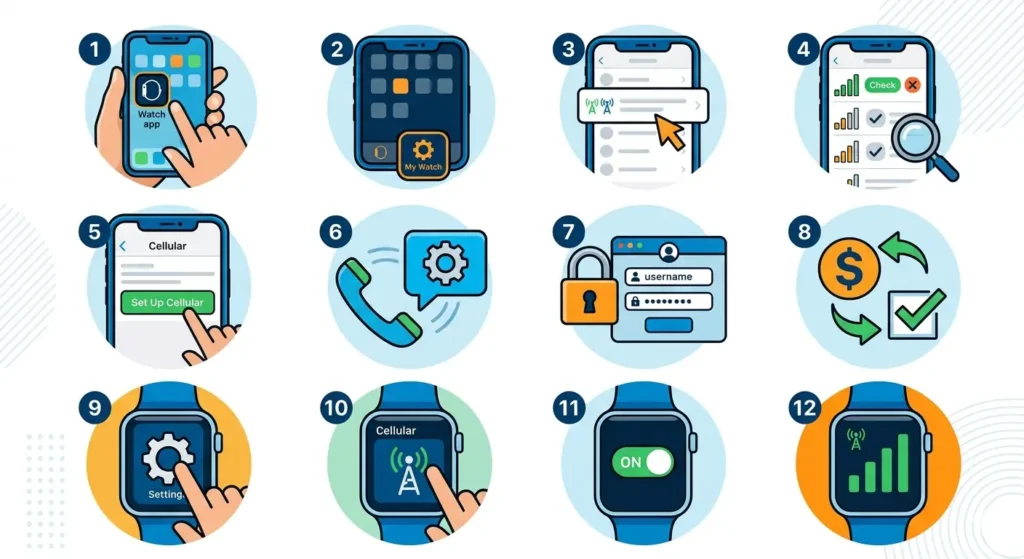
Apple Watch Series 3 and newer models with GPS + Cellular require activation through a compatible carrier. Most major carriers support Apple Watch cellular plans as add-ons to existing phone lines.
Verify Carrier Compatibility
- Step 1: Open the Watch app on the paired iPhone
- Step 2: Tap ‘My Watch’ tab at the bottom
- Step 3: Select ‘Cellular’ from the menu
- Step 4: Check if the carrier appears in the supported list
Supported carriers include AT&T, Verizon, T-Mobile, and numerous international providers. The watch must use the same carrier as the iPhone for seamless number sharing.
Activate Cellular Plan
- Step 1: In the Watch app, tap ‘Set Up Cellular’
- Step 2: Follow the on-screen prompts to contact the carrier
- Step 3: Sign in to the carrier account when prompted
- Step 4: Review the monthly plan cost (typically $10-15)
- Step 5: Complete the activation by confirming payment details
- Step 6: Wait 5-15 minutes for eSIM provisioning to complete
Pro-Tip: Keep the iPhone connected to Wi-Fi and the Apple Watch on its charger during activation. This prevents connection drops that could interrupt the eSIM download process.
Configure Network Settings
- Step 1: Open Settings on the Apple Watch
- Step 2: Tap ‘Cellular’
- Step 3: Toggle ‘Cellular’ to the ON position
- Step 4: Verify the green signal bars appear at the top of the watch face
The watch automatically shares the iPhone’s phone number. Make a test call by using Siri or the Phone app to confirm everything works properly.
Method 2: Setting Up Cellular on Samsung Galaxy Watch
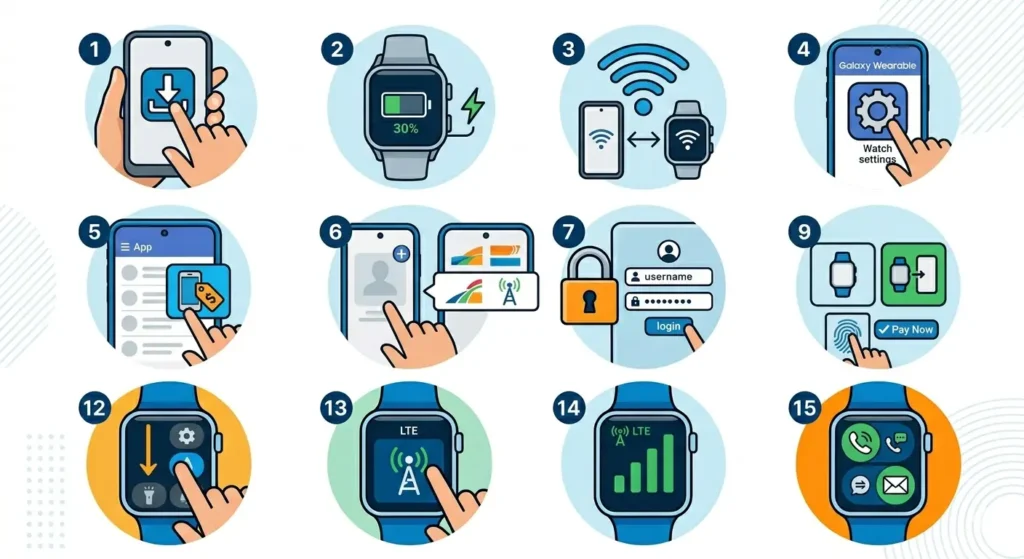
Galaxy Watch 4, 5, and 6 models with LTE require activation through the Galaxy Wearable app. Samsung partners with major carriers for standalone connectivity plans.
Prepare the Watch and Phone
- Step 1: Install Galaxy Wearable app on the paired Android phone
- Step 2: Ensure the watch is charged above 30%
- Step 3: Connect both devices to Wi-Fi
- Step 4: Open Galaxy Wearable app and tap ‘Watch settings’
Activate Mobile Plan
- Step 1: In Galaxy Wearable app, select ‘Mobile plans’
- Step 2: Tap ‘Add mobile plan’
- Step 3: Choose the carrier from available options
- Step 4: Sign in to the carrier account
- Step 5: Select a standalone plan or number sharing option
- Step 6: Agree to terms and complete payment setup
- Step 7: Wait for the eSIM profile to download to the watch
Some carriers require scanning a QR code or entering an activation code manually. The carrier will provide these during the signup process through their website or customer service.
Enable Standalone Mode
- Step 1: Swipe down from the watch face to access Quick Settings
- Step 2: Tap the LTE/cellular icon to enable standalone mode
- Step 3: Verify the LTE indicator shows active connection
- Step 4: Test by making a call or sending a message
Method 3: Setting Up Cellular on Google Pixel Watch
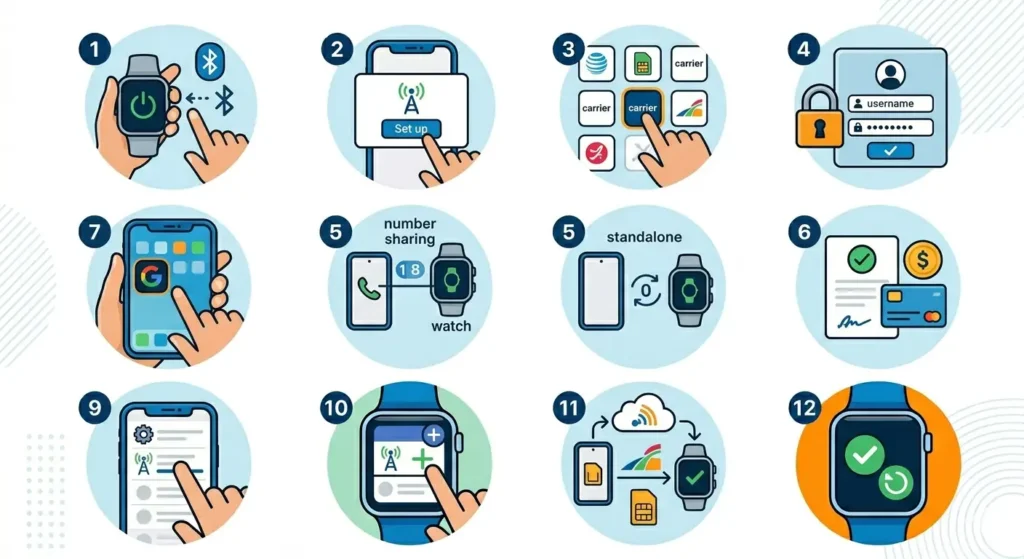
Pixel Watch and Pixel Watch 2 LTE models use built-in eSIM technology. Activation happens through Google’s World Time Comparison Tool settings during initial setup or later through the Pixel Watch app.
Initial Setup Process
- Step 1: Power on the Pixel Watch and pair it with the Pixel phone
- Step 2: When prompted about cellular service, tap ‘Set up now’
- Step 3: Choose the carrier matching the phone’s network
- Step 4: Sign in with carrier credentials
- Step 5: Select the numbershare or standalone plan option
- Step 6: Complete carrier authorization and payment
Adding Cellular After Setup
- Step 1: Open the Google Pixel Watch app on the phone
- Step 2: Tap the Settings icon
- Step 3: Select ‘Mobile network’
- Step 4: Tap ‘Set up mobile network’
- Step 5: Follow carrier-specific activation steps
- Step 6: Restart the watch once activation completes
Google automatically manages network switching between Wi-Fi and LTE to preserve battery life. The watch prioritizes Wi-Fi when available and switches to LTE only when needed.
Method 4: Setting Up Cellular on Other Smartwatch Brands
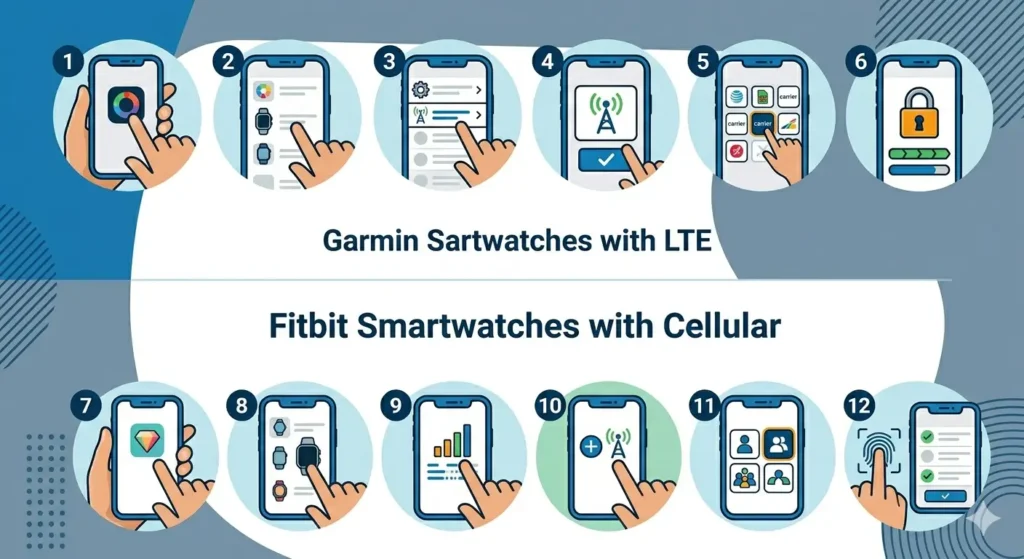
Garmin, Fitbit, and other brands offering LTE smartwatches follow similar activation patterns with slight variations based on their companion apps.
Garmin Smartwatches with LTE
- Step 1: Open Garmin Connect app on the paired phone
- Step 2: Select the watch device
- Step 3: Tap ‘LTE’ or ‘Connectivity’
- Step 4: Choose ‘Activate LTE Service’
- Step 5: Select a carrier and follow prompts
- Step 6: Complete carrier-specific activation
Fitbit Smartwatches with Cellular
- Step 1: Open Fitbit app on the connected phone
- Step 2: Tap the device icon
- Step 3: Select ‘Cellular’
- Step 4: Tap ‘Set Up Cellular’
- Step 5: Choose the carrier and plan type
- Step 6: Follow on-screen carrier activation steps
Pro-Tip: Check the manufacturer’s website for carrier compatibility before purchasing. Not all LTE smartwatch models work with every carrier, and some regions have limited support for specific brands.
Understanding eSIM vs Physical SIM
Most modern cellular smartwatches use eSIM (embedded SIM) technology rather than physical SIM cards. This digital SIM lives inside the watch hardware and gets programmed remotely by carriers.
The eSIM activation process requires:
- Active internet connection during setup
- Compatible carrier supporting eSIM technology
- Carrier account with authorization to add devices
- QR code or activation code from the carrier
Some older smartwatch models use nano-SIM slots. These require physically inserting a carrier-provided SIM card into the watch before activation. Check the watch specifications to determine which technology applies.
Carrier Plan Options and Costs
Carriers typically offer two types of cellular plans for smartwatches:
NumberShare or Paired Plans
The watch shares the same phone number as the paired smartphone. Calls and messages route through the existing phone number. This option costs $10-15 per month with most carriers.
Standalone Plans
The watch gets its own unique phone number independent of any smartphone. This allows complete phone-free operation but typically costs $15-30 per month depending on data allowances.
Most users prefer numbershare plans since they maintain one consistent phone number across devices. Standalone plans suit those who want the watch completely independent or need separate numbers for privacy.
Tips for Successful Cellular Setup
- Charge the smartwatch to at least 50% before starting activation
- Keep the paired phone nearby with active internet during setup
- Use Wi-Fi instead of cellular data on the phone during activation
- Restart both the watch and phone if activation stalls
- Verify the carrier supports the specific watch model before purchasing
- Contact carrier support if eSIM provisioning takes longer than 30 minutes
- Test cellular connection by turning off the phone and using the watch standalone
- Check data usage regularly through the carrier app to avoid overage charges
- Enable airplane mode on the watch when not needing cellular to save battery
- Update the watch to the latest software version before attempting activation
Using tools like the online stopwatch helps track activation time if troubleshooting becomes necessary. Most successful activations complete within 15-20 minutes from start to finish.
Common Problems and Troubleshooting
Fix 1: eSIM Won’t Download
- Step 1: Verify both watch and phone have strong Wi-Fi connection
- Step 2: Restart the smartwatch completely
- Step 3: Restart the paired smartphone
- Step 4: Retry activation through the companion app
- Step 5: Contact carrier support for manual eSIM provisioning if issue persists
Fix 2: No Cellular Signal After Activation
- Step 1: Check if the carrier network is operational in the area
- Step 2: Toggle airplane mode on and off on the watch
- Step 3: Verify cellular data is enabled in watch settings
- Step 4: Remove and re-add the mobile plan
- Step 5: Factory reset the watch and restart activation if nothing else works
Fix 3: Activation Code or QR Code Not Working
- Step 1: Request a new activation code from the carrier
- Step 2: Ensure the camera lens is clean when scanning QR codes
- Step 3: Manually enter the code if scanning fails repeatedly
- Step 4: Verify the code hasn’t expired (most last 24-48 hours)
- Step 5: Contact carrier technical support for assistance
Fix 4: Calls Drop Frequently on Cellular
- Step 1: Check carrier coverage map for the current location
- Step 2: Update watch firmware to latest version
- Step 3: Reset network settings on the watch
- Step 4: Verify the carrier plan is active and paid
- Step 5: Test in different locations to rule out local signal issues
Frequently Asked Questions
Do all smartwatches support cellular connectivity?
No, only specific models from each manufacturer include LTE/cellular capabilities. The watch product name usually includes ‘LTE’, ‘Cellular’, or ‘GPS + Cellular’ to indicate support. Budget and older models typically offer only Wi-Fi and Bluetooth connectivity.
Can a smartwatch work with a different carrier than the phone?
Most numbershare plans require the watch to use the same carrier as the paired phone. Standalone plans allow using different carriers, but this requires managing two separate accounts and phone numbers.
What happens if cellular data runs out on the watch?
The watch continues working through Bluetooth when near the paired phone or through Wi-Fi networks. Only standalone features like making calls, sending messages, or streaming music without the phone nearby stop working until data renews.
Does cellular connectivity drain smartwatch battery faster?
Yes, active LTE connections consume significantly more power than Wi-Fi or Bluetooth. Most smartwatches last 18-24 hours with moderate cellular use compared to 2-3 days with only Bluetooth connectivity. The watch automatically switches to Wi-Fi when available to preserve battery.
Can a smartwatch make emergency calls without cellular service?
Some smartwatches can place emergency calls through any available carrier network even without an active cellular plan, similar to how phones work. This varies by country and watch model. Check the manufacturer specifications for emergency calling capabilities.
How much data does a smartwatch typically use per month?
Average usage ranges from 500MB to 2GB monthly depending on activities. Streaming music uses the most data (1GB per hour), while calls, messages, and notifications consume minimal amounts (under 100MB total). Most carrier plans include 1GB or unlimited data.
Can a smartwatch be used without a paired phone after cellular setup?
Yes, once cellular activates successfully, the watch operates independently for calls, messages, music streaming, and app usage. However, initial setup and some app installations still require the paired phone. Using clock tab features and basic timekeeping always works regardless of connectivity.
What information does the carrier need for smartwatch activation?
Carriers require the watch’s IMEI number (found in device settings), account holder verification, payment method for monthly charges, and agreement to terms of service. Some carriers also ask for the watch’s EID (eSIM identifier) during activation.
Can cellular service be paused temporarily on a smartwatch?
Most carriers allow suspending the watch line for 30-90 days at reduced or no cost. This helps avoid monthly charges during periods of non-use. Contact the carrier directly to request temporary suspension rather than canceling service completely.
Does international roaming work on cellular smartwatches?
International roaming availability depends on the carrier plan and watch model. Some carriers include international eSIM support while others require separate add-ons. Always verify roaming capabilities before traveling abroad to avoid unexpected charges or service interruptions.