
Resetting an Apple Watch to factory settings is a straightforward process that erases all data and returns the device to its original state. This guide provides clear, step-by-step instructions to perform a factory reset safely and effectively.
Key Takeaways
- Factory reset erases all data, settings, and personal information from the Apple Watch
- Unpairing from iPhone automatically creates a backup before resetting
- Direct reset on the watch itself should only be used when the paired iPhone is unavailable
- The process takes approximately 5-10 minutes to complete
- Apple Watch must have at least 50% battery charge to begin the reset
Method 1: Reset Through iPhone (Recommended)
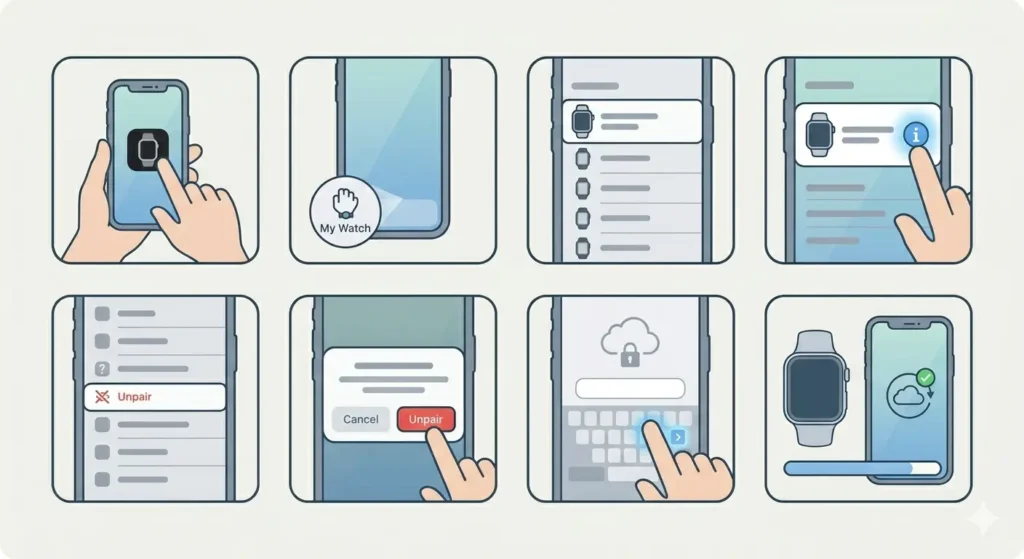
The preferred method for resetting an Apple Watch involves using the paired iPhone. This approach automatically backs up the watch data before erasing it.
Preparation Steps
- Step 1: Ensure the Apple Watch has at least 50% battery remaining
- Step 2: Keep the Apple Watch and iPhone close together during the process
- Step 3: Connect the iPhone to Wi-Fi for backup purposes
Unpairing Process
- Step 1: Open the Watch app on the paired iPhone
- Step 2: Tap ‘My Watch’ at the bottom of the screen
- Step 3: Select the Apple Watch from the list at the top
- Step 4: Tap the information icon (i) next to the watch name
- Step 5: Choose ‘Unpair Apple Watch’ from the menu
- Step 6: Confirm by tapping ‘Unpair [Device Name]’ again
- Step 7: Enter the Apple ID password if prompted (required for Activation Lock removal)
- Step 8: Wait for the unpairing and reset process to complete
Pro-Tip: The unpairing process automatically creates a fresh backup of the Apple Watch data on the iPhone. This backup can be used to restore settings and data when pairing a new or replacement Apple Watch later.
Method 2: Reset Directly on Apple Watch
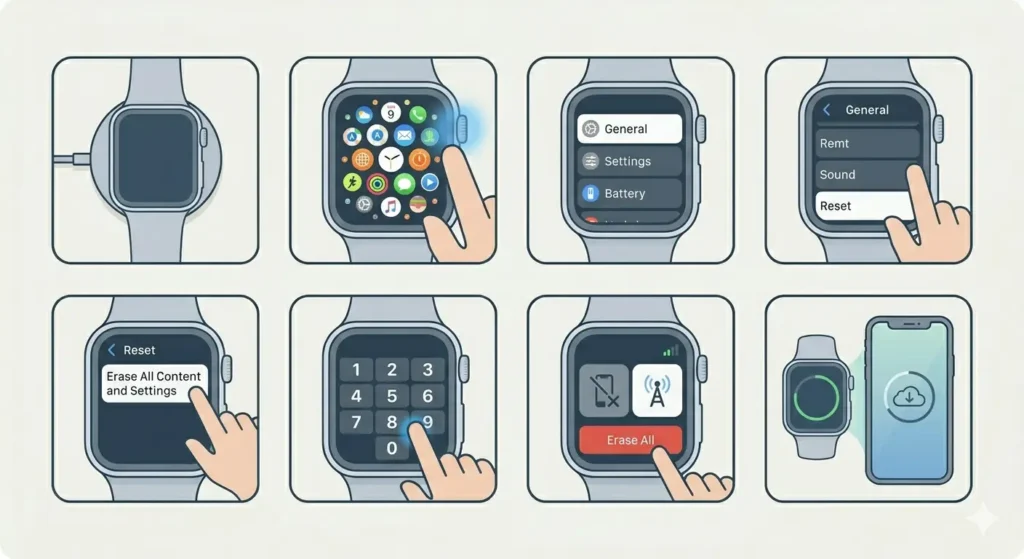
This method works when the paired iPhone is unavailable, lost, or no longer accessible. The watch can be reset using only its own settings menu.
Direct Reset Steps
- Step 1: Place the Apple Watch on its charger to prevent power loss during reset
- Step 2: Press the Digital Crown to view the Home screen
- Step 3: Tap the Settings app (gear icon)
- Step 4: Scroll down and select ‘General’
- Step 5: Scroll to the bottom and tap ‘Reset’
- Step 6: Choose ‘Erase All Content and Settings’
- Step 7: Enter the passcode if one has been set
- Step 8: Tap ‘Erase All’ to confirm the action
- Step 9: For cellular models, choose whether to keep or remove the cellular plan
- Step 10: Wait for the reset process to finish (typically 5-10 minutes)
Pro-Tip: When resetting directly on the watch, no backup is created. Any data not already synced to iCloud will be permanently lost. Make sure important health and fitness data has been synced before proceeding.
After Reset Completion
Once the factory reset finishes, the Apple Watch displays the initial setup screen with language selection. The device is now ready for pairing with an iPhone or setting up as a new watch.
The reset process removes all personal data including contacts, messages, photos, apps, custom watch faces, health data, workout history, Apple Pay cards, and any saved passwords or settings. The watch returns to the same state as when first purchased.
Tips for Successful Reset
- Always charge the Apple Watch to at least 50% before starting the reset to prevent interruption
- Remove any screen protectors or cases that might interfere with touch input during the process
- Double-check that all important data has been backed up or synced to iCloud before resetting
- Keep the watch on the charger during the entire reset process for cellular models
- Make note of any third-party app login credentials that will need to be re-entered after setup
- If selling or giving away the watch, verify that Activation Lock has been removed after reset
- Track the time across different zones if coordinating the reset with someone in another location
Common Problems and Solutions
Reset Process Freezes or Stops
If the reset process appears frozen for more than 15 minutes, force restart the Apple Watch by holding both the Digital Crown and side button simultaneously for at least 10 seconds until the Apple logo appears. Then attempt the reset process again.
Cannot Remember Passcode
When the passcode has been forgotten, the only solution is to unpair the watch through the iPhone Watch app. If the iPhone is also unavailable, the watch must be taken to an Apple Store or authorized service provider for assistance.
Activation Lock Remains After Reset
Activation Lock requires the original Apple ID and password to be removed. If these credentials are unavailable, contact Apple Support with proof of purchase to request Activation Lock removal.
Reset Option Grayed Out
The reset option becomes unavailable when the watch battery is below 50%. Charge the device fully and try again. If the option remains grayed out with sufficient charge, restart the watch and check again.
Unpair Button Missing in Watch App
The unpair option only appears when the Apple Watch is actively connected to the iPhone. Bring both devices closer together, ensure Bluetooth is enabled on the iPhone, and wait for the connection to establish before accessing the unpair option.
Reset Takes Longer Than Expected
Factory reset typically completes within 10 minutes, but larger data amounts or older watch models may require up to 20 minutes. As long as progress indicators continue moving, allow the process to complete without interruption. Use an online stopwatch to track the exact duration if needed.
Frequently Asked Questions
Does resetting Apple Watch delete data from iPhone?
No, resetting the Apple Watch does not affect data stored on the paired iPhone. Health and fitness data that has already synced to the iPhone Health app remains intact. Only data stored exclusively on the watch itself gets erased.
Can Apple Watch be reset without the paired iPhone?
Yes, the watch can be reset directly through its Settings menu without the iPhone. However, this method does not create a backup, and Activation Lock will remain enabled unless the Apple ID password is entered during the reset process.
How long does Apple Watch factory reset take?
The complete reset process typically takes 5-10 minutes. Older models or watches with large amounts of data may require up to 20 minutes. The watch displays a progress wheel during the erasure process.
Will factory reset remove Activation Lock?
Factory reset through the iPhone automatically removes Activation Lock. When resetting directly on the watch, Activation Lock only gets removed if the Apple ID password is entered during the process. Without password entry, Activation Lock remains active.
Is backup created automatically during reset?
Backup creation only happens when unpairing through the iPhone Watch app. Direct reset on the watch itself does not create any backup. All data not previously synced to iCloud will be permanently lost with direct reset.
Can reset be canceled once started?
No, once the erase process begins after final confirmation, it cannot be stopped or reversed. The watch must complete the full factory reset. Attempting to force restart during erasure may cause software issues requiring restoration through the iPhone.
Does reset remove watchOS updates?
No, factory reset does not downgrade the watchOS version. The watch retains its current operating system version after reset. Only user data, settings, and installed apps get removed during the factory reset process.
What happens to Apple Pay cards after reset?
All credit cards, debit cards, and transit cards added to Apple Pay are completely removed during factory reset. These cards must be manually added again after setting up the watch. Cards remain active on other devices where they have been added.
Can health data be recovered after reset without backup?
No, health and fitness data cannot be recovered if no backup exists. Data that had previously synced to the iPhone Health app remains accessible there, but any workout or health information recorded only on the watch and not yet synced is permanently lost.
Does reset affect Apple Watch warranty?
Factory reset does not void the warranty or affect coverage in any way. This is a standard maintenance procedure fully supported by Apple. The warranty status remains unchanged regardless of how many times the watch has been reset.