
Installing apps on a Samsung Galaxy Watch transforms the device from a simple timekeeper into a powerful companion for fitness tracking, productivity, communication, and entertainment. Samsung Galaxy Watch users can easily download and install apps directly from the Galaxy Wearable app or from the watch itself through the Galaxy Store.
Quick Summary Table
| Method | Best For | Time Required |
|---|---|---|
| Galaxy Wearable App (Phone) | Browsing multiple apps, easier navigation | 2-3 minutes |
| Galaxy Store (Watch) | Quick installations, no phone needed | 3-5 minutes |
Key Takeaways
- Apps can be installed through the Galaxy Wearable app on a paired smartphone or directly from the Galaxy Store on the watch
- The watch must be connected to Wi-Fi or have an active mobile connection (LTE models)
- Both free and paid apps are available in the Galaxy Store
- Installation typically takes 1-3 minutes depending on app size and connection speed
- The watch needs sufficient storage space for new apps
Installing Apps Using the Galaxy Wearable App
The Galaxy Wearable app on a smartphone provides the most convenient way to browse and install apps. This method offers a larger screen for exploring available applications and reading reviews before installation.
Method 1: Install Through Galaxy Wearable App
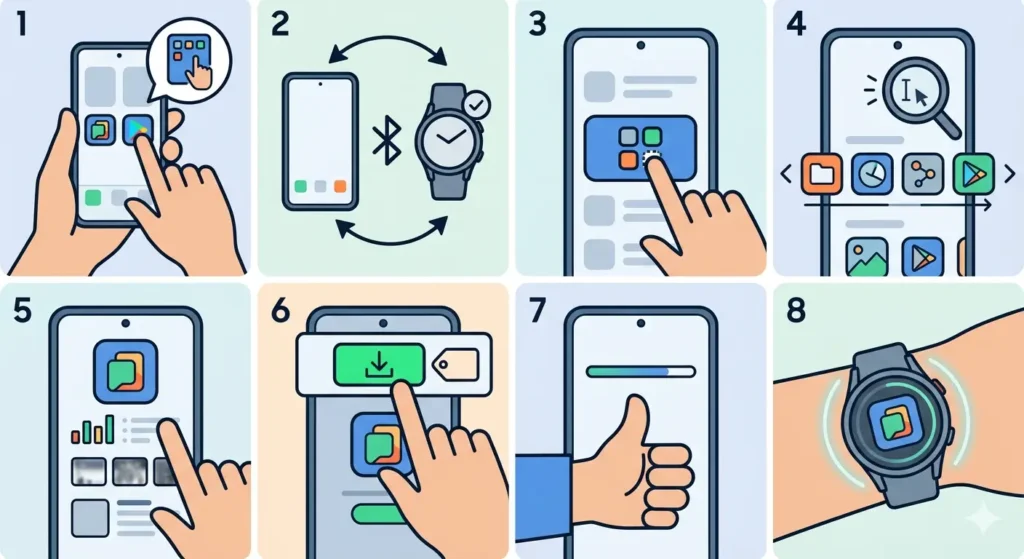
- Step 1: Open the Galaxy Wearable app on the paired smartphone
- Step 2: Ensure the Samsung Galaxy Watch is connected to the phone via Bluetooth
- Step 3: Tap ‘Apps’ or ‘Watch apps’ from the main screen of the Galaxy Wearable app
- Step 4: Browse through available apps or use the search function to find specific applications
- Step 5: Select the desired app to view details, ratings, and screenshots
- Step 6: Tap the ‘Install’ button for free apps or the price button for paid apps
- Step 7: Confirm the installation and wait for the download to complete
- Step 8: The app will automatically install on the Samsung Galaxy Watch once the download finishes
Pro-Tip: Keep the phone and watch close together during installation to maintain a stable Bluetooth connection. If the connection drops, the installation may pause or fail.
Installing Apps Directly from the Galaxy Watch
Samsung Galaxy Watch owners can install apps without using a smartphone. This method works perfectly when the phone is not nearby or for quick installations on the go.
Method 2: Install Through Galaxy Store on Watch
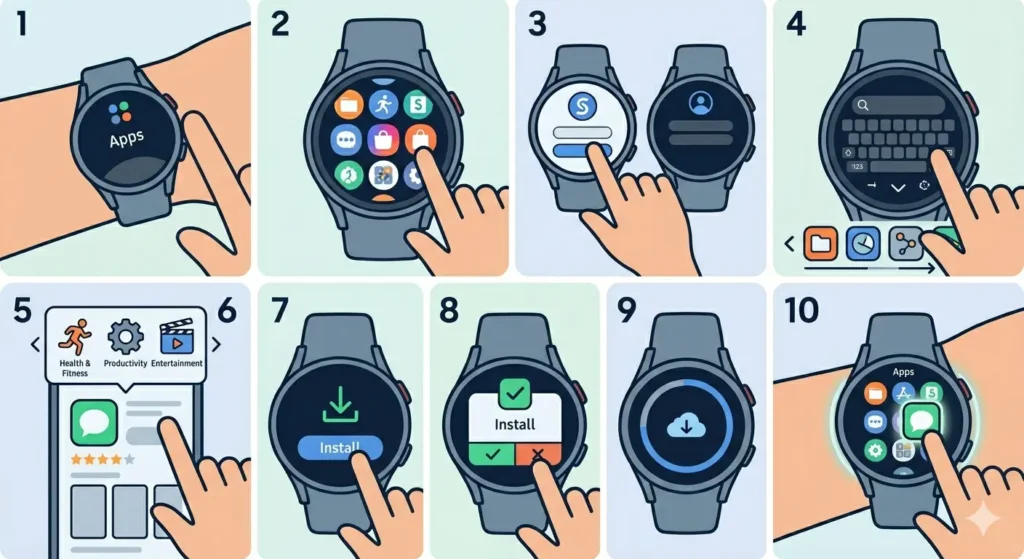
- Step 1: Press the Home button on the Samsung Galaxy Watch to access the Apps screen
- Step 2: Locate and tap the ‘Galaxy Store’ icon (appears as a shopping bag)
- Step 3: Sign in with a Samsung account if prompted (required for first-time use)
- Step 4: Browse featured apps or tap the search icon to find specific applications
- Step 5: Scroll through categories like ‘Health & Fitness’, ‘Productivity’, or ‘Entertainment’
- Step 6: Select an app to view its details and user reviews
- Step 7: Tap ‘Install’ for free apps or the price for paid apps
- Step 8: Confirm the installation by tapping ‘Install’ again or entering payment information
- Step 9: Wait for the download and installation to complete (a progress indicator will appear)
- Step 10: Access the newly installed app from the Apps screen
Pro-Tip: Connect the watch to a Wi-Fi network before downloading large apps. This speeds up the installation process and prevents mobile data usage on LTE models.
Requirements Before Installing Apps
Several prerequisites must be met before successfully installing apps on a Samsung Galaxy Watch. Understanding these requirements prevents installation failures and ensures a smooth experience.
Essential Requirements
- A Samsung account (create one for free if needed)
- Active internet connection (Wi-Fi or mobile data for LTE models)
- Sufficient storage space on the watch (check available space in Settings > About watch > Storage)
- Updated software version (older versions may not support newer apps)
- Paired smartphone with Galaxy Wearable app installed (for phone-based installation method)
Checking Available Storage Space
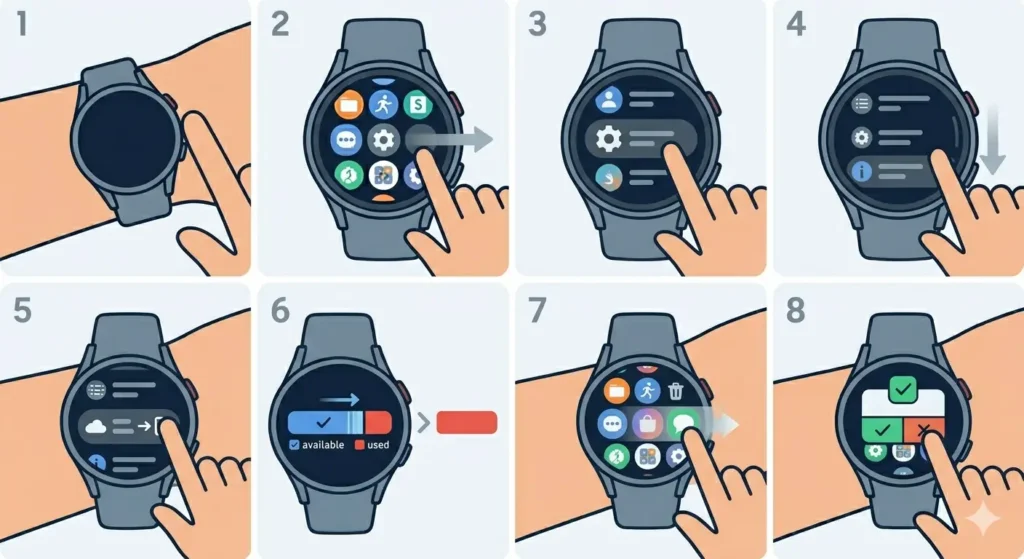
- Step 1: Press the Home button on the watch
- Step 2: Swipe to find and tap ‘Settings’
- Step 3: Scroll down and select ‘About watch’ or ‘Device info’
- Step 4: Tap ‘Storage’ to view available space
- Step 5: Delete unused apps if storage is low
Managing Installed Apps
After installation, apps can be organized, updated, or removed to optimize the watch’s performance and storage capacity. Regular management keeps the device running smoothly.
Updating Apps
- Open Galaxy Wearable app on phone and tap ‘Apps’
- Select ‘Update’ next to apps with available updates
- Alternatively, enable automatic updates in Galaxy Store settings
- On the watch, open Galaxy Store and check ‘My apps’ for available updates
Uninstalling Apps
- Step 1: Press and hold the app icon on the watch’s Apps screen
- Step 2: Tap the minus (-) sign or ‘Uninstall’ option
- Step 3: Confirm the uninstallation when prompted
- Step 4: Alternatively, use the Galaxy Wearable app on phone to uninstall apps remotely
Tips for Installing Apps on Samsung Galaxy Watch
- Install essential apps first: fitness trackers, stopwatch tools, music players, and communication apps provide the most value
- Read app reviews and ratings before installation to avoid poorly-designed or unreliable applications
- Check app permissions to understand what data each app can access on the watch
- Monitor battery usage after installing new apps – some applications drain battery faster than others
- Keep the number of installed apps reasonable to preserve storage space and maintain performance
- Use world time tools for travel-related apps that help track multiple time zones
- Download apps over Wi-Fi when possible to save mobile data on LTE models
- Restart the watch after installing multiple apps to ensure proper integration
- Create app folders on the watch to organize similar applications together
- Enable notification permissions for important apps during or after installation
Common Problems and Solutions
Installation issues occasionally occur due to connectivity problems, storage limitations, or software conflicts. Most problems have simple solutions that restore normal functionality.
Fix 1: Installation Fails or Gets Stuck
- Check internet connection strength on both phone and watch
- Restart both the Samsung Galaxy Watch and paired smartphone
- Ensure sufficient storage space is available on the watch
- Clear cache in Galaxy Store (Settings > Apps > Galaxy Store > Storage > Clear cache)
- Update the Galaxy Wearable app to the latest version
Fix 2: Apps Not Appearing After Installation
- Swipe through all app screens on the watch – newly installed apps sometimes appear on the last page
- Restart the Samsung Galaxy Watch to refresh the app list
- Check if the app is hidden in Settings > Apps > Show/hide apps
- Reinstall the app through Galaxy Wearable app or Galaxy Store
Fix 3: Cannot Connect to Galaxy Store
- Verify the Samsung account is properly signed in on both phone and watch
- Check date and time settings – incorrect settings can prevent store access
- Reset network settings on the watch (Settings > General > Reset > Reset network settings)
- Update the watch software to the latest version
- Contact Samsung support if the problem persists
Fix 4: Payment Issues for Paid Apps
- Verify payment method is valid and up-to-date in Samsung account settings
- Ensure sufficient funds or credit are available
- Try a different payment method if the current one fails
- Clear Galaxy Store cache and try purchasing again
- Contact Samsung billing support for unresolved payment problems
Frequently Asked Questions
Can apps be installed on a Samsung Galaxy Watch without a phone?
Yes, apps can be installed directly from the Galaxy Store on the watch itself. The watch needs an active Wi-Fi or mobile data connection (for LTE models) to access the store and download apps. A Samsung account is required for installation, but a paired smartphone is not necessary for this method.
How much storage space do Samsung Galaxy Watches have for apps?
Storage capacity varies by model. Most Samsung Galaxy Watch models offer 16GB of total storage, with approximately 8-10GB available for apps and data after the operating system. Newer flagship models like the Galaxy Watch 5 Pro and Watch 6 series may offer 32GB of storage. Check available space in Settings > About watch > Storage.
Are all apps free on the Galaxy Store?
No, the Galaxy Store includes both free and paid apps. Free apps can be installed without payment, while premium apps require a one-time purchase or subscription. Some apps offer free basic versions with optional in-app purchases for additional features. Prices are displayed clearly before installation.
Why does app installation fail even with good internet connection?
Installation failures can occur due to insufficient storage space, outdated software, Samsung account issues, or temporary server problems. Check available storage, ensure the watch software is updated, verify Samsung account login status, and try restarting both the watch and paired phone. Clearing the Galaxy Store cache often resolves persistent installation issues.
Can Android apps from Google Play Store be installed on Samsung Galaxy Watches?
No, Samsung Galaxy Watches run on Wear OS (newer models) or Tizen OS (older models), not standard Android. Only apps specifically designed for these operating systems and available in the Galaxy Store can be installed. Google Play Store apps designed for smartphones are not compatible with Galaxy Watches.
How long does it take to install an app on a Samsung Galaxy Watch?
Installation time varies based on app size and internet connection speed. Small apps (under 10MB) typically install in 30-60 seconds, while larger apps (50-100MB) may take 2-5 minutes. Games and complex apps with extensive graphics can take longer. Wi-Fi connections generally provide faster installation than Bluetooth or mobile data.
Do installed apps automatically update on Samsung Galaxy Watches?
Automatic updates can be enabled in Galaxy Store settings. When enabled, apps update automatically when the watch is connected to Wi-Fi and charging. To enable this feature, open Galaxy Store on the watch, tap Menu > Settings > Auto update apps, and select ‘Auto update over Wi-Fi only’ or the preferred option.
Can apps be transferred from an old Samsung Galaxy Watch to a new one?
Apps themselves cannot be directly transferred, but the Galaxy Wearable app can backup app lists. When setting up a new watch, sign in with the same Samsung account and restore from backup. This reinstalls previously installed apps automatically. App data may not transfer for all applications, depending on developer implementation.
What happens to installed apps when the watch is reset?
A factory reset removes all installed apps, settings, and data from the Samsung Galaxy Watch. After reset, the watch returns to its original state as if new from the box. Apps must be reinstalled manually or through backup restoration. Always backup important data before performing a reset.
Why do some apps show as incompatible with a Samsung Galaxy Watch?
App compatibility depends on watch model, operating system version, and hardware specifications. Older watch models may not support newer apps requiring advanced features or updated OS versions. Some apps are region-specific or designed only for certain Galaxy Watch series. Check app requirements in the Galaxy Store before attempting installation.