
Unpairing a smartwatch safely ensures data protection and prepares the device for resale, gifting, or reconnecting to another phone. This guide covers the proper steps to disconnect popular smartwatch models without losing important information or causing synchronization issues.
Quick Summary Table
| Smartwatch Brand | Key Steps | Time Required |
|---|---|---|
| Apple Watch | Unpair via iPhone Watch app | 3-5 minutes |
| Samsung Galaxy Watch | Unpair via Galaxy Wearable app | 2-4 minutes |
| Wear OS Devices | Unpair via Wear OS app or phone settings | 2-3 minutes |
| Fitbit | Remove device from Fitbit app | 1-3 minutes |
| Garmin | Remove from Garmin Connect app | 2-4 minutes |
How to Unpair an Apple Watch
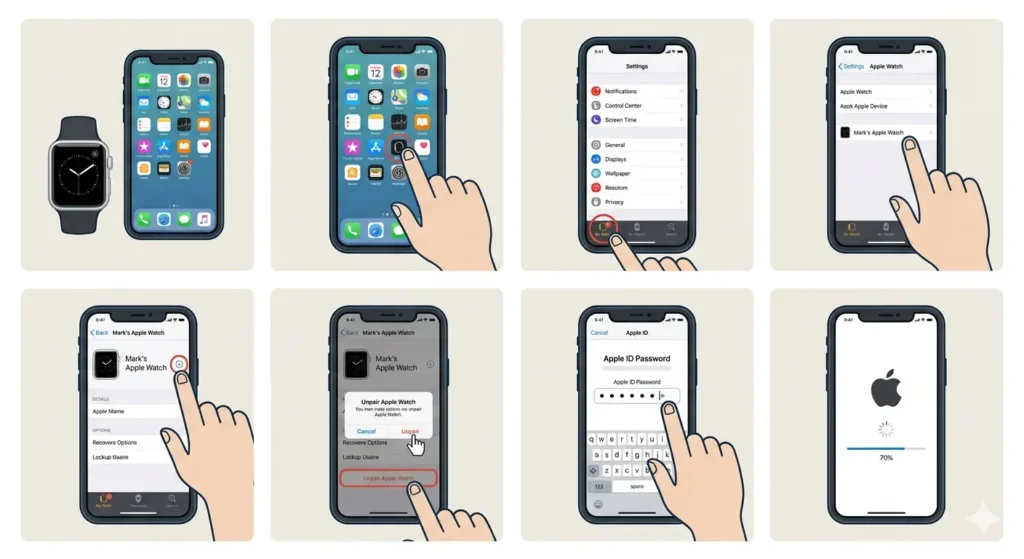
Apple Watch requires unpairing through the paired iPhone to ensure proper backup and data removal. This method automatically creates a backup before disconnecting the watch.
- Step 1: Place the Apple Watch near the paired iPhone with both devices turned on
- Step 2: Open the Watch app on the iPhone
- Step 3: Tap ‘My Watch’ at the bottom of the screen
- Step 4: Select the watch at the top of the screen if multiple devices are connected
- Step 5: Tap the information icon (i) next to the watch name
- Step 6: Choose ‘Unpair Apple Watch’ and confirm the action
- Step 7: Enter the Apple ID password if prompted
- Step 8: Wait for the unpairing process to complete (this creates an automatic backup)
Pro-Tip: Keep the Apple Watch on its charger during unpairing to prevent interruption from low battery. The backup process can take several minutes depending on data size, and interruption may cause incomplete data removal.
Unpair Apple Watch Without iPhone
When the paired iPhone is unavailable, lost, or damaged, manual unpairing becomes necessary.
- Step 1: Open Settings on the Apple Watch
- Step 2: Navigate to ‘General’ then ‘Reset’
- Step 3: Select ‘Erase All Content and Settings’
- Step 4: Enter the passcode when prompted
- Step 5: Tap ‘Erase All’ to confirm
- Step 6: For cellular models, choose whether to keep or remove the cellular plan
How to Unpair Samsung Galaxy Watch
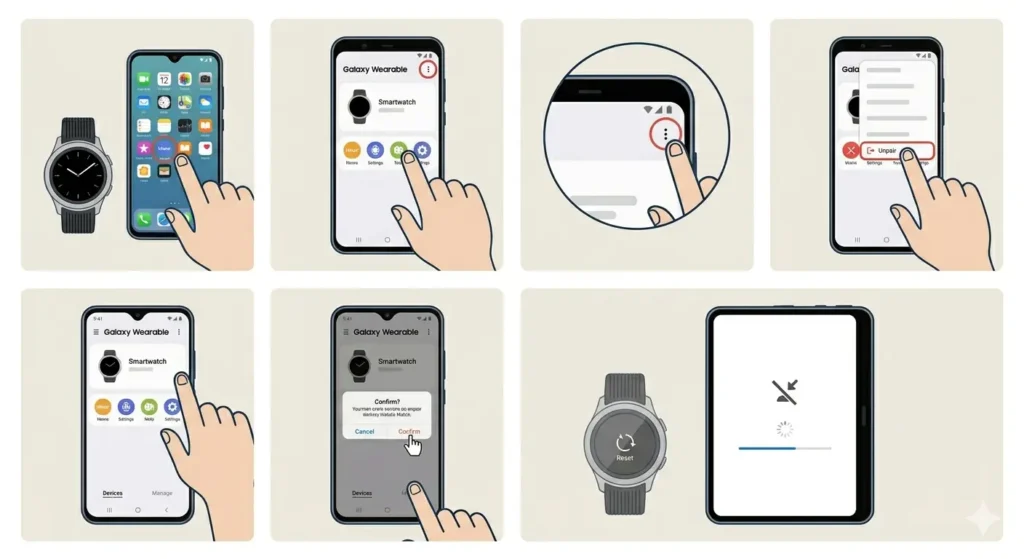
Samsung smartwatches disconnect through the Galaxy Wearable app, which handles both Bluetooth connection and data synchronization.
- Step 1: Open the Galaxy Wearable app on the paired Android phone
- Step 2: Tap the menu icon (three dots) in the top right corner
- Step 3: Select ‘Unpair’ from the dropdown menu
- Step 4: Confirm the unpairing action when prompted
- Step 5: Wait for the watch to disconnect and reset automatically
Alternative Method Through Phone Settings
- Step 1: Open Settings on the Android phone
- Step 2: Navigate to ‘Connections’ or ‘Bluetooth’
- Step 3: Find the Galaxy Watch in the paired devices list
- Step 4: Tap the settings icon next to the watch name
- Step 5: Select ‘Unpair’ or ‘Forget device’
- Step 6: Perform a factory reset on the watch through Settings > General > Reset
How to Unpair Wear OS Smartwatches
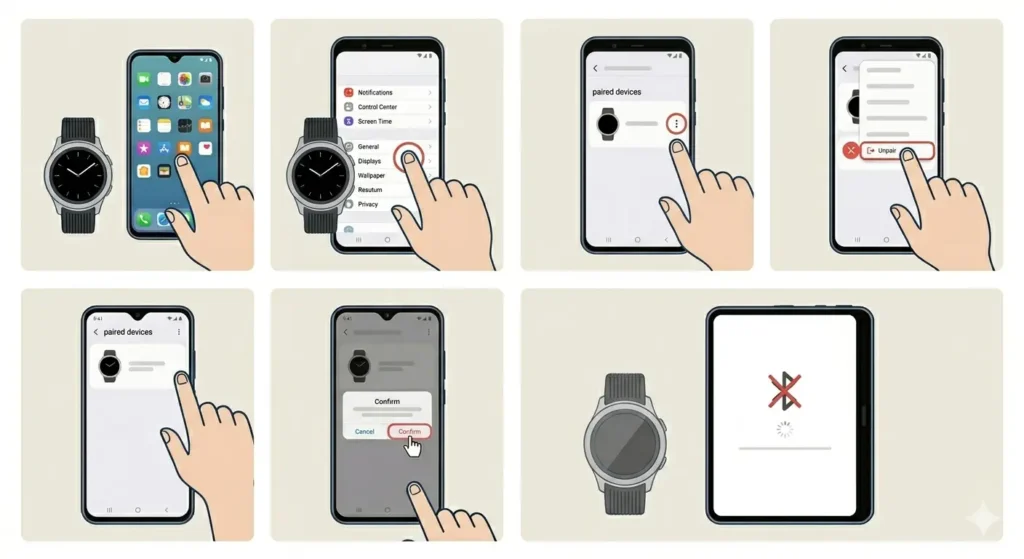
Wear OS devices from brands like Fossil, TicWatch, and Mobvoi use Google’s standardized unpairing process through the Wear OS companion app.
- Step 1: Open the Wear OS app on the paired smartphone
- Step 2: Scroll down and tap the settings icon next to the connected watch
- Step 3: Select ‘Unpair watch’ or ‘Forget watch’
- Step 4: Confirm the action in the popup dialog
- Step 5: Allow the app to complete the disconnection process
The watch automatically performs a factory reset after unpairing completes. This removes all personal data, installed apps, and customized settings from the device.
How to Unpair Fitbit Devices
Fitbit smartwatches and trackers require removal through the Fitbit mobile app to properly disconnect health data synchronization.
- Step 1: Open the Fitbit app on the smartphone
- Step 2: Tap the profile picture or icon in the top left corner
- Step 3: Select the Fitbit device to unpair
- Step 4: Scroll to the bottom and tap ‘Remove This Device’
- Step 5: Confirm removal when prompted
- Step 6: Perform a factory reset on the Fitbit device through Settings > About > Factory Reset
Pro-Tip: Sync the Fitbit one final time before unpairing to ensure all recent health data uploads to the cloud. Open the app and pull down on the dashboard to force a manual sync, which typically completes in under a minute using the online stopwatch to track the process.
How to Unpair Garmin Watches
Garmin smartwatches disconnect through the Garmin Connect app, which manages activity data, routes, and device settings.
- Step 1: Open the Garmin Connect app on the smartphone
- Step 2: Tap the menu icon (three horizontal lines) to open the sidebar
- Step 3: Select ‘Garmin Devices’
- Step 4: Choose the watch to unpair from the device list
- Step 5: Tap ‘Remove Device’ or the trash icon
- Step 6: Confirm the removal
- Step 7: Navigate to Settings > System > Reset on the watch
- Step 8: Select ‘Delete Data and Reset Settings’
Tips for Safe Smartwatch Unpairing
- Charge the smartwatch to at least 50% battery before starting the unpairing process to prevent interruption
- Disable activation lock or find my device features before unpairing to avoid setup complications for new users
- Back up important data manually if the automatic backup option is unavailable or unreliable
- Remove any downloaded music, apps, or custom watch faces that contain personal information
- Sign out of third-party apps on the watch before factory resetting to prevent account linking issues
- Keep the watch within range of the phone during unpairing to ensure complete data transfer
- Document the unpairing time using tools like clock tab for warranty or support records
- Remove cellular plans from LTE-enabled smartwatches through carrier settings before unpairing
- Clean the watch physically after unpairing if planning to sell or gift the device
- Verify that all personal notifications, emails, and message previews are cleared from the watch
Common Problems and Solutions
Fix 1: Unpairing Fails or Freezes
Force restart both the smartwatch and smartphone, then attempt the unpairing process again. Most devices respond to this basic reset, which clears temporary glitches preventing disconnection.
Fix 2: Watch Not Appearing in App
Verify Bluetooth is enabled on both devices and that they remain within 30 feet of each other. Toggle Bluetooth off and on, then reopen the companion app to refresh the device list.
Fix 3: Activation Lock Still Active After Unpairing
Sign in to the associated account (Apple ID, Google account, Samsung account) through a web browser and manually remove the device from the registered devices list. This releases the activation lock remotely.
Fix 4: Data Not Backed Up Before Unpairing
Cancel the unpairing process immediately if still in progress. Force a manual sync or backup through the companion app settings before attempting to unpair again. Most apps offer backup options in the device settings menu.
Fix 5: Cannot Perform Factory Reset on Watch
Check if parental controls, device management profiles, or security policies are preventing the reset. Remove these restrictions through the smartphone settings or contact the device administrator for assistance.
Fix 6: Cellular Plan Remains Active After Unpairing
Contact the mobile carrier directly to deactivate the smartwatch cellular plan. Carriers maintain separate systems for wearable devices that require manual deactivation even after unpairing.
Frequently Asked Questions
Does unpairing a smartwatch delete all data?
Unpairing through the official companion app typically creates a backup before removing data from the watch. However, the data remains in the cloud and can be restored to another device. Manual unpairing through the watch settings deletes data without backup.
Can a smartwatch be unpaired without the phone?
Yes, most smartwatches offer a factory reset option in the device settings that removes all data and unpairs the watch. This method does not create a backup and should only be used when the phone is unavailable.
How long does the unpairing process take?
Standard unpairing completes in 2-5 minutes depending on the amount of data being backed up. Watches with extensive app data, music libraries, or health information may require up to 10 minutes. Track the process using world time comparison tool when coordinating with different time zones for remote support.
Will unpairing a smartwatch cancel subscriptions?
No, unpairing does not automatically cancel paid subscriptions linked to the smartwatch. Subscriptions for music streaming, fitness services, or cellular plans must be canceled separately through the respective service providers or app stores.
Can the same smartwatch be paired to a different phone after unpairing?
Yes, once properly unpaired and reset, smartwatches can connect to any compatible smartphone. The new phone must have the appropriate companion app installed and meet the minimum operating system requirements for the watch model.
What happens to health data after unpairing a smartwatch?
Health data synced to the cloud remains accessible through the associated account (Apple Health, Google Fit, Samsung Health, etc.). Local data stored only on the watch is deleted during the unpairing process unless backed up first.
Is it safe to sell a smartwatch after unpairing?
Yes, if the watch has been properly unpaired through the companion app and factory reset. Verify that activation lock is disabled, all accounts are signed out, and personal data is removed before transferring ownership to another person.
Why does unpairing require an internet connection?
Internet connectivity allows the companion app to sync final data to cloud servers, verify account credentials, deactivate activation locks, and ensure proper backup completion before removing the watch from the account.
Can unpairing be reversed if done accidentally?
No, unpairing is permanent and requires setting up the watch again from scratch. However, most companion apps restore data from the most recent backup during the setup process, recovering settings, apps, and health information.
Do third-party smartwatch apps need to be uninstalled separately?
No, factory reset and unpairing remove all installed apps automatically. However, accounts within those apps (like Spotify or Strava) remain active and should be signed out through the app settings before unpairing to prevent unauthorized access.