

Setting up world time on a G-Shock watch allows users to track multiple time zones simultaneously, making it an essential feature for travelers, business professionals, and anyone coordinating across different regions. This step-by-step guide walks through the complete process of configuring world time settings on G-Shock models, ensuring accurate timekeeping for any global location.
Key Takeaways
- World time feature displays current time in 48 cities across 31 time zones
- Setup typically requires accessing the timekeeping mode and switching to world time mode
- City code selection determines the time zone displayed
- Daylight saving time (DST) settings require manual adjustment on most models
- The process takes approximately 2-3 minutes once familiar with button functions
Understanding G-Shock World Time Function
G-Shock world time functionality provides instant access to the current time in major cities worldwide. The watch stores time zone data for 48 cities, representing all major time zones from UTC-12 to UTC+14. When world time mode is activated, the watch displays the selected city code and corresponding local time, while the home time continues running in the background.
Most G-Shock models use a four-button interface to navigate between modes and adjust settings. The typical button layout includes a mode button (bottom left), adjust button (bottom right), forward button (top right), and reverse button (top left), though some models may vary slightly.
Setting Up World Time on Your G-Shock
Method 1: Basic World Time Setup
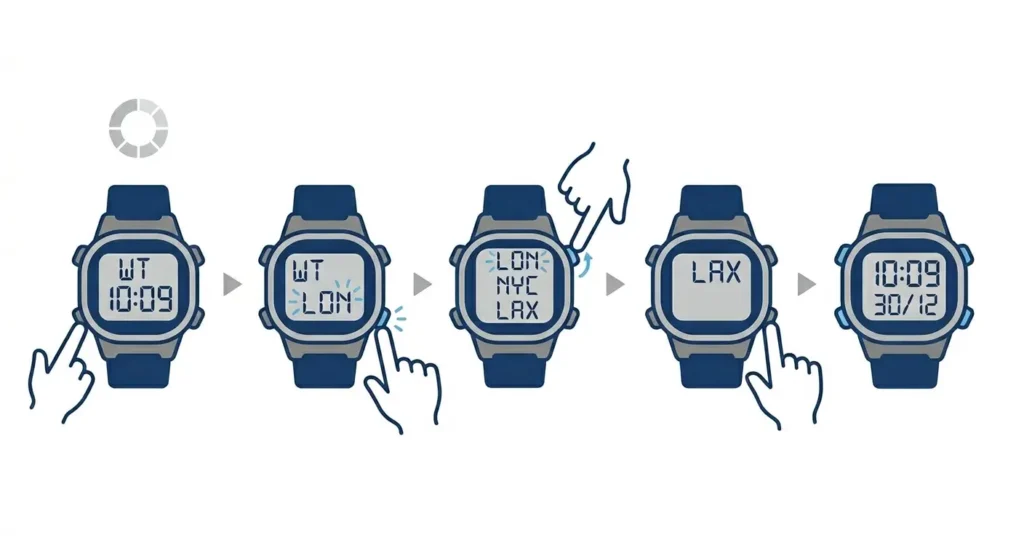
This method works for most standard G-Shock models including the GA, DW, and GW series.
- Step 1: Press the mode button (bottom left) repeatedly until the watch enters world time mode. The display will show a city code (such as LON for London or NYC for New York).
- Step 2: Press and hold the adjust button (bottom right) for approximately 2-3 seconds until the city code starts flashing. This indicates the watch has entered setting mode.
- Step 3: Use the forward button (top right) or reverse button (top left) to scroll through available city codes. The watch will cycle through all 48 cities in alphabetical order.
- Step 4: When the desired city code appears, press the adjust button to confirm the selection. The time zone will automatically update to match the chosen city.
- Step 5: Press the mode button to exit world time mode and return to normal timekeeping.
Pro Tip: Keep a reference list of city codes handy, as the three-letter abbreviations may not always be intuitive. For example, HKG represents Hong Kong, while BKK stands for Bangkok. This saves time when scrolling through all 48 options.
Method 2: Digital Models with Advanced World Time
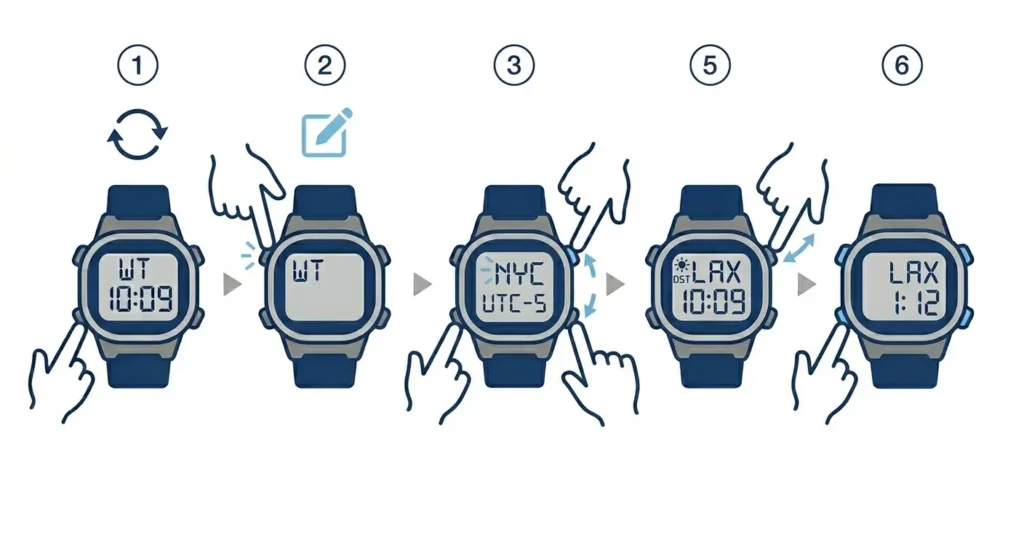
Digital G-Shock models with larger displays often include enhanced world time features with additional information.
- Step 1: Enter world time mode by pressing the mode button until ‘WT’ or the city code appears on the display.
- Step 2: Hold the adjust button until the display begins flashing, indicating edit mode is active.
- Step 3: Navigate to the city selection using the forward or reverse buttons. Some models display both the city code and UTC offset (such as +9 or -5).
- Step 4: After selecting the city, press the forward button once more to access DST (daylight saving time) settings if available.
- Step 5: Toggle DST on or off using the forward button, then press adjust to save settings.
- Step 6: Exit by pressing the mode button to return to standard time display.
Method 3: Analog-Digital Combination Models
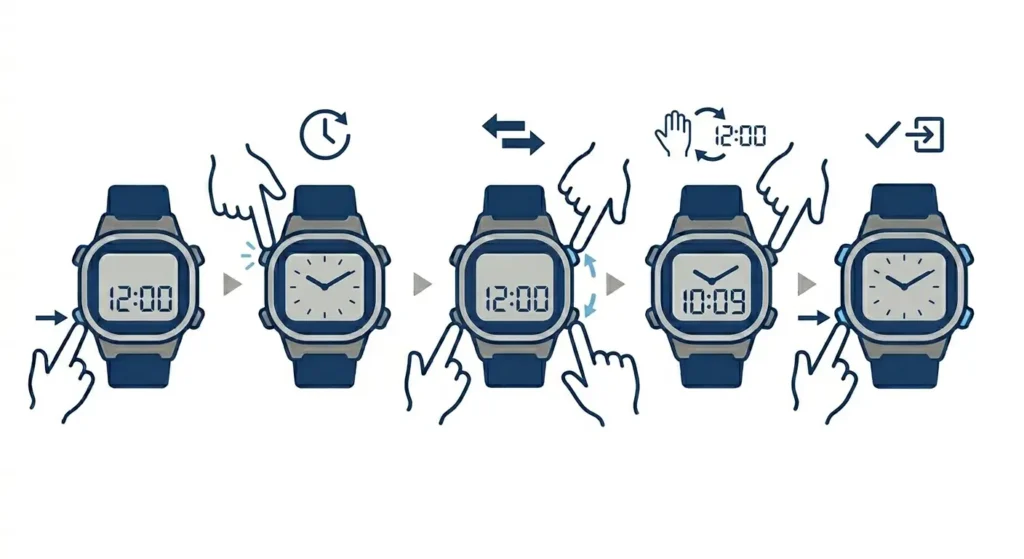
G-Shock models with both analog hands and digital displays require a slightly different approach.
- Step 1: Press the mode button to cycle to world time mode. The digital portion will display the city code while analog hands continue showing home time.
- Step 2: Hold the adjust button for 3 seconds until the city code flashes on the digital display.
- Step 3: Use the forward and reverse buttons to select the desired world time city. The digital display updates immediately to show the new time zone.
- Step 4: Some models allow switching which time (home or world) the analog hands display. Press the forward button while in world time mode to swap the display.
- Step 5: Confirm the selection by pressing the adjust button, then press mode to exit.
Pro Tip: When traveling, swap the home time and world time settings before departure. This keeps the primary display showing local time at the destination while maintaining quick access to the original time zone through world time mode, similar to how the world time comparison tool displays multiple zones simultaneously.
Adjusting Daylight Saving Time Settings
Most G-Shock models require manual DST adjustment, as the watch does not automatically switch when daylight saving begins or ends.
- Step 1: Enter world time mode and access the city settings by holding the adjust button.
- Step 2: After selecting the city code, continue pressing the forward button until a DST indicator appears (usually shown as ‘DST’, ‘AUTO’, or ‘ON/OFF’).
- Step 3: Toggle the DST setting to match the current status of the selected time zone. ‘ON’ advances the time by one hour, while ‘OFF’ displays standard time.
- Step 4: Press the adjust button to save and exit to normal display mode.
Some regions do not observe daylight saving time, including most of Asia, Africa, and parts of Australia. Always verify whether DST applies to the selected city before enabling this feature.
Available City Codes and Time Zones
G-Shock watches include city codes representing all major time zones. The selection covers UTC-12 (IDLW – International Date Line West) through UTC+14 (IDLE – International Date Line East). Common city codes include:
- North America: HNL (Honolulu), ANC (Anchorage), LAX (Los Angeles), DEN (Denver), CHI (Chicago), NYC (New York)
- Europe: LON (London), PAR (Paris), ATH (Athens), MOW (Moscow)
- Asia: DXB (Dubai), KBL (Kabul), BKK (Bangkok), HKG (Hong Kong), TYO (Tokyo)
- Oceania: SYD (Sydney), NOU (Noumea), WLG (Wellington)
- South America: RIO (Rio de Janeiro), BUE (Buenos Aires)
Each city code represents a specific UTC offset, and selecting any city within the same time zone produces identical results. For example, choosing PAR, BER (Berlin), or ROM (Rome) all display Central European Time (UTC+1).
Tips for Using World Time Effectively
Maximizing the world time feature requires understanding a few practical applications and best practices.
Choose Strategic City Codes: Select cities that align with frequently contacted time zones rather than specific geographic locations. Business professionals often set world time to major financial centers like LON, NYC, or TYO regardless of actual location.
Quick Time Zone Reference: When coordinating international calls or meetings, world time mode provides instant confirmation of the current time at the destination. This eliminates the need for mental calculations or external tools, though the clock tab feature can serve as a backup for multiple simultaneous time zones.
Verify Time Zone Boundaries: Some regions span multiple time zones, and the city code may not match the actual location. For example, Australia has three main time zones, so selecting SYD only covers the eastern coast.
Update DST Seasonally: Set calendar reminders for DST transitions (typically March and November in the Northern Hemisphere, September and April in the Southern Hemisphere) to ensure world time accuracy.
Use During Travel: Before crossing time zones, switch the home time to the destination and use world time to track the departure location. This maintains connection to the original time zone without constant mental conversion.
Common Problems and Solutions
Fix 1: City Code Not Changing
When the city code remains stuck despite pressing buttons, the watch likely is not in edit mode. Hold the adjust button for a full 3 seconds until the display clearly flashes. Some models require holding the button longer than expected. If the code still does not change, check that the watch is not in a locked mode (some G-Shock models feature button lock to prevent accidental changes).
Fix 2: Wrong Time Displayed for Selected City
Incorrect time in world time mode usually stems from improper home time settings. World time calculates all zones based on the accuracy of the home time setting. Exit world time mode, enter timekeeping mode, and verify the home time zone and DST settings are correct. Once home time is accurate, world time automatically corrects itself.
Fix 3: DST Setting Not Available
Not all G-Shock models include manual DST adjustment in world time mode. Budget and older models may only display standard time for each zone. If DST settings do not appear when cycling through options, the model does not support this feature. The alternative is selecting a different city code in the same time zone that naturally reflects the desired DST status.
Fix 4: Display Shows Unusual Characters
Scrambled displays or unexpected characters indicate the watch battery may be low or the module requires reset. Replace the battery first, as low power causes erratic behavior. If problems persist with a fresh battery, perform a full reset according to the specific model’s instructions (usually holding all four buttons simultaneously for several seconds).
Fix 5: Time Jumps by Full Hours Unexpectedly
Automatic time zone jumping occurs on multi-band atomic G-Shock models when the watch receives radio signals from time calibration towers. The watch may interpret the signal as requiring a time zone change. Temporarily disable radio signal reception or ensure the home city code matches the actual geographic location to prevent unwanted adjustments.
Frequently Asked Questions
How many cities can G-Shock world time display?
G-Shock world time mode includes 48 cities representing 31 time zones worldwide. The cities span from UTC-12 to UTC+14, covering all major time zones globally. Users can select any of these cities, and the watch automatically displays the corresponding local time based on the home time setting.
Does G-Shock world time automatically update for daylight saving?
Most G-Shock models require manual DST adjustment for world time zones. The watch does not automatically detect or switch when daylight saving begins or ends. Users must enter the settings and toggle DST on or off manually. Some premium models with atomic timekeeping may auto-adjust for the home time zone only, but world time still needs manual configuration.
Can world time display multiple cities simultaneously?
Standard G-Shock models display one world time city at a time in addition to the home time. To view a different city’s time, users must cycle back into world time mode and switch to another city code. The watch does not support simultaneous display of multiple world time zones on a single screen, though users can quickly toggle between stored settings.
What happens to world time when traveling across time zones?
World time continues displaying the selected city’s time regardless of physical location. When crossing time zones, the recommended approach is updating the home time to match the new location, then using world time to track the original time zone. This maintains accurate local time on the primary display while preserving quick access to the previous zone, similar to using an online stopwatch that runs independently of location changes.
Why does world time show a different hour than expected?
World time calculates all zones relative to the home time setting. If world time displays incorrectly, the home time zone or DST setting is likely wrong. Verify that the home city code matches the current location and DST status is properly configured. Correcting the home time automatically fixes all world time calculations.
Is it possible to add custom cities to G-Shock world time?
G-Shock watches come with a fixed set of 48 cities that cannot be modified or expanded. Users cannot add custom locations or create new time zones. The solution for unlisted cities is selecting the nearest city code with the same UTC offset. For example, if Mumbai (not listed) is needed, selecting KHI (Karachi) provides the same UTC+5:30 time.
How accurate is G-Shock world time compared to actual local time?
World time accuracy depends entirely on the precision of the home time setting. Standard quartz G-Shock models maintain accuracy within ±15 seconds per month. Multi-band atomic models receiving radio signals achieve precision within 1 second. As long as the home time is correct, world time calculations remain equally accurate for all displayed zones.
Does world time work when the watch battery is low?
World time continues functioning with low battery, but accuracy may degrade. When battery power drops significantly, the watch may stop updating the seconds display or flash a low battery indicator. World time calculations remain active until the battery completely depletes. Replacing the battery promptly ensures continued reliable operation of all features including world time mode.
Can world time be used as the primary display instead of home time?
Some G-Shock models, particularly analog-digital combinations, allow swapping which time the main display shows. In these models, pressing specific buttons in world time mode switches the analog hands between home and world time. Purely digital models typically keep home time as the primary display, with world time accessible only through mode selection.
What should be done if world time stops updating after button presses?
If world time becomes unresponsive, the watch may be in button lock mode or experiencing a temporary module freeze. First, check for a key lock indicator on the display and unlock if necessary. If no lock is active, perform a soft reset by removing the watch from the wrist and pressing all buttons in sequence. For persistent issues, consult the specific model’s manual for the complete reset procedure.