
Connecting a G-Shock watch to the G-Shock Connected app unlocks advanced features like automatic time adjustment, world time settings, and alarm management. This step-by-step guide walks through the complete pairing process for both Android and iOS devices, ensuring a successful connection on the first try.
Quick Summary Table
| Step | Action | Estimated Time |
|---|---|---|
| 1 | Download G-Shock Connected app | 1-2 minutes |
| 2 | Enable Bluetooth on smartphone | 30 seconds |
| 3 | Enter pairing mode on watch | 1 minute |
| 4 | Complete pairing in app | 2-3 minutes |
| 5 | Grant necessary permissions | 1 minute |
Connecting G-Shock to the App
Before Starting the Connection
The G-Shock watch should be within 1 meter of the smartphone during the entire pairing process. Make sure the watch battery has sufficient charge – a low battery can interrupt the connection process. The smartphone must run iOS 10.0 or later for iPhone users, or Android 6.0 or later for Android users.
Download and Install the App
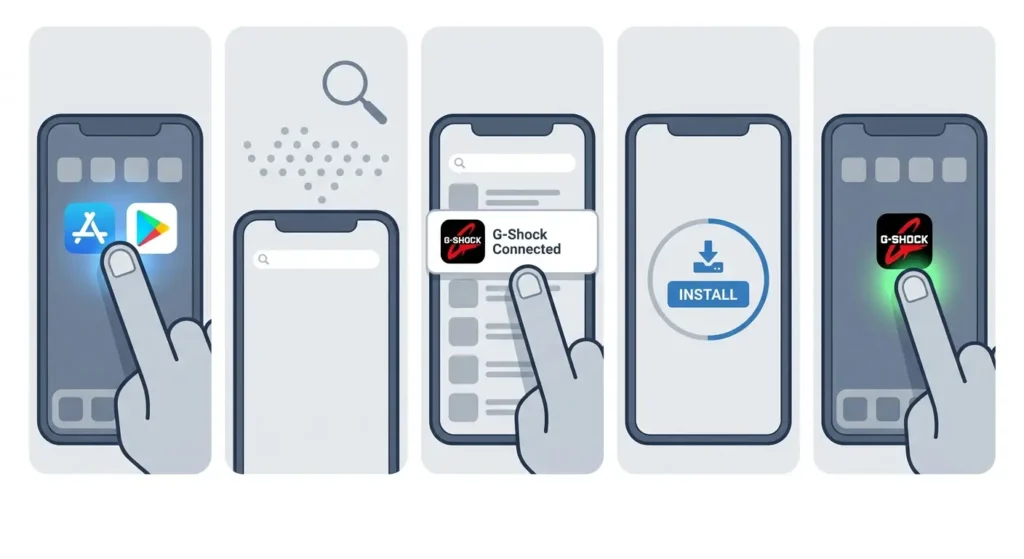
- Step 1: Open the App Store (iOS) or Google Play Store (Android) on the smartphone
- Step 2: Search for ‘G-Shock Connected’ in the search bar
- Step 3: Tap the official Casio Computer Co., Ltd. app (look for the red G-Shock logo)
- Step 4: Tap ‘Install’ or ‘Get’ and wait for the download to complete
- Step 5: Open the app once installation finishes
Enable Bluetooth on the Smartphone
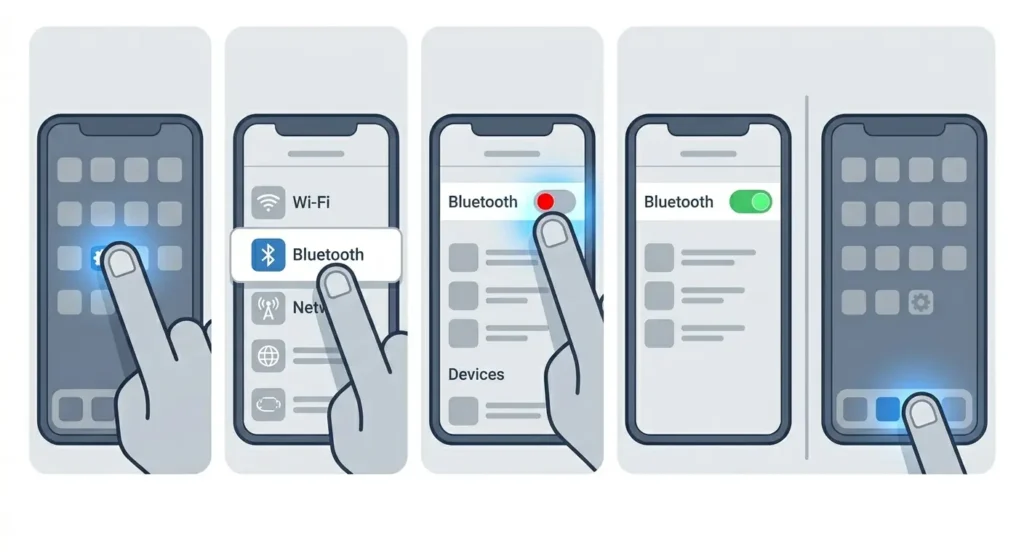
- Step 1: Open Settings on the smartphone
- Step 2: Locate and tap ‘Bluetooth’
- Step 3: Toggle Bluetooth to ‘On’ if not already enabled
- Step 4: Keep the Bluetooth settings screen open or return to the home screen
Pro Tip: Keep location services enabled during the initial pairing. The app uses location data to automatically set the correct time zone, which significantly improves the connection success rate.
Put the G-Shock Watch in Pairing Mode
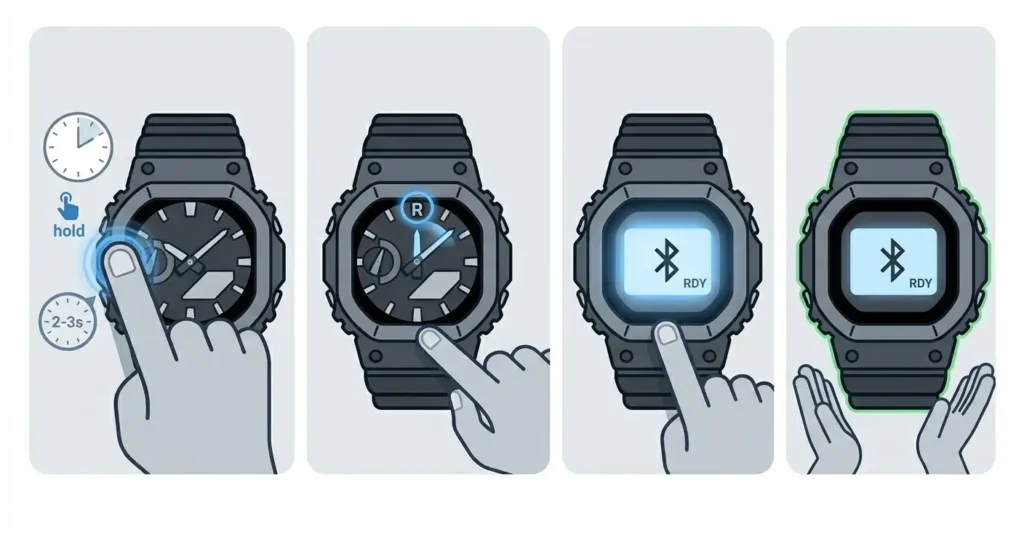
- Step 1: Press and hold the lower left button (usually labeled ‘C’ or ‘ADJUST’) for about 2-3 seconds
- Step 2: Watch for the second hand to move to ‘R’ or ’12’ position, indicating pairing mode
- Step 3: The digital display may show ‘READY’ or a Bluetooth icon flashing
- Step 4: Keep the watch in this mode without pressing other buttons
Different G-Shock models have slightly different button configurations. Most Bluetooth-enabled models follow the lower left button pattern, but some may require holding the top right button instead. Check the watch manual if unsure which button activates pairing mode.
Pair the Watch Through the App
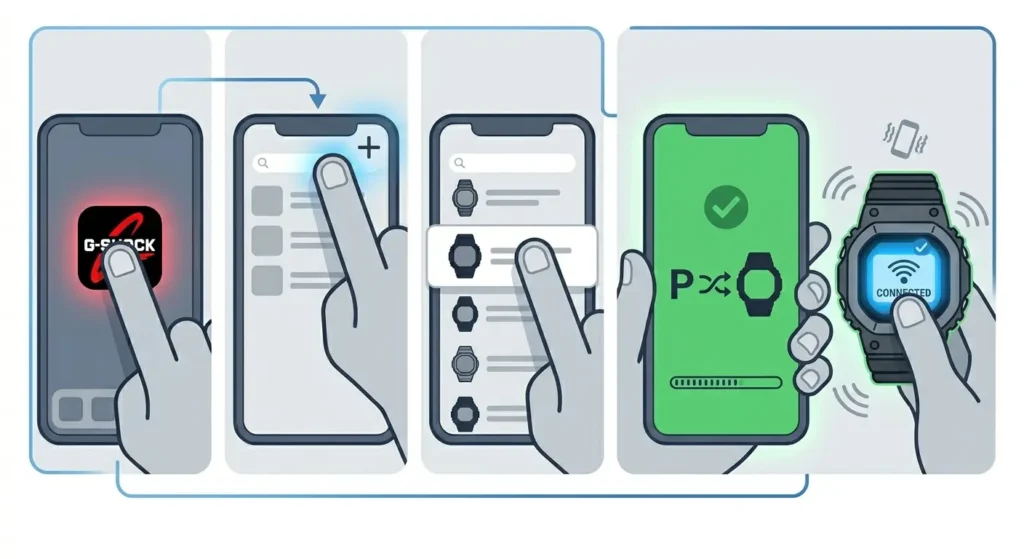
- Step 1: Open the G-Shock Connected app on the smartphone
- Step 2: Tap ‘Add Watch’ or the ‘+’ icon on the main screen
- Step 3: Select the watch model from the list that appears
- Step 4: Tap ‘Pair’ or ‘Connect’ when the watch name appears on screen
- Step 5: Wait for the confirmation message – this usually takes 10-30 seconds
- Step 6: The watch will vibrate or beep once successfully connected
Grant App Permissions
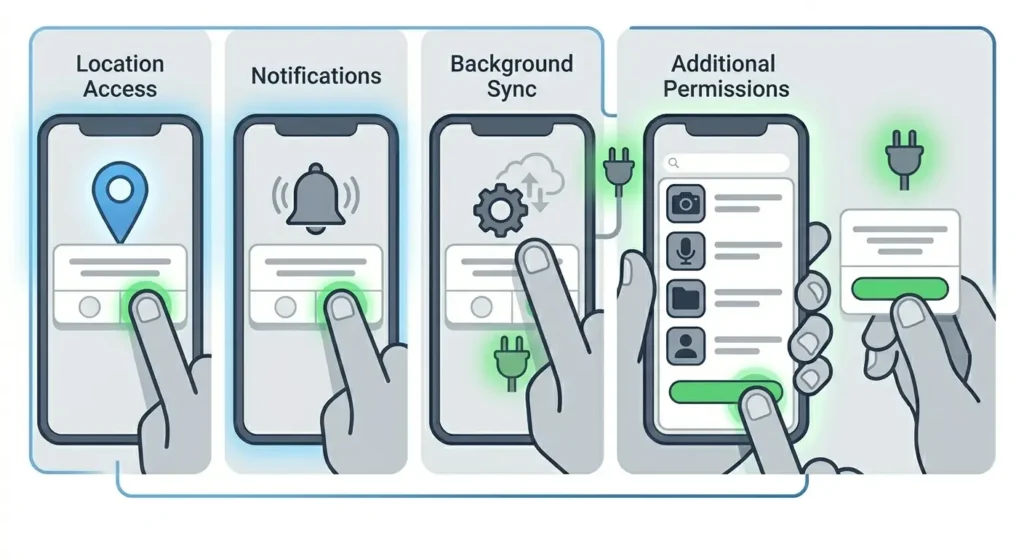
- Step 1: When prompted, tap ‘Allow’ for location access
- Step 2: Grant notification permissions if requested
- Step 3: Allow the app to run in the background for automatic time sync
- Step 4: Review and accept any additional permissions the app requires
These permissions enable features like automatic time zone adjustment when traveling, which can be monitored using tools like the world time comparison tool to verify accuracy across different regions.
Verify the Connection
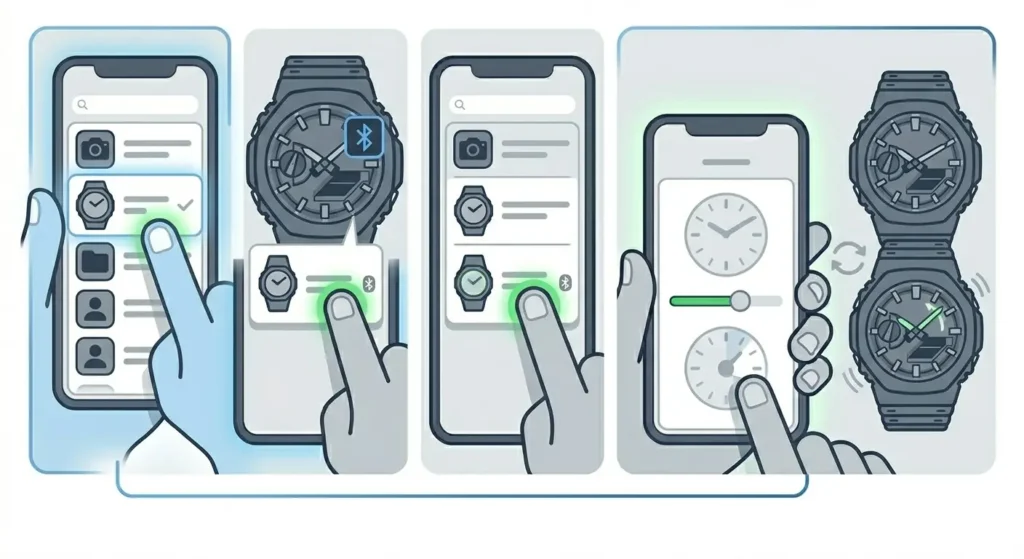
- Step 1: Check that the watch appears in the ‘My Watches’ section of the app
- Step 2: Observe the Bluetooth icon on the watch display – it should be solid, not flashing
- Step 3: Tap the watch name in the app to access settings and features
- Step 4: Test the connection by adjusting the time through the app
Tips for Successful Connection
Keeping the smartphone and watch close together during pairing prevents connection drops. Most pairing failures happen when devices are too far apart or when other Bluetooth devices interfere with the signal.
Restart both the smartphone and watch if the first pairing attempt fails. This clears any temporary glitches that might prevent connection. To restart the watch, remove the battery for 30 seconds or use the reset function in the watch settings.
Disable battery saving modes temporarily during pairing. Some smartphones limit Bluetooth functionality in power-saving mode, which can block the connection process. Re-enable battery saving after successful pairing.
Update the smartphone operating system before attempting to pair. Older OS versions may have compatibility issues with the latest app version. Similarly, update the G-Shock Connected app to the newest version available.
For precise timekeeping after connection, users can cross-reference their synchronized time with an online stopwatch to ensure accuracy down to the second.
Common Connection Problems
Watch Not Appearing in App
This happens when the watch exits pairing mode before the app detects it. Pairing mode typically lasts only 3-5 minutes. Re-enter pairing mode on the watch and immediately tap ‘Add Watch’ in the app.
Pairing Fails Repeatedly
Clear the Bluetooth cache on Android devices by going to Settings > Apps > Bluetooth > Storage > Clear Cache. For iOS, forget the G-Shock device in Bluetooth settings, then restart the pairing process from the beginning.
Connection Drops After Pairing
Check if the watch is already paired with another smartphone. G-Shock watches can only maintain an active connection with one device at a time. Unpair from the previous device before connecting to a new one.
App Shows ‘Connection Failed’ Error
Ensure location services are enabled and set to ‘Always Allow’ for the G-Shock Connected app. Without location access, the app cannot complete the initial setup process, even though the watch may appear paired.
Time Not Syncing Automatically
Open the app and manually trigger a time sync by tapping the watch icon and selecting ‘Adjust Time’. If this works, the connection is fine but automatic sync may be disabled in app settings. Enable ‘Auto Time Adjustment’ in the app preferences.
Frequently Asked Questions
How long does it take to connect a G-Shock to the app?
The entire connection process typically takes 5-7 minutes from downloading the app to completing the pairing. The actual Bluetooth pairing step usually completes in 10-30 seconds once both devices are in pairing mode.
Can one G-Shock watch connect to multiple smartphones?
A G-Shock watch can only maintain an active connection with one smartphone at a time. To switch to a different phone, unpair from the current device first, then follow the pairing steps with the new smartphone.
Does the G-Shock need to stay connected to the app all the time?
The watch does not need to maintain a constant connection. Once paired, the app can connect when needed for time adjustments, alarm settings, or other features. Background connection allows for automatic time sync at scheduled intervals.
What should be done if the watch keeps disconnecting from the app?
Move away from areas with heavy Bluetooth interference like crowded electronics stores or offices with many wireless devices. Keep the smartphone within 10 meters of the watch for stable connection. Check that neither device has battery saving mode actively limiting Bluetooth.
Is internet connection required to pair the G-Shock watch?
Internet is required only for the initial app download and during the first pairing to verify the watch model. After successful pairing, the Bluetooth connection between watch and phone works offline, though internet access enables features like automatic time zone updates.
Can the watch be used without connecting to the app?
G-Shock watches function fully without the app connection. All basic features like timekeeping, alarms, stopwatch, and timer work independently. The app adds convenience features like automatic time adjustment, phone finder, and easy alarm configuration.
How often does the app sync time with the watch?
By default, the app syncs time four times daily when background connection is enabled. Manual sync can be triggered anytime through the app. This ensures accuracy that can be verified using a clock tab reference.
Will pairing drain the smartphone battery faster?
The Bluetooth Low Energy (BLE) technology used in G-Shock watches has minimal impact on smartphone battery life. Most users report less than 1-2% additional battery drain per day with the app running in the background.
What permissions does the G-Shock Connected app need?
The app requires Bluetooth access for pairing, location services for automatic time zone detection, and notification permissions for alerts. Background app refresh enables automatic time sync. All permissions can be reviewed and modified in smartphone settings after installation.
Does the watch need to be in pairing mode every time to connect?
Pairing mode is only required for the initial setup. After successful pairing, the watch and app reconnect automatically when the app is opened or when scheduled sync occurs. Manual reconnection through the app works without entering pairing mode again.