
Connecting Bluetooth headphones to your smartwatch enables wire-free listening during workouts, commutes, and daily activities. This step-by-step guide covers the complete process for pairing wireless headphones with popular smartwatch brands, ensuring a seamless audio experience without reaching for a phone.
Quick Summary Table
| Key Point | Details |
|---|---|
| Average Pairing Time | 2-3 minutes |
| Required Items | Charged smartwatch, charged Bluetooth headphones |
| Bluetooth Range | Typically 30 feet (10 meters) |
| Compatibility | Most smartwatches support standard Bluetooth headphones |
| Battery Impact | Moderate – plan for 20-30% faster battery drain |
Method 1: Connect Bluetooth Headphones to Apple Watch
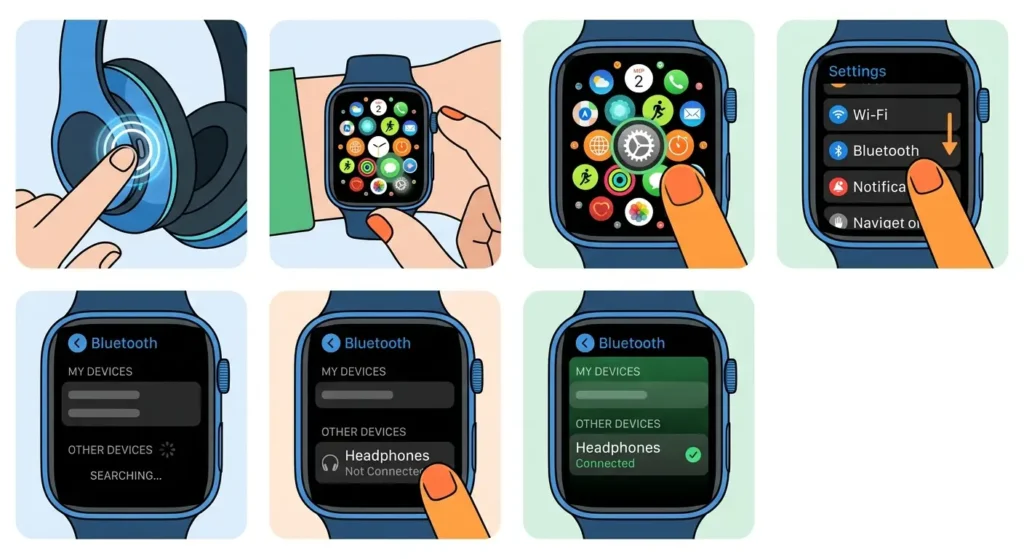
Apple Watch uses a straightforward pairing process that works with AirPods, Beats, and other Bluetooth headphones. The watch must be running watchOS 1.0 or later for Bluetooth audio support.
- Step 1: Place the Bluetooth headphones in pairing mode by holding the pairing button until the LED indicator flashes (typically blue or white)
- Step 2: Press the Digital Crown on the Apple Watch to access the home screen
- Step 3: Tap the Settings app icon (gear symbol)
- Step 4: Scroll down and tap ‘Bluetooth’
- Step 5: Wait for the headphones to appear under ‘Other Devices’
- Step 6: Tap the headphone name when it appears
- Step 7: Wait for the status to change from ‘Not Connected’ to ‘Connected’
Pro-Tip: AirPods automatically appear in the Apple Watch Bluetooth menu if they’re already paired with an iPhone linked to the same Apple ID – no manual pairing required.
Method 2: Connect Bluetooth Headphones to Samsung Galaxy Watch
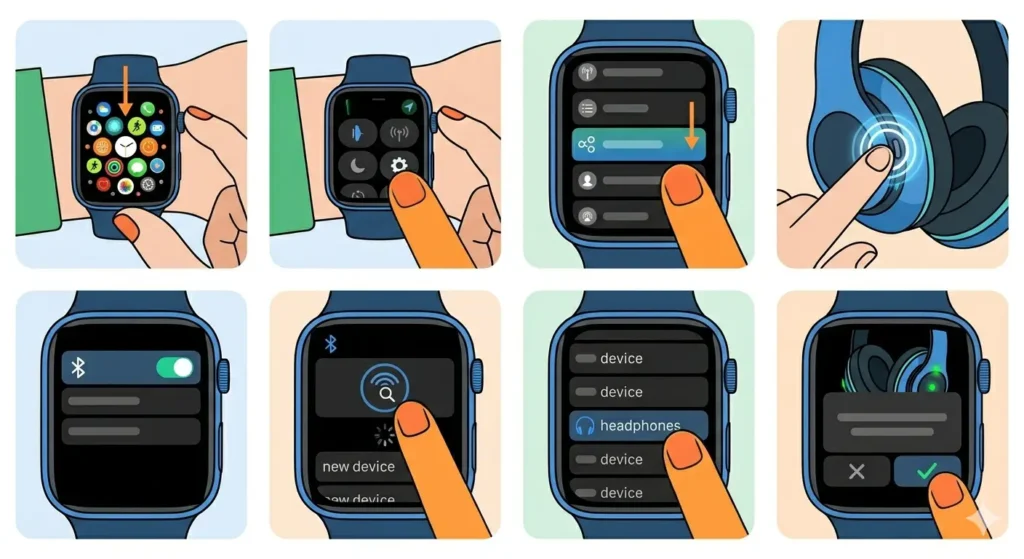
Samsung Galaxy Watch series (including Watch 4, Watch 5, and Watch 6) support Bluetooth headphones through the Wear OS or Tizen operating system.
- Step 1: Swipe down from the top of the watch face to open Quick Settings
- Step 2: Tap the Settings icon (gear symbol)
- Step 3: Scroll and select ‘Connections’
- Step 4: Tap ‘Bluetooth’
- Step 5: Ensure Bluetooth is turned on (toggle should be blue/green)
- Step 6: Put the headphones in pairing mode
- Step 7: Tap ‘Scan’ or wait for available devices to populate
- Step 8: Select the headphone name from the list
- Step 9: Tap ‘OK’ or ‘Pair’ if prompted
Method 3: Connect Bluetooth Headphones to Wear OS Smartwatches
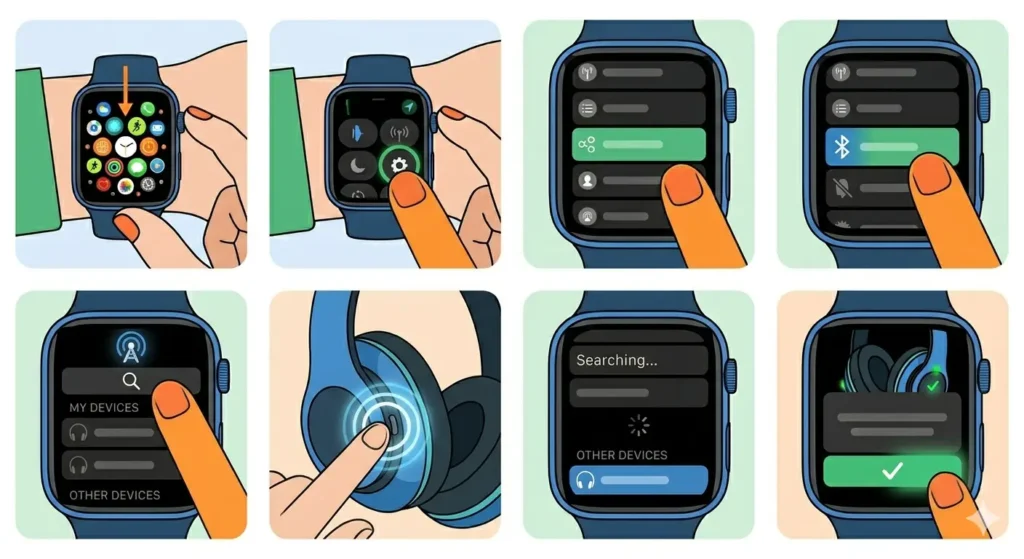
Wear OS watches (Google Pixel Watch, Fossil, TicWatch, and others) follow a unified pairing process across brands.
- Step 1: Swipe down from the watch face to access Quick Settings
- Step 2: Tap the Settings gear icon
- Step 3: Scroll to ‘Connectivity’ or ‘Connections’
- Step 4: Select ‘Bluetooth’
- Step 5: Tap ‘Available devices’ or ‘Pair new device’
- Step 6: Activate pairing mode on the headphones
- Step 7: Wait for the device name to appear on screen
- Step 8: Tap the headphone name to initiate pairing
- Step 9: Confirm the pairing request if prompted
Method 4: Connect Bluetooth Headphones to Garmin Smartwatches
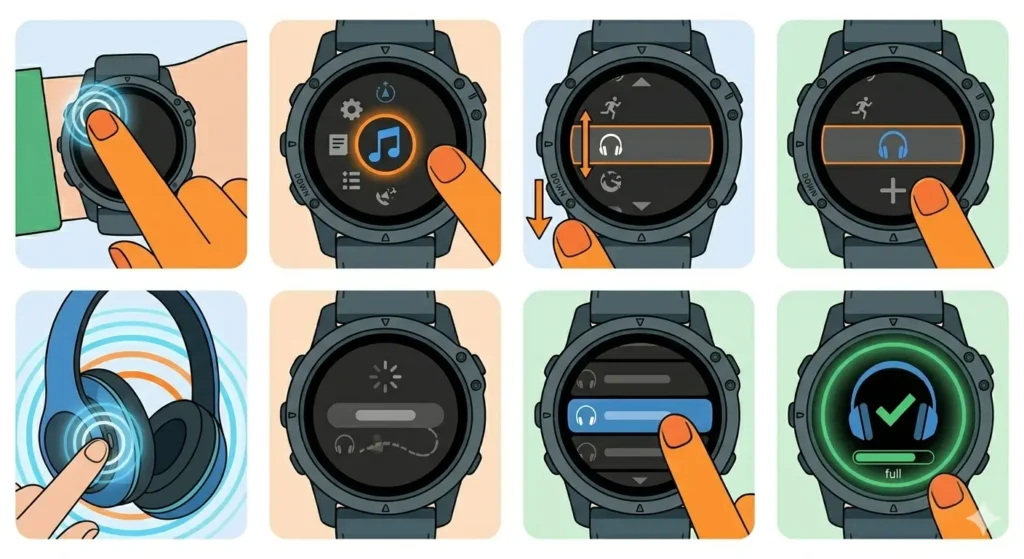
Garmin watches with music features (Forerunner 245 Music, Fenix series, Vivoactive series) support Bluetooth headphone connectivity for stored music and podcasts.
- Step 1: Press and hold the UP button to access the menu
- Step 2: Select ‘Music’ or ‘Music Providers’
- Step 3: Press the DOWN button to scroll to ‘Headphones’
- Step 4: Select ‘Add New’
- Step 5: Put the Bluetooth headphones in pairing mode
- Step 6: Wait for the device to appear on the watch screen
- Step 7: Select the headphone name from the list
- Step 8: Wait for ‘Connected’ status confirmation
Pro-Tip: Garmin watches remember previously paired headphones – future connections happen automatically when both devices have Bluetooth enabled and are within range.
Method 5: Connect Bluetooth Headphones to Fitbit Smartwatches
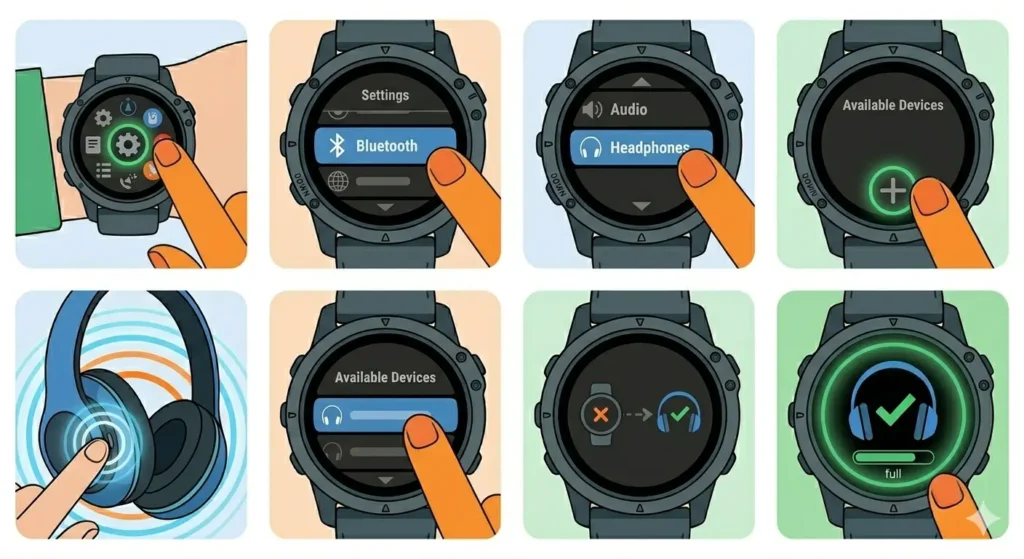
Fitbit Sense, Versa series, and Ionic models support Bluetooth audio for music playback and podcast listening.
- Step 1: Open the Settings app on the Fitbit watch
- Step 2: Tap ‘Bluetooth’
- Step 3: Select ‘Audio’ or ‘Headphones’
- Step 4: Tap the plus (+) icon or ‘Add Device’
- Step 5: Enable pairing mode on the headphones
- Step 6: Select the headphone name when it appears
- Step 7: Follow any on-screen pairing instructions
- Step 8: Wait for confirmation that pairing is complete
Tips for Successful Bluetooth Pairing
- Charge both devices to at least 50% battery before attempting to pair – low battery can cause connection failures
- Keep the headphones within 3 feet of the smartwatch during initial pairing for strongest signal
- Turn off Bluetooth on nearby phones to prevent the headphones from connecting to the wrong device
- Check the headphone manual for the specific button combination needed to enter pairing mode (varies by brand)
- Restart both the smartwatch and headphones if pairing fails on the first attempt
- Remove the headphones from previously paired devices before connecting to the smartwatch
- Update the smartwatch firmware to the latest version for improved Bluetooth compatibility
- Use a online stopwatch to track pairing time – successful connections typically complete within 30-45 seconds
Common Problems and Solutions
Fix 1: Headphones Not Appearing in Available Devices
Confirm the headphones are in active pairing mode (LED should be flashing). Turn Bluetooth off and on again on the smartwatch. Move the headphones closer to the watch. Disconnect the headphones from other devices like phones or tablets.
Fix 2: Pairing Fails or Disconnects Immediately
Forget the device from the smartwatch Bluetooth settings and attempt pairing again. Reset the headphones by holding the power button for 10-15 seconds. Clear the Bluetooth cache by restarting the smartwatch.
Fix 3: Audio Plays Through Watch Speaker Instead of Headphones
Open the music or media app on the smartwatch. Tap the audio output icon (usually looks like a speaker or headphones). Select the Bluetooth headphones from the output device list.
Fix 4: Poor Audio Quality or Stuttering Playback
Reduce the distance between watch and headphones to under 10 feet. Close unnecessary apps running on the smartwatch. Check for firmware updates for both the watch and headphones. Disable battery-saving modes that may throttle Bluetooth performance.
Fix 5: Connection Works but No Sound
Increase the volume on both the smartwatch and headphones. Check that media is actually playing on the watch (not the connected phone). Verify the headphones are not muted. Test with different audio content to rule out file-specific issues.
Frequently Asked Questions
Can any Bluetooth headphones connect to a smartwatch?
Most Bluetooth headphones using standard profiles (A2DP for audio streaming) connect to smartwatches without issues. However, some older headphones or those designed specifically for landline phones may lack compatibility. Check the headphone specifications for ‘Bluetooth audio profile’ or ‘A2DP support’ before purchasing.
Do Bluetooth headphones drain smartwatch battery faster?
Yes, active Bluetooth audio streaming typically reduces smartwatch battery life by 20-30%. Streaming music directly from the watch while using Bluetooth headphones consumes more power than simply receiving notifications. Battery impact varies by watch model and usage patterns.
Can a smartwatch connect to multiple Bluetooth headphones simultaneously?
Most smartwatches connect to only one pair of Bluetooth headphones at a time. Some newer models support multipoint connectivity, but this feature remains uncommon in wearables. Switch between paired devices through the Bluetooth settings menu.
How far can Bluetooth headphones be from a smartwatch while staying connected?
Standard Bluetooth range is approximately 30 feet (10 meters) in open space. Walls, electronic interference, and body positioning reduce effective range. Maintaining a distance under 10 feet ensures the most reliable connection during movement.
Why do Bluetooth headphones keep disconnecting from the smartwatch?
Common causes include low battery on either device, interference from WiFi routers or other Bluetooth devices, outdated firmware, or exceeded range limits. Moving closer to the watch, charging both devices, and updating software typically resolve intermittent disconnections.
Can a smartwatch play music through Bluetooth headphones without a phone nearby?
Yes, smartwatches with onboard storage (like Apple Watch, Garmin music models, or Samsung Galaxy Watch) play downloaded music directly through Bluetooth headphones without requiring a phone connection. Streaming services may require WiFi or cellular connectivity depending on the watch model.
How long does it take to pair Bluetooth headphones with a smartwatch?
Initial pairing typically takes 2-3 minutes including navigating menus and entering pairing mode. Subsequent automatic reconnections happen within 5-10 seconds when both devices are powered on and within range. Use a clock tab to track exact pairing duration for troubleshooting purposes.
Do all smartwatches support Bluetooth headphone connectivity?
Most modern smartwatches released after 2018 support Bluetooth audio. Basic fitness trackers and older smartwatch models may lack this feature. Check the device specifications for ‘Bluetooth audio output’ or ‘music playback’ capabilities before purchasing.
Can AirPods connect to non-Apple smartwatches?
Yes, AirPods function as standard Bluetooth headphones and connect to Android-based smartwatches, Garmin, Fitbit, and other brands using the same pairing process as any wireless earbuds. Some Apple-specific features like automatic device switching may not work with non-Apple watches.
What Bluetooth version is required for smartwatch headphone connectivity?
Bluetooth 4.0 or higher is recommended for reliable audio streaming to smartwatches. Newer versions (5.0 and above) offer better range, lower power consumption, and improved connection stability. Most headphones manufactured after 2016 meet this requirement.
Comparing Connection Times Across Devices
Different smartwatch brands offer varying connection speeds based on their Bluetooth implementation and processor capabilities. Apple Watch typically pairs fastest with AirPods (5-10 seconds) due to the proprietary H1 or W1 chip integration. Wear OS watches average 15-30 seconds for standard Bluetooth pairing. Garmin and Fitbit devices generally complete pairing within 20-40 seconds depending on the model year and firmware version.
For users managing multiple devices across different time zones during travel, using a world time comparison tool helps coordinate charging schedules and ensures both smartwatch and headphones maintain sufficient battery for pairing attempts regardless of location.
The pairing process remains consistent across brands once the initial learning curve is overcome. Most smartwatches remember up to 5-10 previously paired Bluetooth devices, enabling quick reconnection without repeating the full pairing sequence. This feature proves particularly useful for users who alternate between different headphones for various activities like running, gym workouts, or commuting.