Installing custom watch faces on a Wear OS watch allows users to personalize their smartwatch experience beyond the pre-installed options. This step-by-step guide demonstrates how to download, install, and activate custom watch faces from the Google Play Store and third-party sources, transforming the appearance and functionality of any Wear OS device.
Quick Summary Table
| Method | Source | Difficulty | Time Required |
|---|---|---|---|
| Google Play Store Installation | Official Play Store | Easy | 2-3 minutes |
| Phone-Based Installation | Play Store (via phone) | Easy | 3-5 minutes |
| APK Sideloading | Third-party websites | Moderate | 5-10 minutes |
Installing Watch Faces from Google Play Store (On Watch)
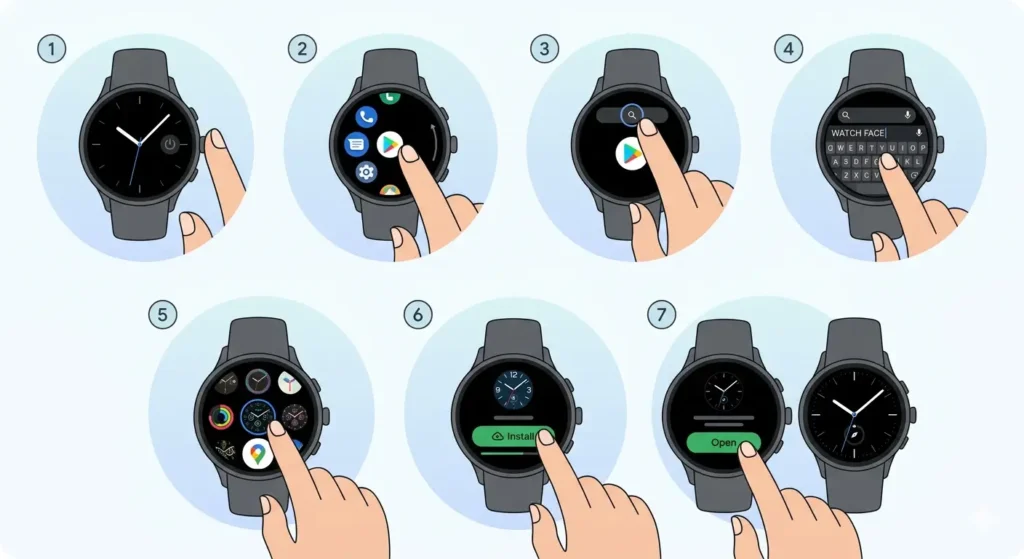
The most straightforward method involves downloading watch faces directly from the Google Play Store on the Wear OS watch itself. This approach works best when the watch has a stable Wi-Fi or cellular connection.
- Step 1: Press the power button on the Wear OS watch to access the app drawer
- Step 2: Scroll through the app list and tap on the ‘Play Store’ icon
- Step 3: Tap the search icon at the top of the screen
- Step 4: Use voice input or the on-screen keyboard to search for ‘watch faces’ or a specific watch face name
- Step 5: Browse the results and tap on a watch face that appeals to the desired style
- Step 6: Tap the ‘Install’ button and wait for the download to complete
- Step 7: Once installed, tap ‘Open’ or navigate to the watch face settings to activate it
Pro-Tip: Most people find that browsing watch faces on the phone’s larger screen provides a better preview experience, then pushing the installation to the watch remotely saves time and battery life on the watch itself.
Installing Watch Faces from Phone
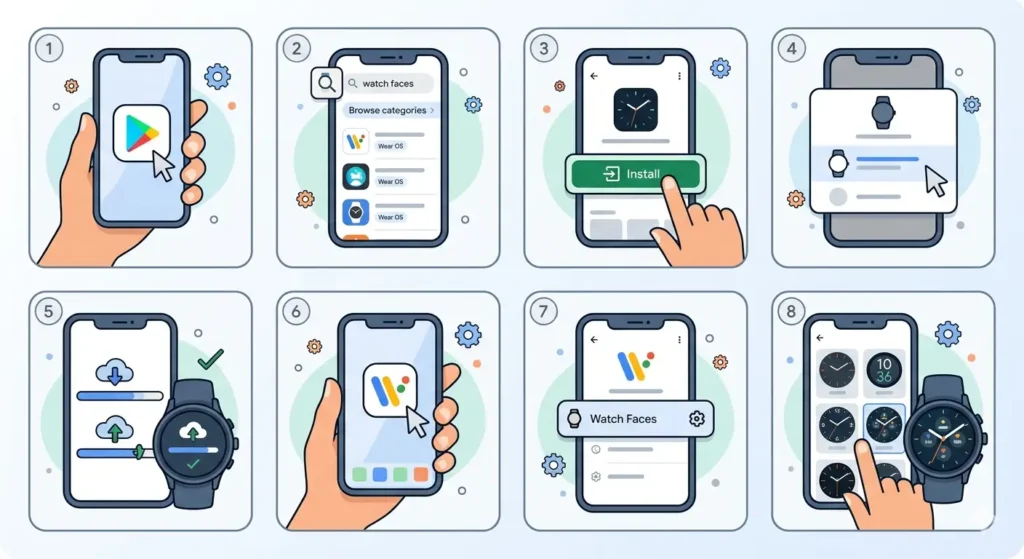
Many users prefer browsing and installing watch faces from their smartphone, which offers a larger display and easier navigation. The Wear OS companion app streamlines this process.
- Step 1: Open the Google Play Store app on the paired smartphone
- Step 2: Search for ‘Wear OS watch faces’ or browse the ‘Apps for Wear OS’ category
- Step 3: Select a watch face app and tap ‘Install’
- Step 4: When prompted, choose the Wear OS watch from the list of available devices
- Step 5: Wait for the installation to complete on both phone and watch
- Step 6: Open the Wear OS companion app on the phone
- Step 7: Tap on ‘Watch faces’ within the app settings
- Step 8: Locate the newly installed watch face and tap to activate it
Activating Installed Watch Faces
After installing a custom watch face through either method, the final step involves activating it to replace the current display.
- Step 1: Long-press on the current watch face screen for 2-3 seconds
- Step 2: Swipe left or right to browse through all installed watch faces
- Step 3: Tap on the desired custom watch face to select it
- Step 4: Tap the checkmark or ‘Set’ button if prompted
- Step 5: The new watch face will immediately appear on the home screen
Sideloading Watch Faces via APK Files
For watch faces not available on the Play Store, sideloading APK files provides an alternative installation method. This requires enabling developer options and accepting potential security risks.
- Step 1: On the Wear OS watch, navigate to Settings > System > About
- Step 2: Tap ‘Build number’ seven times to enable Developer Options
- Step 3: Go back to Settings and enter Developer Options
- Step 4: Enable ‘ADB debugging’ and ‘Debug over Wi-Fi’
- Step 5: Download the desired watch face APK file on a computer
- Step 6: Install Android Debug Bridge (ADB) tools on the computer
- Step 7: Connect the watch and computer to the same Wi-Fi network
- Step 8: Note the IP address shown in Debug over Wi-Fi settings on the watch
- Step 9: Open a command prompt or terminal on the computer
- Step 10: Type ‘adb connect [watch-ip-address]:5555’ and press Enter
- Step 11: Type ‘adb install [path-to-apk-file]’ and press Enter
- Step 12: Wait for the installation confirmation message
- Step 13: Activate the watch face using the standard long-press method
Pro-Tip: The key is to ensure both devices remain connected to the same network throughout the sideloading process, as connection drops will interrupt the APK transfer and require restarting from the beginning.
Tips for Choosing Custom Watch Faces
- Check user reviews and ratings before installing to avoid poorly optimized or battery-draining watch faces
- Consider watch faces with customizable complications to display information from various apps
- Test different styles (analog, digital, minimal, information-rich) to find what works best for daily use
- Look for watch faces that support ambient mode to conserve battery when not actively viewing the screen
- Verify compatibility with the specific Wear OS version running on the watch
- Premium watch faces often provide better customization options and more frequent updates compared to free alternatives
- For those tracking productivity, using tools like an online stopwatch alongside watch face complications can enhance time management
- Watch faces with world time zones prove useful for international travelers who need quick access to a world time comparison tool
Common Problems and Solutions
Watch Face Not Appearing After Installation
Sometimes installed watch faces don’t immediately show up in the selection menu. Restarting the Wear OS watch typically resolves this issue. Hold the power button, select ‘Restart’, and wait for the device to reboot completely. The watch face should appear in the long-press menu after restart.
Installation Failed Error
Installation failures usually occur due to insufficient storage space or compatibility issues. Check available storage in Settings > Storage and uninstall unused apps if space is limited. Verify that the watch face supports the current Wear OS version before attempting reinstallation.
Watch Face Causing Battery Drain
Certain custom watch faces consume excessive battery due to constant animations or frequent updates. Switch to a simpler watch face and monitor battery performance. Disabling always-on display for battery-intensive watch faces helps extend daily usage time.
Cannot Connect Watch for Sideloading
ADB connection issues typically stem from firewall settings or incorrect IP addresses. Disable firewall temporarily, double-check the IP address shown in Developer Options, and ensure both devices connect to the same 2.4GHz Wi-Fi network rather than 5GHz, as some watches have better compatibility with 2.4GHz bands.
Watch Face Complications Not Working
Non-functional complications indicate missing app permissions or outdated watch face versions. Grant all necessary permissions to both the watch face app and the apps providing complication data. Update the watch face to the latest version through the Play Store.
Frequently Asked Questions
Can custom watch faces damage a Wear OS watch?
Custom watch faces from the Google Play Store are safe and undergo security screening. Sideloaded APK files from unverified sources may contain malware or cause system instability. Always download APKs from reputable sources and scan files with antivirus software before installation.
Do custom watch faces drain battery faster than stock faces?
Battery consumption varies depending on watch face complexity. Faces with constant animations, bright colors, and frequent updates consume more power than minimal designs. Most well-optimized custom watch faces perform similarly to stock options, while poorly coded ones can significantly reduce battery life.
How many watch faces can be installed on Wear OS?
Wear OS doesn’t impose a strict limit on the number of installed watch faces, but storage capacity restricts how many can fit. Most watches accommodate 20-50 watch faces depending on available storage and individual app sizes. Regularly removing unused watch faces maintains optimal performance.
Are free watch faces as good as paid ones?
Quality varies among both free and paid watch faces. Free options often include advertisements or limited customization features, while paid versions typically offer more complications, design variations, and regular updates. Many developers provide free versions with basic features and premium upgrades for advanced functionality.
Can watch faces be transferred between different Wear OS watches?
Watch faces purchased or downloaded through a Google account automatically sync across all Wear OS devices linked to that account. Simply sign in with the same Google account on a new watch, and previously purchased watch faces become available for installation without repurchasing.
Why do some watch faces look different on the watch than in screenshots?
Screen size and resolution differences affect how watch faces display across various Wear OS devices. Developers optimize watch faces for specific screen sizes, so a face designed for a 1.4-inch display may appear cramped on a 1.2-inch watch or have excess spacing on larger screens.
How often should watch faces be updated?
Update watch faces whenever developers release new versions to access bug fixes, performance improvements, and new features. Enable automatic updates in the Play Store settings to ensure all apps, including watch faces, receive updates without manual intervention.
Can watch faces access personal data?
Watch faces request permissions to access specific data like location, calendar events, health metrics, and notifications to display relevant complications. Review requested permissions before installation and grant only those necessary for desired functionality. Revoke permissions anytime through the watch settings.
What happens to custom watch faces after a factory reset?
Factory resets remove all installed apps, including custom watch faces, returning the watch to its original state with only pre-installed faces. After resetting and signing back into the Google account, previously purchased watch faces can be reinstalled from the Play Store library.
Are there watch faces that work offline?
All installed watch faces function offline for basic timekeeping and display. Complications requiring internet connectivity, such as weather updates, stock prices, or news headlines, won’t refresh without an active connection but the watch face itself remains fully operational.