

Changing the watch face on an Apple Watch is a simple process that allows users to personalize their device and access different complications based on their needs. Whether looking for a minimalist design or a feature-rich display, Apple Watch offers dozens of customizable faces to match any style or activity.
Quick Summary Table
| Method | Steps Required | Time Needed |
|---|---|---|
| Change from Watch | 2-3 steps | 10 seconds |
| Change from iPhone | 3-4 steps | 15 seconds |
| Customize Face | 4-5 steps | 30-60 seconds |
How to Change Watch Face Directly on Apple Watch
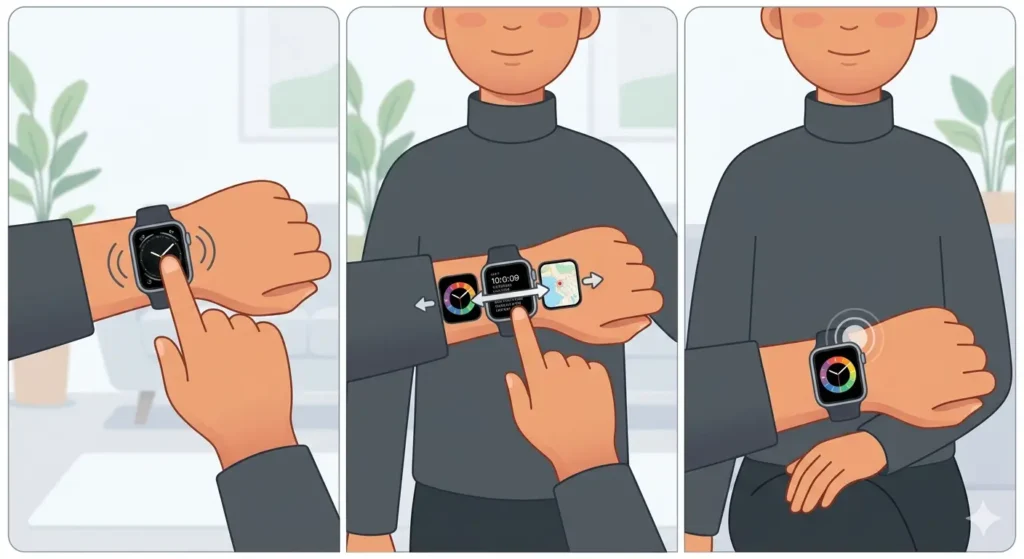
The fastest way to switch watch faces happens right on the wrist. This method works perfectly when quick access to a different face is needed during the day.
- Step 1: Press firmly on the current watch face or touch and hold the display until it zooms out
- Step 2: Swipe left or right to browse through available watch faces
- Step 3: Tap on the desired watch face to select it
The selected face becomes active immediately and displays on the screen. This process takes only a few seconds and can be done as often as needed throughout the day.
Pro-Tip: Create multiple watch faces for different situations – one for workouts with fitness complications, another for work with calendar and email, and a third for weekends with weather and activity rings. Switching between them takes just seconds.
How to Change Watch Face Using iPhone
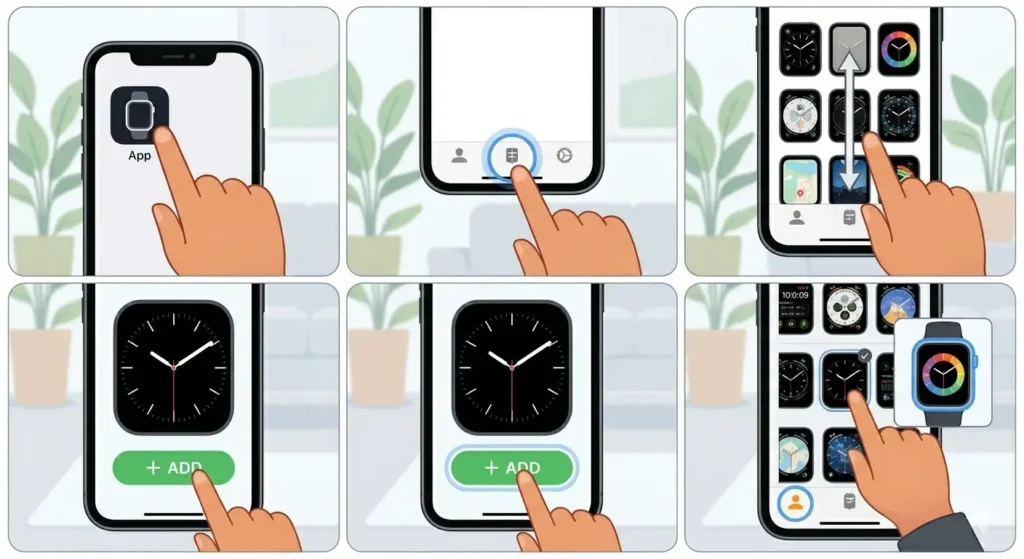
The iPhone Watch app provides a larger screen for browsing and customizing watch faces, making it easier to see details and adjust complications.
- Step 1: Open the Watch app on the paired iPhone
- Step 2: Tap the ‘Face Gallery’ tab at the bottom of the screen
- Step 3: Scroll through the available watch faces and tap on the one to add
- Step 4: Tap ‘Add’ to install the face on Apple Watch
- Step 5: Go to the ‘My Faces’ tab and tap the face to set it as active
Changes made in the iPhone app sync automatically to the watch within seconds. This method offers better visibility when reviewing face options and makes customization more precise.
How to Customize Watch Face Complications
Complications are small widgets that display information directly on the watch face. Most faces support multiple complications that can be customized to show preferred data.
Customize Complications from Apple Watch
- Step 1: Press firmly on the current watch face or touch and hold until it zooms out
- Step 2: Tap ‘Edit’ on the selected face
- Step 3: Swipe left to reach the complications customization screen
- Step 4: Tap on a complication slot to see available options
- Step 5: Turn the Digital Crown to scroll through available complications
- Step 6: Tap the desired complication to select it
- Step 7: Press the Digital Crown to save changes
Customize Complications from iPhone
- Step 1: Open the Watch app on iPhone
- Step 2: Go to the ‘My Faces’ tab
- Step 3: Tap on the watch face to customize
- Step 4: Tap ‘Edit’ below the face preview
- Step 5: Tap on any complication slot
- Step 6: Select the desired complication from the list
- Step 7: Tap outside the selection menu to confirm
Available complications include activity rings, weather, calendar events, heart rate, battery level, and many third-party app options. When managing multiple tasks throughout the day, having quick access to a world time comparison tool can be helpful for coordinating across time zones.
How to Add New Watch Faces
Apple regularly releases new watch faces with software updates, and hundreds of options are available across different categories including Activity, Classic, Fun, Photos, and more.
- Step 1: Open the Watch app on iPhone
- Step 2: Tap ‘Face Gallery’ at the bottom
- Step 3: Browse through categories or scroll to find desired faces
- Step 4: Tap on a watch face to preview it
- Step 5: Tap ‘Add’ to install it on Apple Watch
Some watch faces require specific Apple Watch models or watchOS versions. The Face Gallery indicates compatibility before adding a face to the collection.
How to Remove Watch Faces
Removing unused watch faces keeps the collection organized and makes switching between favorites faster.
Remove from Apple Watch
- Step 1: Press firmly on the current watch face or touch and hold
- Step 2: Swipe to the watch face to delete
- Step 3: Swipe up on the face
- Step 4: Tap ‘Delete’ and confirm
Remove from iPhone
- Step 1: Open the Watch app
- Step 2: Go to ‘My Faces’ tab
- Step 3: Swipe left on the face to remove
- Step 4: Tap the red delete button
The default watch faces cannot be permanently deleted but can be removed from the active collection.
How to Share Watch Faces
Custom-designed watch faces can be shared with other Apple Watch users through messages or social media.
- Step 1: Press firmly on the watch face or touch and hold
- Step 2: Swipe to the face to share
- Step 3: Tap the ‘Share’ button (it looks like a square with an arrow)
- Step 4: Choose how to share (Messages, Mail, AirDrop, etc.)
- Step 5: Select the recipient and send
Recipients receive a link that opens directly to the watch face configuration, allowing them to add it with all customizations intact.
Tips for Managing Watch Faces
Getting the most from Apple Watch faces requires smart organization and regular updates based on changing needs.
- Keep 3-5 watch faces active for different scenarios: work, exercise, weekend, sleep tracking, and travel
- Update complications seasonally – sunrise/sunset times matter more in winter, UV index matters more in summer
- Use photo faces to display favorite memories, but change them monthly to keep the watch feeling fresh
- Match watch face complexity to activity level – simpler faces work better during workouts, detailed faces suit office work
- Explore new faces with each watchOS update as Apple regularly adds fresh designs and features
- Set up a dedicated face for bedtime with sleep tracking complications and low brightness
- Create a travel face with world clock, weather, and calendar complications ready before trips
For those who frequently check multiple time zones, using a clock tab on other devices complements the Apple Watch world clock complication nicely.
Pro-Tip: Enable ‘Reduce Motion’ in iPhone accessibility settings if watch face animations cause lag during switching. This makes transitions instant and improves battery life slightly.
Common Problems and Solutions
Watch Face Not Changing
Sometimes the watch face appears stuck or does not respond to touch and hold gestures. This typically happens when the screen is in Theater Mode or Water Lock mode.
Disable Theater Mode by swiping up from the bottom of the watch face and tapping the theater mask icon. For Water Lock, turn the Digital Crown until the screen unlocks. If the issue persists, restart the Apple Watch by holding the side button until ‘Power Off’ appears.
Missing Watch Faces in Gallery
Not all watch faces appear available in the Face Gallery due to compatibility restrictions based on watch model or software version.
Check that watchOS is updated to the latest version by opening the Watch app on iPhone, going to General, then Software Update. Some exclusive faces like Nike or Hermès faces only appear on specific Apple Watch editions.
Complications Not Updating
When complications show outdated information or remain blank, the issue usually involves app permissions or background refresh settings.
Open the Watch app on iPhone, scroll to the specific app showing problems, and ensure ‘Show App on Apple Watch’ is enabled. Also verify that Background App Refresh is turned on in iPhone Settings under General.
Custom Photos Not Appearing
Photo watch faces require images to be synced from iPhone to Apple Watch, which sometimes fails if storage is limited.
Check available storage on Apple Watch through the Watch app under General, then Usage. If storage is nearly full, remove unused apps or music. Photo faces work best with images that have clear focal points and good contrast.
Frequently Asked Questions
Can watch faces be changed without an iPhone?
Yes, watch faces can be changed directly on Apple Watch without needing the paired iPhone. Simply press and hold the current face, swipe to browse options, and tap to select a new one. However, adding brand new faces from the gallery requires the iPhone Watch app.
How many watch faces can be saved on Apple Watch?
Apple Watch allows users to save and customize multiple watch faces, with no specific limit mentioned by Apple. Most users keep between 5-10 active faces for different situations. The more faces saved, the more storage space they occupy, though each face uses minimal space.
Do third-party apps work on all watch faces?
Third-party app complications work on most Apple Watch faces, but availability depends on the specific face design. Some faces like Photos or Artist faces have limited complication slots, while Infograph and Modular faces support many third-party complications. Check each face’s customization options to see available slots.
Why do some watch faces drain battery faster?
Watch faces with always-on animations, frequent complication updates, or bright colors consume more battery than simpler designs. Faces with live weather updates, stock prices, or activity tracking refresh data more often. Using darker colors and fewer complications helps extend battery life.
Can watch faces be scheduled to change automatically?
Apple Watch does not natively support automatic watch face switching based on time or location. Users must manually switch faces by pressing and holding the current face and swiping to another. Some third-party Shortcuts automations can trigger face changes, but this requires manual setup and iOS 14 or later.
What is the difference between watch face styles and complications?
Watch face styles refer to the overall design and layout of the face itself, such as Modular, Infograph, California, or Photos. Complications are the small data displays within a watch face that show information from apps like weather, calendar, or fitness. Each watch face style supports different numbers and types of complications.
How do shared watch faces work between different Apple Watch models?
When someone shares a watch face, the recipient can add it regardless of Apple Watch model, but some features may not work if the models differ. For example, always-on display features only work on Series 5 and later. Complications adjust based on available apps, and colors or layouts may vary slightly between screen sizes.
Can deleted watch faces be recovered?
Deleted watch faces cannot be recovered with their exact customization settings, but the same face style can be re-added from the Face Gallery. Custom complications and color choices need to be set up again manually. This is why keeping frequently used faces active rather than deleting them works better for most users.
Why does the watch face appear dim or not visible in sunlight?
Brightness settings affect watch face visibility in different lighting conditions. Swipe up from the watch face to access Control Center and adjust brightness using the slider. Some watch faces with dark backgrounds appear dimmer than faces with bright or white backgrounds. The always-on display also shows a dimmed version until the wrist is raised.
Do workout-specific watch faces exist?
While Apple does not label specific faces as ‘workout faces,’ several faces work excellently during exercise. The Activity Digital face shows large, easy-to-read metrics. The Siri face intelligently surfaces workout information when needed. Users can customize any face with fitness complications like heart rate, activity rings, or workout apps for exercise tracking. Having a dedicated online stopwatch for interval training can complement the Apple Watch during complex workout routines.
Conclusion
Changing the watch face on an Apple Watch takes only seconds and offers endless personalization options. Whether switching faces for different activities, customizing complications for specific needs, or sharing favorite designs with friends, the process remains simple and intuitive. Regular updates to watch faces and complications ensure Apple Watch displays the most relevant information throughout the day.