
Pairing an Apple Watch with a new iPhone is a straightforward process that takes just a few minutes. Whether upgrading to a newer iPhone model or switching devices, this guide walks through the exact steps needed to establish a connection between the Apple Watch and the new iPhone, ensuring all data, settings, and apps transfer smoothly.
Key Takeaways
- The Apple Watch must be unpaired from the old iPhone before pairing with the new device
- Both devices need to be running compatible software versions
- The entire pairing process takes approximately 5-10 minutes
- A backup is automatically created during the unpairing process
- The new iPhone will restore the Apple Watch from the most recent backup
Requirements Before Starting
Before beginning the pairing process, ensure these requirements are met:
- The new iPhone is set up and running the latest iOS version
- The Apple Watch is charged to at least 50% battery
- Both devices have Wi-Fi or cellular connectivity
- The Apple ID and password are available
- The Apple Watch is within Bluetooth range of the iPhone
Unpairing the Apple Watch from the Old iPhone
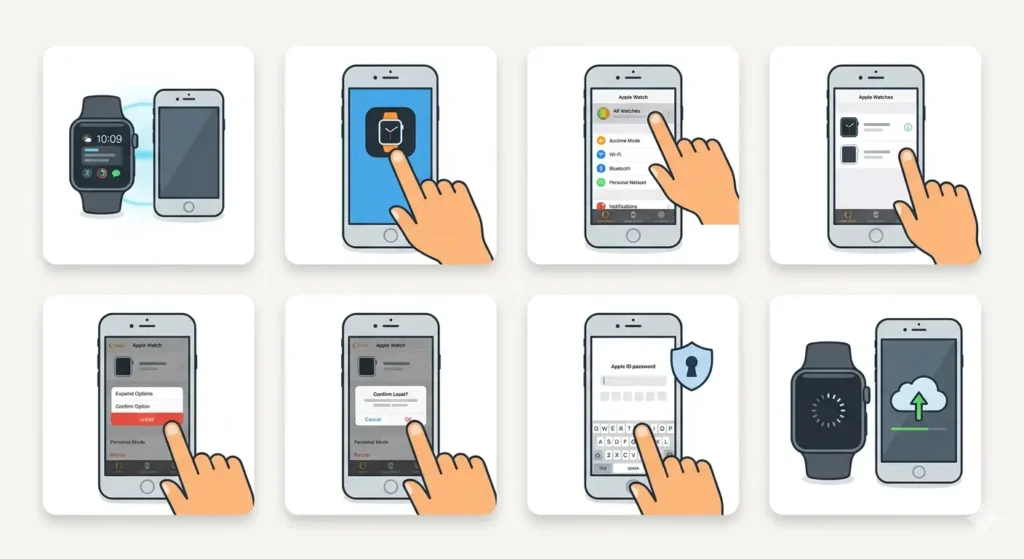
The first step involves unpairing the Apple Watch from the previous iPhone. This creates a backup that will be used to restore the watch on the new device.
- Step 1: Keep the Apple Watch and old iPhone close together during this process
- Step 2: Open the Watch app on the old iPhone
- Step 3: Tap on ‘All Watches’ at the top of the screen
- Step 4: Tap the info button (i) next to the Apple Watch that needs to be unpaired
- Step 5: Select ‘Unpair Apple Watch’ and confirm the action
- Step 6: Enter the Apple ID password when prompted to disable Activation Lock
- Step 7: Wait for the unpairing process to complete – this creates an automatic backup
Pro-Tip: The automatic backup created during unpairing includes all watch settings, app data, watch faces, and health information. This backup cannot be accessed manually but will be used automatically when pairing with the new iPhone.
Pairing the Apple Watch with the New iPhone
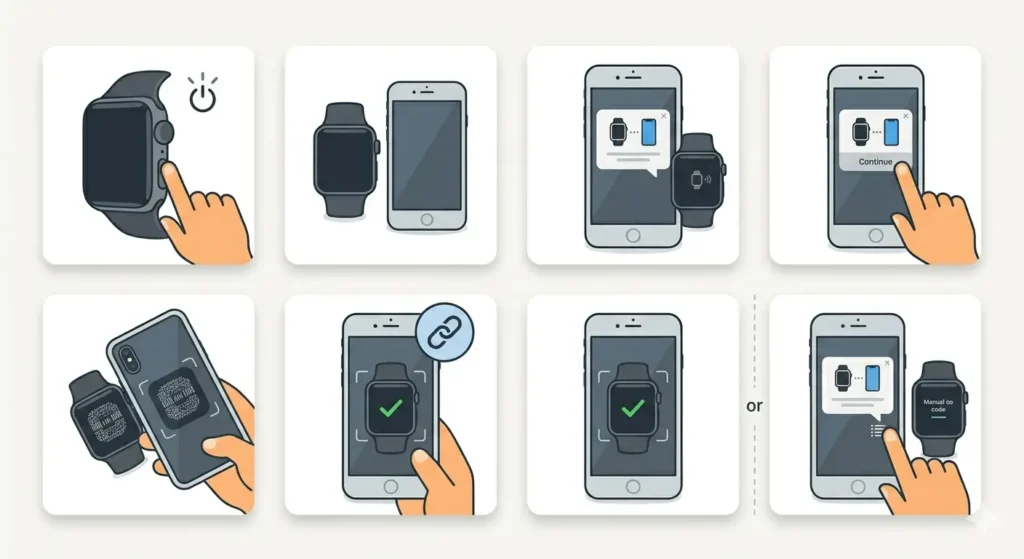
Once the Apple Watch is unpaired from the old device, it can be paired with the new iPhone. The watch will automatically enter pairing mode after being unpaired.
- Step 1: Turn on the Apple Watch by pressing and holding the side button
- Step 2: Place the Apple Watch close to the new iPhone
- Step 3: Wait for the ‘Use your iPhone to set up this Apple Watch’ message to appear on the iPhone
- Step 4: Tap ‘Continue’ on the iPhone
- Step 5: Hold the iPhone over the Apple Watch so the watch face appears in the camera viewfinder
- Step 6: Center the watch face in the frame until the ‘Apple Watch Paired’ message appears
- Step 7: If the camera method does not work, tap ‘Pair Apple Watch Manually’ and follow the on-screen instructions
Restoring from Backup
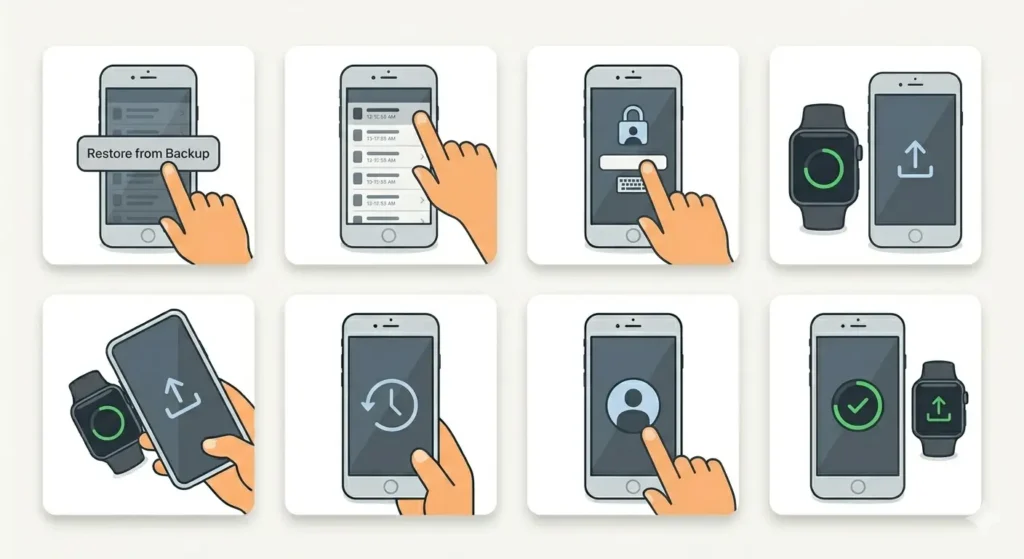
After the initial pairing is complete, the iPhone will prompt to restore the Apple Watch from a previous backup.
- Step 1: When prompted, select ‘Restore from Backup’
- Step 2: Choose the most recent backup from the list
- Step 3: Enter the Apple ID password if required
- Step 4: Wait for the restoration process to complete – this may take several minutes depending on the amount of data
Pro-Tip: The restoration process happens in the background. The Apple Watch can be worn and used during this time, but some apps and data may not be available until the process finishes completely.
Completing the Setup
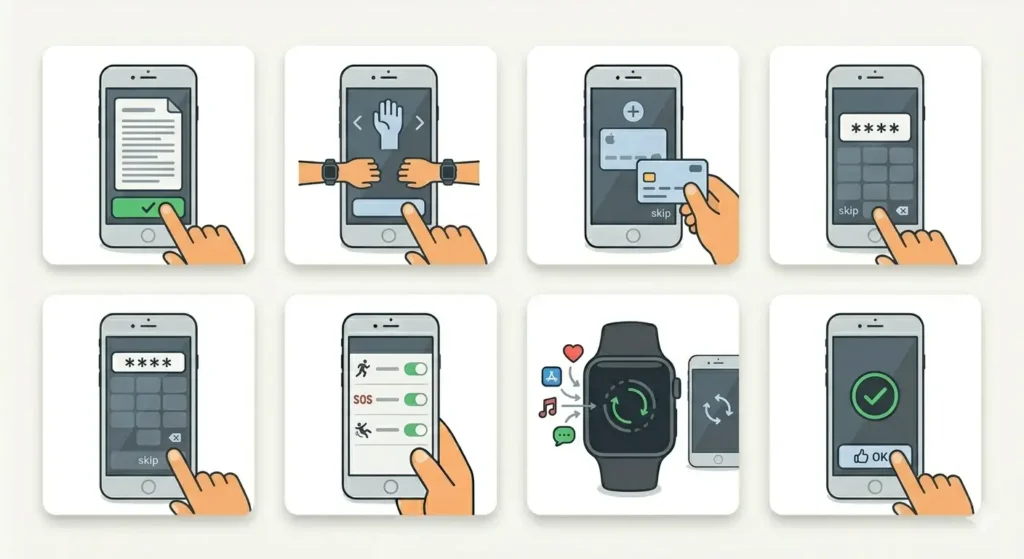
The final steps involve configuring basic settings and features on the newly paired Apple Watch.
- Step 1: Agree to the Terms and Conditions when prompted
- Step 2: Choose which wrist to wear the watch on
- Step 3: Set up Apple Pay by adding credit or debit cards (optional)
- Step 4: Create a passcode for the Apple Watch or choose to add one later
- Step 5: Enable or disable features like Fall Detection, Emergency SOS, and Activity tracking
- Step 6: Wait for all apps to sync from the iPhone to the Apple Watch
- Step 7: Tap ‘OK’ when the setup is complete
Tips for a Smooth Pairing Process
These practical tips help ensure the pairing process goes smoothly without interruptions:
- Keep both devices charged throughout the entire process to avoid power-related interruptions
- Use a stable Wi-Fi connection rather than cellular data for faster backup and restoration
- Avoid moving the devices too far apart during pairing – stay within 3-5 feet
- Update both devices to the latest software versions before starting
- Disable VPN connections on the iPhone temporarily as they can interfere with the pairing process
- Check the time settings on both devices to ensure they match the current timezone
- Restart both devices if the pairing process stalls or encounters errors
Common Problems and Solutions
Here are solutions to the most frequently encountered issues during the pairing process:
The Pairing Animation Does Not Appear
If the camera viewfinder does not recognize the Apple Watch face, tap ‘Pair Apple Watch Manually’ at the bottom of the screen. Then select the watch name from the list of available devices and enter the code displayed on the watch screen into the iPhone.
The Apple Watch Shows an iCloud Activation Lock
This occurs when the watch was not properly unpaired from the previous iPhone. Contact the previous owner to have them unpair the watch from their Apple ID, or use the original iPhone to complete the unpairing process through the Watch app.
The Backup Does Not Appear
Ensure the new iPhone is signed in with the same Apple ID that was used on the old iPhone. Backups are tied to specific Apple IDs and will not appear if signed in with a different account. Check iCloud settings to verify the correct account is active.
Apps Are Not Downloading to the Watch
Open the Watch app on the iPhone, scroll to the ‘Available Apps’ section, and manually install apps that did not download automatically. Some third-party apps require manual installation even after restoration. Using tools like an online stopwatch can help track how long the app installation process takes.
The Pairing Process Keeps Failing
Restart both the iPhone and Apple Watch. Press and hold the side button on the watch until ‘Power Off’ appears, then drag the slider. On the iPhone, restart through Settings or by using the physical buttons. After both devices restart, attempt the pairing process again from the beginning.
Frequently Asked Questions
Can an Apple Watch be paired with two iPhones at the same time?
No, an Apple Watch can only be paired with one iPhone at a time. To switch between iPhones, the watch must be unpaired from the current device and then paired with the new one.
Does pairing with a new iPhone delete data from the Apple Watch?
Yes, the unpairing process erases all data from the Apple Watch, but a backup is created automatically. When pairing with the new iPhone, this backup is used to restore all settings, apps, and data.
How long does it take to pair an Apple Watch with a new iPhone?
The initial pairing typically takes 5-10 minutes, but the complete restoration process can take 15-30 minutes depending on the amount of data being transferred and the speed of the internet connection.
What happens to health data when pairing with a new iPhone?
Health and fitness data are included in the Apple Watch backup and will be restored to the new iPhone. However, the new iPhone must have the Health app properly configured to receive this data.
Can an Apple Watch be paired without the old iPhone?
Yes, but the watch must be manually erased first. Press and hold the side button until ‘Power Off’ appears, then press and hold the Digital Crown and select ‘Erase all content and settings’. This puts the watch in a fresh state ready for pairing, but no backup will be available for restoration.
Does the Apple Watch need to be updated before pairing?
Not necessarily. The Apple Watch will check for updates during the pairing process and can be updated after pairing is complete. However, having the latest watchOS version can prevent compatibility issues.
Will cellular service transfer to the new iPhone automatically?
Yes, if the Apple Watch has cellular connectivity, the service plan will transfer automatically when pairing with the new iPhone. The carrier may send a confirmation message once the transfer is complete.
Can Family Setup watches be paired with a new iPhone?
Yes, Apple Watches set up through Family Setup can be paired with a new iPhone. The family member managing the watch must unpair it from the old device and then pair it with the new iPhone using the same Family Setup process.
What should be done if the passcode is forgotten during pairing?
If the Apple Watch passcode is forgotten, the watch must be erased completely. Place the watch on its charger, press and hold the side button until ‘Power Off’ appears, then press and hold the Digital Crown and select ‘Erase all content and settings’. After erasing, the watch can be paired as a new device.
Does pairing with a new iPhone affect Apple Watch bands or accessories?
No, the pairing process only affects software and data. Physical accessories like bands, charging cables, and protective cases remain compatible and do not need to be reconfigured. Keep track of charging schedules to maintain optimal battery health on the newly paired watch.