
Setting up a new Apple Watch is straightforward when following the right steps. This guide walks through the complete setup process, from unboxing to customization, ensuring the device syncs properly with an iPhone and functions exactly as intended.
Quick Summary Table
| Setup Stage | Time Required | Key Requirement |
|---|---|---|
| Initial Pairing | 2-3 minutes | iPhone with iOS 17 or later |
| Software Update | 10-20 minutes | WiFi connection |
| Customization | 5-10 minutes | Personal preferences |
| Total Setup Time | 20-35 minutes | Charged Apple Watch and iPhone |
Before Starting the Setup Process
The Apple Watch requires an iPhone 8 or newer running iOS 17 or later. Check that both devices have sufficient battery – at least 50% charge is recommended to avoid interruptions during the setup process. The watch should be charged using the included magnetic charging cable for at least 30 minutes before beginning.
Make sure the iPhone has an active internet connection through WiFi or cellular data. The Apple ID and password will be needed during setup, so have those credentials ready. If setting up an Apple Watch for a family member, ensure Family Setup is available on the specific watch model.
Turn On and Pair the Apple Watch
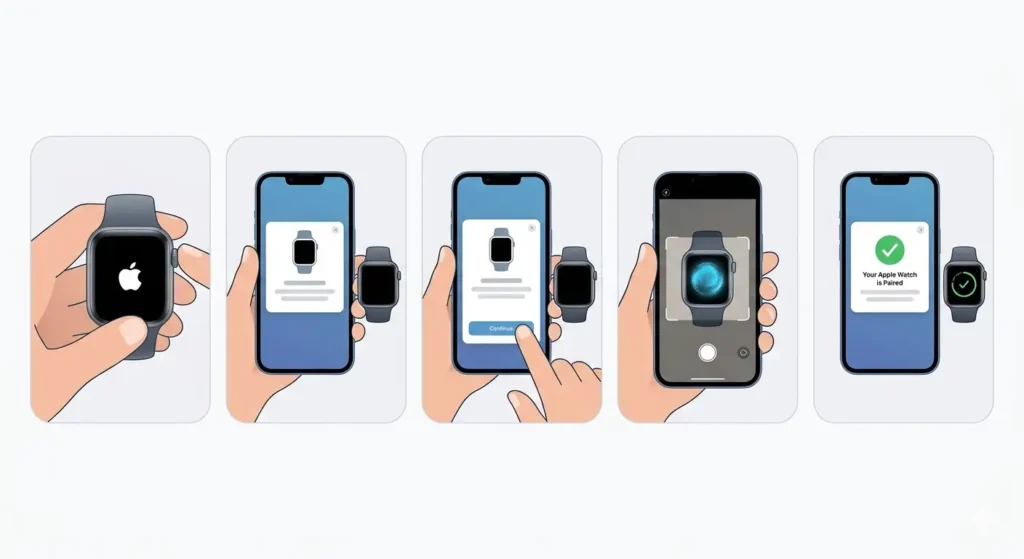
Step 1: Press and hold the side button on the Apple Watch until the Apple logo appears on the screen.
Step 2: Hold the Apple Watch close to the iPhone. A pairing message will appear on the iPhone screen saying ‘Use your iPhone to set up this Apple Watch.’
Step 3: Tap ‘Continue’ on the iPhone. If the message does not appear, open the Watch app on the iPhone and select ‘Start Pairing.’
Step 4: Position the Apple Watch within the viewfinder on the iPhone screen. The camera will scan the watch face animation to establish the connection.
Step 5: Wait for the message ‘Your Apple Watch is Paired’ to appear on the iPhone.
Pro-Tip: If the camera method does not work, tap ‘Pair Apple Watch Manually’ and follow the on-screen instructions to enter a six-digit code displayed on the watch.
Choose Which Wrist to Wear the Watch
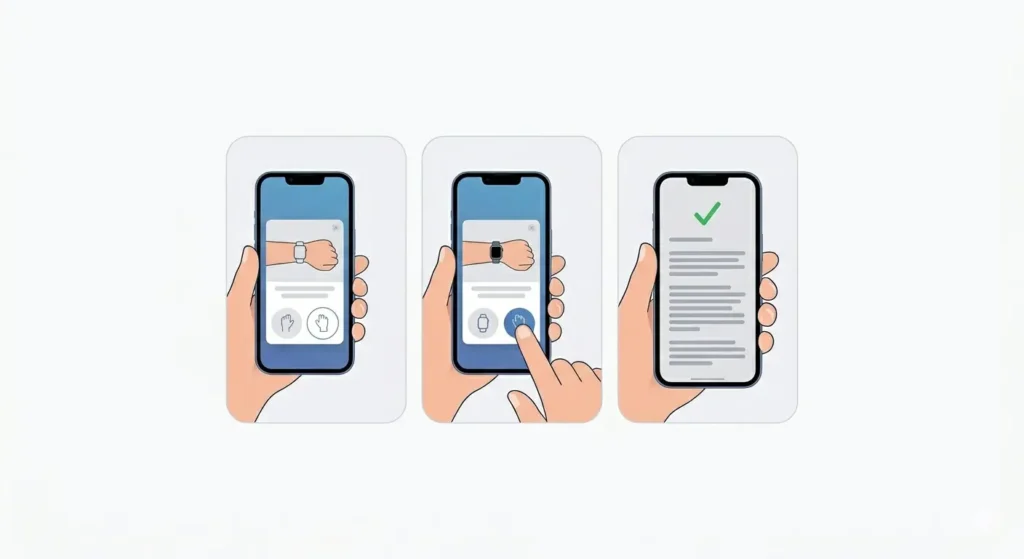
Step 1: On the iPhone, select either ‘Left’ or ‘Right’ wrist based on personal preference.
Step 2: Tap ‘Continue’ to proceed to the terms and conditions screen.
Step 3: Read through the terms and tap ‘Agree’ to accept them.
Sign In with Apple ID
Step 1: Enter the Apple ID password when prompted on the iPhone.
Step 2: Wait for the verification process to complete. This links the Apple Watch to the iCloud account.
Step 3: If two-factor authentication is enabled, enter the verification code sent to trusted devices.
Configure Location Services and Settings
Step 1: Choose whether to enable Location Services. This allows apps and features like Maps, Weather, and Workout tracking to function properly.
Step 2: Select ‘Enable Location Services’ for full functionality or ‘Disable’ if privacy is a priority.
Step 3: Choose whether to share Apple Watch analytics with Apple. This is optional and can be changed later in settings.
Set Up Apple Pay on Apple Watch
Step 1: Tap ‘Continue’ when the Apple Pay setup screen appears.
Step 2: Choose to add the same cards already on the iPhone or add a new card manually.
Step 3: Follow the verification steps sent by the bank via SMS or email.
Step 4: Tap ‘Skip’ to set up Apple Pay later if preferred.
Create a Passcode for the Watch
Step 1: Choose ‘Create a Passcode’ on the iPhone screen.
Step 2: Enter a four-digit or longer passcode directly on the Apple Watch screen using the digital crown to scroll and tapping to select numbers.
Step 3: Re-enter the passcode to confirm.
Step 4: Choose whether to unlock the watch automatically when the paired iPhone is unlocked. This feature adds convenience while maintaining security.
Pro-Tip: A passcode is required for Apple Pay to work on the watch, so setting one up during initial configuration saves time later.
Install Available Apps
Step 1: On the ‘Install Available Apps’ screen, choose ‘Install All’ to automatically download apps from the iPhone to the watch.
Step 2: Select ‘Choose Later’ to manually pick which apps to install from the Watch app on the iPhone.
Step 3: Wait for the apps to download and install. This process may take several minutes depending on the number of apps and internet speed.
Keep Apple Watch Up to Date
Step 1: The setup process will check for available software updates. Tap ‘Install’ if an update is available.
Step 2: Place the Apple Watch on its charger and ensure it has at least 50% battery.
Step 3: Keep the iPhone near the watch and connected to WiFi during the update process.
Step 4: Wait for the update to complete. The watch will restart automatically when finished.
Customize Watch Face and Settings
Step 1: Press the digital crown to view the watch face.
Step 2: Press and hold the watch face to enter customization mode.
Step 3: Swipe left or right to browse different watch face options.
Step 4: Tap ‘Customize’ and use the digital crown to adjust colors, complications, and styles.
Step 5: Press the digital crown again to save the changes.
Set Up Health and Fitness Features
Step 1: Open the Health app on the iPhone.
Step 2: Enter personal details including date of birth, height, and weight for accurate health tracking.
Step 3: Open the Activity app on the watch and set daily movement goals.
Step 4: Enable heart rate monitoring and other health features from the Watch app on the iPhone under ‘Privacy’ settings.
Configure Notification Preferences
Step 1: Open the Watch app on the iPhone.
Step 2: Tap ‘Notifications’ to view all apps that can send alerts to the watch.
Step 3: Toggle notifications on or off for specific apps based on preference.
Step 4: Customize notification settings like sound, haptics, and notification privacy directly from this menu.
Adjust Display and Brightness Settings
Step 1: Open the Watch app on the iPhone and select ‘Display & Brightness.’
Step 2: Choose between ‘Always On’ (for Series 5 and later) or ‘Wake on Wrist Raise.’
Step 3: Adjust brightness using the slider or enable ‘Auto-Brightness’ for automatic adjustments based on ambient light.
Step 4: Set text size and bold text options for better readability.
Sync Music and Podcasts
Step 1: Open the Watch app on the iPhone and scroll to ‘Music.’
Step 2: Tap ‘Add Music’ and select playlists to sync to the watch.
Step 3: Place the watch on its charger to begin downloading music. Syncing only occurs when the watch is charging.
Step 4: Repeat the process for podcasts by selecting the ‘Podcasts’ option in the Watch app.
Tips for Getting the Most Out of Apple Watch
- Enable ‘Theater Mode’ during movies or meetings to prevent the screen from lighting up with wrist movements. Access this by swiping up on the watch face and tapping the theater mask icon.
- Use the online stopwatch feature on the watch for precise timing during workouts or cooking.
- Customize the Control Center by opening the Watch app on iPhone, selecting ‘Control Center,’ and rearranging shortcuts for quick access.
- Set up ‘Do Not Disturb’ schedules to automatically silence notifications during sleep or focused work time.
- Enable ‘Wrist Detection’ in the Watch app under ‘Passcode’ settings to ensure the watch locks automatically when removed from the wrist.
- Check world time comparison directly from the watch by adding the World Clock complication to the watch face for quick reference when traveling.
- Download third-party apps from the App Store directly on the watch by pressing the digital crown, tapping the App Store icon, and searching for desired apps.
- Use the Breathe app daily for guided breathing exercises that help reduce stress and improve focus.
Common Problems and Solutions
Apple Watch Won’t Pair with iPhone
Ensure both devices have Bluetooth and WiFi enabled. Restart both the iPhone and Apple Watch by holding the side button until the power off slider appears. Move the devices closer together and try pairing again through the Watch app.
Pairing Code Not Appearing on Watch
Force restart the Apple Watch by holding both the side button and digital crown for at least 10 seconds until the Apple logo appears. Open the Watch app on the iPhone and attempt to pair again.
Software Update Stuck or Failing
Verify the Apple Watch is on its charger with at least 50% battery. Check that the iPhone is connected to a stable WiFi network. Restart both devices and attempt the update again from the Watch app under ‘General’ and ‘Software Update.’
Apps Not Installing on Watch
Open the Watch app on the iPhone, scroll to the app in question, and ensure ‘Show App on Apple Watch’ is toggled on. Check available storage on the watch by going to ‘General’ and ‘Usage’ in the Watch app. Delete unnecessary apps or data if storage is full.
Notifications Not Appearing on Watch
Verify notification settings are enabled for specific apps in the Watch app under ‘Notifications.’ Check that the iPhone is not in Do Not Disturb mode, as this affects watch notifications. Ensure the watch is unlocked and on the wrist, as notifications only appear when wrist detection confirms the watch is being worn.
Frequently Asked Questions
Can the Apple Watch be set up without an iPhone?
The Apple Watch requires an iPhone for initial setup. However, Apple Watch models with cellular capability can function independently for calls, messages, and apps after the initial pairing is complete. Family Setup allows certain models to be configured for family members without their own iPhone.
How long does Apple Watch setup take?
The complete setup process typically takes 20 to 35 minutes, including software updates. The actual pairing takes only 2 to 3 minutes, but downloading apps and updating watchOS can extend the total time depending on internet speed and the number of apps being installed.
What happens if the Apple Watch runs out of battery during setup?
If the battery dies during setup, place the watch on its charger and allow it to charge for at least 30 minutes before resuming. The setup process will continue from where it stopped once the watch has sufficient power.
Can multiple Apple Watches be paired to one iPhone?
Yes, an iPhone can be paired with multiple Apple Watches. Open the Watch app on the iPhone, tap ‘All Watches’ at the top of the screen, and select ‘Add Watch’ to pair an additional device. Only one watch can be actively connected at a time, but switching between them is simple through the Watch app.
Is a passcode required during Apple Watch setup?
A passcode is not mandatory but is strongly recommended for security. Apple Pay will not function without a passcode, and certain health and fitness features require passcode protection to ensure data privacy.
How much storage space does the Apple Watch have?
Storage varies by model. The Apple Watch Series 9 and Ultra 2 come with 64GB, while earlier models like Series 7 and 8 have 32GB. Check available storage in the Watch app on the iPhone under ‘General’ and ‘Usage.’
Can the Apple Watch be reset and set up again?
Yes, the Apple Watch can be erased and set up as new or restored from a backup. Open the Watch app on the iPhone, select the watch, tap the ‘i’ icon, choose ‘Unpair Apple Watch,’ and follow the prompts. The watch can then be paired and set up again from scratch.
Does the Apple Watch need WiFi to complete setup?
WiFi is required for downloading software updates and syncing apps during setup. While the initial pairing can occur over Bluetooth, a WiFi connection ensures the watch receives the latest watchOS version and all available apps install properly.
Can the Apple Watch be used with an Android phone?
No, the Apple Watch is only compatible with iPhones running iOS 17 or later. There is no official support for pairing an Apple Watch with Android devices.
What should be done if the setup process freezes?
Restart both the Apple Watch and iPhone. On the watch, hold the side button and digital crown simultaneously for 10 seconds until the Apple logo appears. On the iPhone, restart through the settings or by holding the power button. After both devices restart, open the Watch app and attempt setup again.