

When you need to set your time and time zone manually in Windows, whether due to automatic synchronization issues, traveling without internet access, or working in specialized environments, knowing the exact steps ensures your system displays accurate time information. Windows typically manages time settings automatically, but manual configuration gives you complete control over how your computer displays dates and times.
Understanding how to properly configure these settings prevents scheduling conflicts, ensures accurate timestamps on files and emails, and helps maintain productivity across different time zones. This comprehensive guide walks you through every step of manually adjusting your Windows time and time zone settings.
Why Manual Time Configuration Matters
While Windows automatic time synchronization works seamlessly for most users, certain situations require manual intervention. Computers without internet connectivity cannot sync with time servers, leading to drift over weeks or months. Some corporate networks block time synchronization protocols for security reasons, necessitating manual updates.
Professionals working with servers, testing environments, or legacy systems often need precise control over system time. Developers testing time-dependent applications, forensic analysts examining digital evidence, and systems administrators managing servers across multiple time zones all benefit from understanding manual time configuration.
Additionally, if you’re frequently checking times across different regions, tools like Current Local Times Around the world can complement your manual settings by providing quick reference for global time zones.
Accessing Windows Time and Date Settings
Windows introduced a redesigned Settings interface with streamlined navigation. To access time and date configuration, click the Start button or press the Windows key on your keyboard. Type “date and time” into the search bar, and select “Date & time settings” from the results that appear.
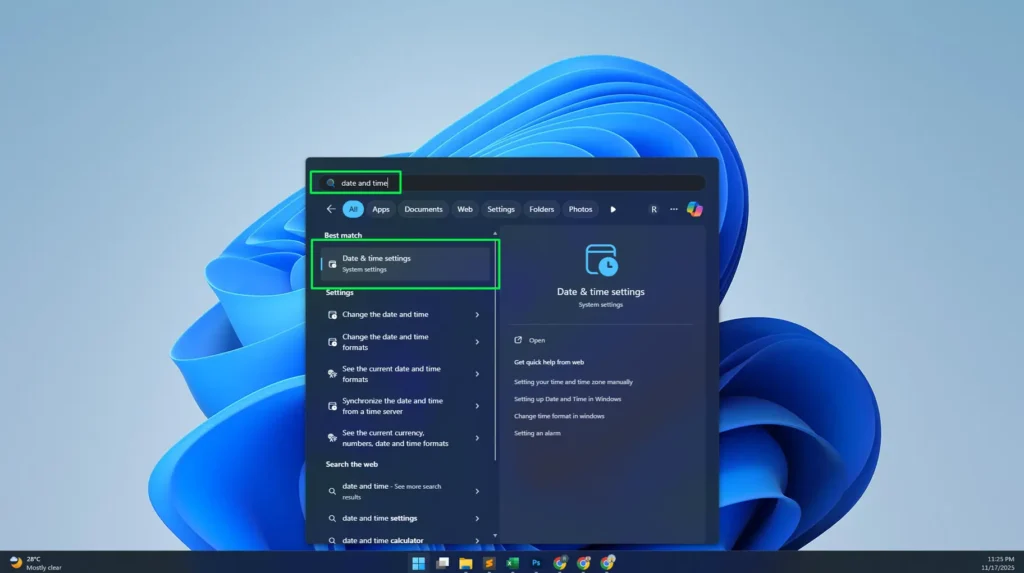
Alternatively, right-click the clock in the system tray located at the bottom-right corner of your taskbar. Select “Adjust date and time” from the context menu. This method provides quick access without navigating through multiple settings pages.

You can also access these settings through the full Settings app by pressing Windows + I, selecting “Time & language” from the left sidebar, then clicking “Date & time” in the main panel. All three methods lead to the same configuration page where you can make manual adjustments.
Disabling Automatic Time Synchronization
Before you can set your time and time zone manually Windows, you must disable the automatic synchronization features. On the Date & time settings page, locate the “Set time automatically” toggle switch. This option appears near the top of the page with a blue toggle when enabled.
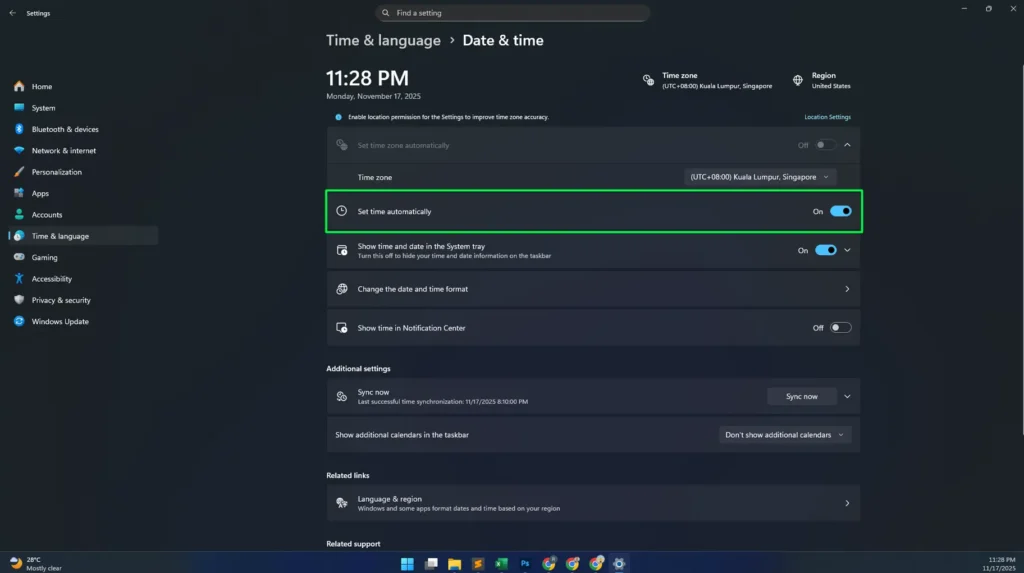
Click the toggle switch to turn it off. The switch will slide to the left and change from blue to gray, indicating automatic time synchronization is now disabled. Once disabled, Windows will no longer contact internet time servers to update your system clock.
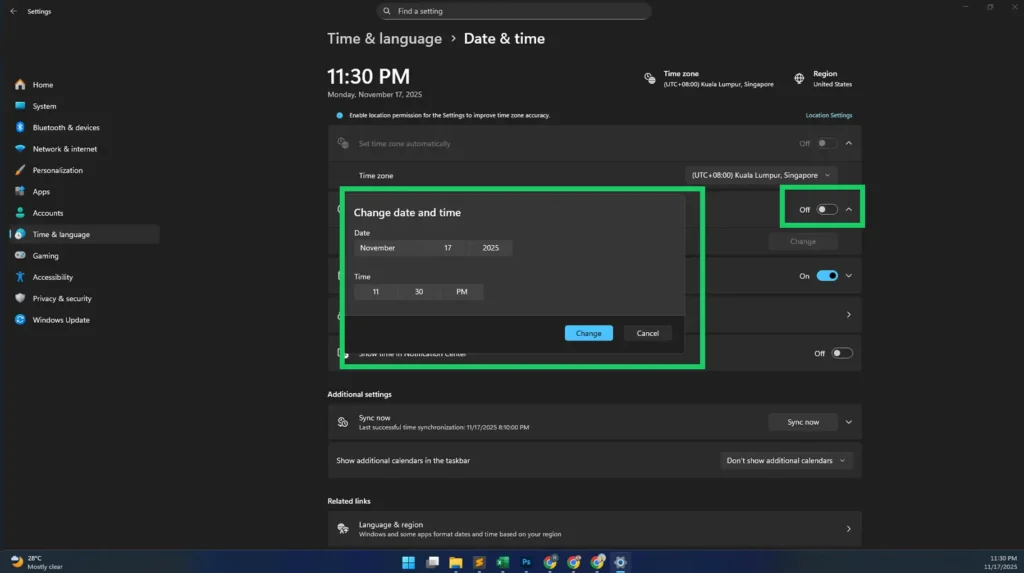
Similarly, find the “Set time zone automatically” toggle switch just below the time setting. Disable this option by clicking the toggle. With both automatic settings turned off, you gain full manual control over your system’s time and time zone configuration.
Setting Your Time Zone Manually
With automatic time zone detection disabled, a dropdown menu labeled “Time zone” becomes active. Click this dropdown to reveal a comprehensive list of all available time zones organized by UTC offset and major cities.
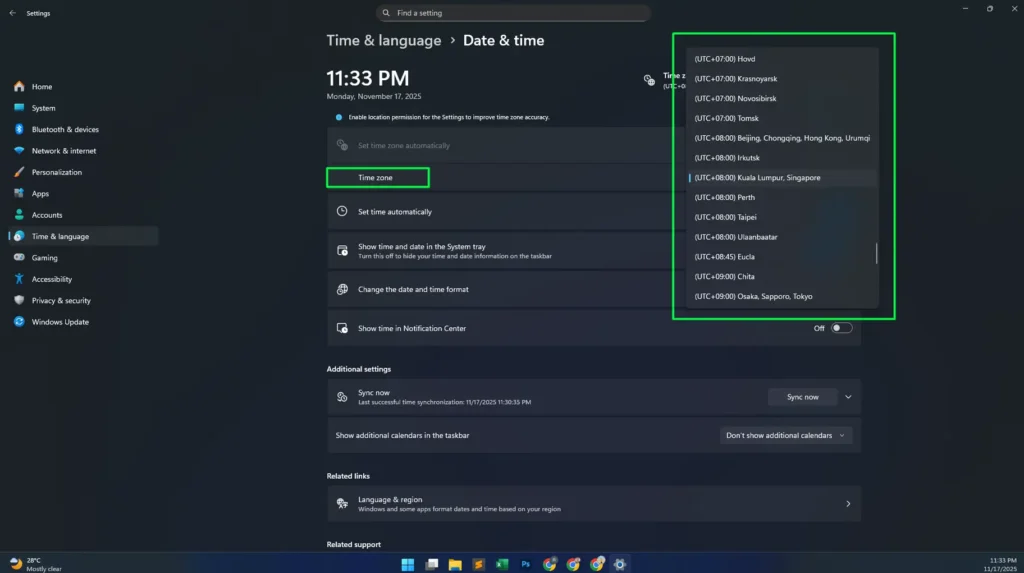
The list displays entries in the format “(UTC+/-offset) City, Region” making it easy to identify your location. For example, “(UTC+08:00) Kuala Lumpur, Singapore” or “(UTC-05:00) Eastern Time (US & Canada)”. Scroll through the list or type the first few letters of your city to quickly locate your time zone.
Select your appropriate time zone by clicking on it. The selection immediately applies, and your system clock adjusts to reflect the chosen time zone. If you’re in an area that observes daylight saving time, Windows automatically handles the transitions if the time zone data includes DST information.
For users managing schedules across multiple time zones, using a Timer Tools alongside proper time zone configuration helps maintain accurate timing for meetings and deadlines.
Manually Adjusting Date and Time
After disabling automatic time synchronization, a “Change” button appears next to the “Set the date and time manually” option. Click this button to open the manual date and time adjustment dialog box.

The dialog displays two sections: date selection and time adjustment. The date section shows a calendar picker where you can click on the correct date. Use the month and year dropdowns at the top of the calendar to navigate to different periods quickly.
Below the calendar, you’ll find time adjustment fields showing hours and minutes. Click on the hour field and type the correct hour in 24-hour format, or use the up and down arrows to increment or decrement values. Repeat this process for the minutes field.
After entering the correct date and time, click the “Change” button at the bottom of the dialog. Your system clock immediately updates to reflect the manually configured values. The taskbar clock and all time-dependent applications now use your manually set time.
Understanding Time Zone Formats and UTC Offsets
Windows displays time zones using Coordinated Universal Time (UTC) offsets, which represent the number of hours a time zone differs from UTC. Positive offsets indicate time zones east of the prime meridian, while negative offsets represent western time zones.
For instance, UTC+08:00 means the local time is eight hours ahead of UTC, covering regions like Singapore, Manila, and Perth. UTC-05:00 represents Eastern Time in North America, five hours behind UTC. Understanding these offsets helps when coordinating with international colleagues or scheduling global events.
Some time zones include multiple cities in their description because they share the same offset and DST rules. Selecting any city within a grouped time zone produces identical results. The grouped format simply helps users identify their location more easily within the extensive time zone list.
Configuring Additional Date and Time Settings
The Windows Date & time settings page offers several additional configuration options beyond basic time and time zone settings. The “Show time and date in the System tray” toggle controls whether clock information appears on your taskbar. Keeping this enabled ensures quick time reference without opening additional windows.
The “Change the date and time format” option allows customization of how Windows displays dates and times throughout the system. Click this option to access regional format settings where you can choose between different date formats like MM/DD/YYYY or DD/MM/YYYY, and time formats like 12-hour or 24-hour displays.
Under “Additional settings,” you’ll find the “Sync now” option with a timestamp showing when your system last synchronized with internet time servers. Although you’ve disabled automatic synchronization, you can manually trigger a sync by clicking “Sync now” when internet connectivity is available and you want to update your time from official sources.
Troubleshooting Common Time Setting Issues
If your manually set time keeps reverting to incorrect values, check if any applications or services are overriding your settings. Some VPN clients, virtual machine software, or enterprise management tools can reset time configurations based on network policies.
BIOS or UEFI firmware time settings can also conflict with Windows time configuration. If your computer consistently shows incorrect time after restarts, access your system’s BIOS/UEFI setup during boot and verify the hardware clock settings. Set the hardware clock to match your intended time zone, then configure Windows accordingly.
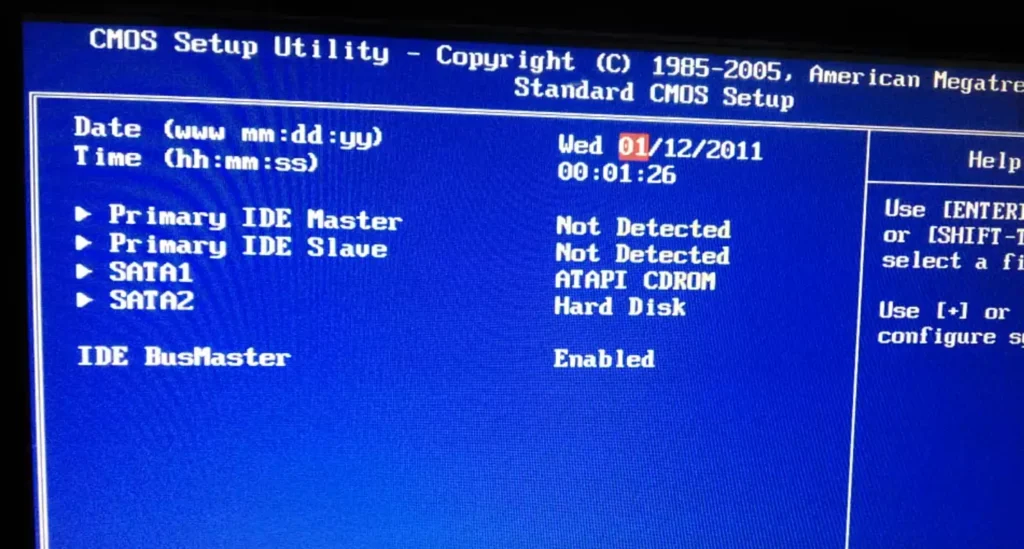
Group Policy settings in corporate environments may prevent manual time changes. If the manual time setting options appear grayed out or disabled, contact your IT administrator. They can adjust group policies to permit manual time configuration if justified by your work requirements.
For persistent issues, check Windows Event Viewer for time-related errors. Press Windows + X and select “Event Viewer,” then navigate to Windows Logs > System and filter for events from the “Time-Service” source. Error messages here can indicate specific problems preventing proper time configuration.
Time Synchronization Best Practices
While manual time setting provides control, maintaining accuracy requires periodic verification against reliable time sources. If you work offline frequently, establish a routine to check and adjust your system time weekly. Even high-quality computer clocks drift several seconds per month without synchronization.
When internet connectivity is available, consider temporarily enabling automatic time synchronization to update your clock from authoritative time servers. After synchronization completes, you can disable automatic updates again. This approach balances manual control with periodic accuracy corrections.
Document any time zone changes you make, especially if you manage multiple computers or travel frequently. Maintaining records prevents confusion about which systems use which time zones, particularly important when coordinating across devices for time-sensitive work.
For comprehensive time management guidance, explore additional resources at CheckDateTime Guides covering various time-related topics and tools.
Impact on Applications and System Functions
Manually configured time settings affect all Windows applications and system functions that rely on time data. Email clients use system time for message timestamps, so incorrect settings can cause messages to appear out of order or with future dates, confusing recipients and disrupting conversation threads.
File system operations record creation, modification, and access times based on system clock values. Incorrect time settings create misleading file metadata, potentially causing issues with backup software, version control systems, and file synchronization tools that rely on timestamps to determine which files changed.
Scheduled tasks and automated scripts execute based on system time. If your manually set time differs significantly from actual time, scheduled maintenance, backups, or automated reports may run at unexpected moments or fail to execute when needed. Review all scheduled tasks after manually adjusting time settings.
Security certificates and encrypted connections depend on accurate time synchronization. Significant time discrepancies can prevent secure website connections, VPN access, and software license validation. Many security protocols reject connections when client time differs more than a few minutes from server time.
Regional Formats and Cultural Considerations
Beyond time zones, Windows allows customization of how dates, times, and numbers appear throughout the system. Access these settings through “Language & region” in the Time & language section of Settings. The “Regional format” dropdown lets you select formats matching your cultural preferences.
Different regions use varied date formats. Americans typically prefer MM/DD/YYYY while Europeans use DD/MM/YYYY and many Asian countries use YYYY/MM/DD. Selecting your regional format ensures applications display dates in familiar patterns, reducing confusion when reading timestamps.
Time format preferences vary similarly. Some regions prefer 12-hour time with AM/PM indicators while others use 24-hour format. Currency symbols, decimal separators, and measurement units also adjust based on regional format settings, creating a more localized computing experience.
Command Line Time Configuration
Advanced users can configure time and date settings through Command Prompt or PowerShell for scripting and automation purposes. Open Command Prompt as administrator and use the “time” command followed by the desired time in HH:MM format to set system time manually.
The “date” command works similarly for setting the system date. Type “date” followed by the date in your regional format. These commands provide quick time adjustments without navigating through Settings interfaces, useful for batch scripts or remote system management.
PowerShell offers more sophisticated time management through cmdlets. The Set-Date cmdlet accepts various date and time formats and provides parameter options for precise control. For example, “Set-Date -Date ‘2025-11-17 20:09:00′” sets both date and time in a single command.
Time Synchronization Table Reference
| Setting | Purpose | Recommended For |
|---|---|---|
| Set time automatically: On | Sync with internet time servers | Standard users with reliable internet |
| Set time automatically: Off | Manual time control | Offline systems, testing environments |
| Set time zone automatically: On | Detect location-based time zone | Mobile devices, frequent travelers |
| Set time zone automatically: Off | Fixed time zone selection | Desktop computers, specific time zones |
| Manual sync | One-time server synchronization | Periodic accuracy verification |
Windows Time & Date FAQ
How do I set my time and time zone manually in Windows?
To set your time and time zone manually in Windows, open Settings by pressing Windows + I, navigate to Time & language > Date & time, then disable “Set time automatically” and “Set time zone automatically” toggles. Click the “Change” button next to manual time settings to adjust date and time, and use the Time zone dropdown to select your preferred time zone.
Why is my Windows time incorrect even after manual setting?
Time settings may revert due to BIOS/UEFI clock settings, Group Policy restrictions in corporate environments, VPN or virtual machine software overrides, or third-party applications managing time synchronization. Check your BIOS time settings, verify no enterprise policies are blocking manual changes, and ensure no conflicting software is running.
Can I manually sync time in Windows without enabling automatic synchronization?
Yes, you can manually sync time without enabling automatic synchronization. In the Date & time settings, under Additional settings, click the “Sync now” button to perform a one-time synchronization with internet time servers. This allows you to maintain manual control while periodically updating from authoritative sources.
What is the difference between UTC offsets in Windows time zones?
UTC offsets indicate how many hours a time zone differs from Coordinated Universal Time (UTC).
- Positive offsets (like UTC+08:00) represent time zones east of the prime meridian.
- Negative offsets (like UTC-05:00) represent western time zones.
The number indicates hours ahead or behind UTC, helping coordinate across global time zones.
Does manual time setting affect file timestamps in Windows?
Yes, manual time settings directly affect all file timestamps including creation, modification, and access times. Incorrect time settings can create misleading file metadata, potentially causing issues with backup software, version control systems, and file synchronization tools that rely on accurate timestamps to determine file changes.
Conclusion
Mastering how to set your time and time zone manually Windows provides essential control over your system’s time configuration. Whether you need to work offline, test time-dependent applications, or simply prefer manual control over automatic synchronization, these techniques ensure accurate time display across all your Windows applications and system functions.
Remember to periodically verify your manually set time against reliable sources to prevent drift, and understand how time zone selections affect application behavior and scheduled tasks. With proper configuration and occasional maintenance, manual time management delivers the precision and control many professional and specialized computing environments require.